User Profile
Last updated: April 22, 2026
Overview
The User Profile page in Second Nature allows users to manage their personal information and update their passwords with ease. This ensures that users can keep their details up to date while maintaining the security of their accounts through password changes.
How do I get to my user profile?
1. Click your name icon on the bottom left part of Second Nature homepage.
2. In the opened menu click User Profile.
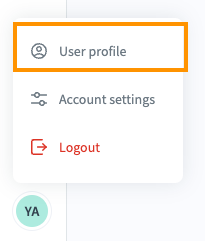
3. The User profile section is compiled out of 2 tabs: Profile and Password.
User profile: Profile tab
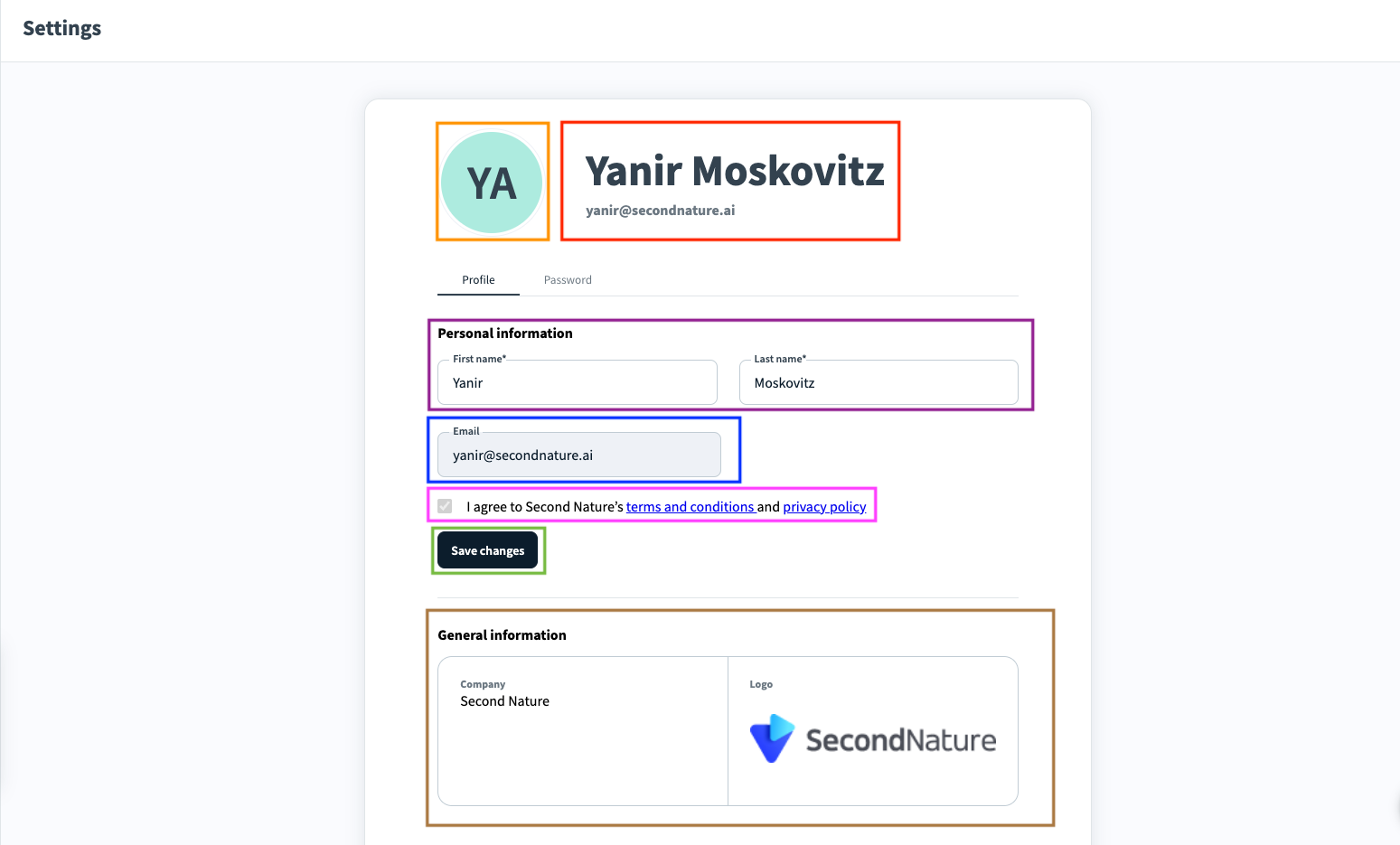
Orange rectangle: Upload / Remove photo – Users can upload or remove their profile photo.
Red rectangle: User information as listed at Second Nature. These details can only be changed in the Personal information section [see below].
Purple rectangle: Personal Information section. In this section the users can change their first and last name.
Blue rectangle: Users’ emails. This section cannot be edited.
Pink rectangle: Second Nature’s Terms & Conditions documents.
Green rectangle: Click the Save Changes button after making changes to your first or last name.
Brown rectangle: Company information. This section can not be edited.
NOTE:
To ensure that updates are applied, users must click Save Changes after making any modifications to their photo or name.
User profile: Password tab
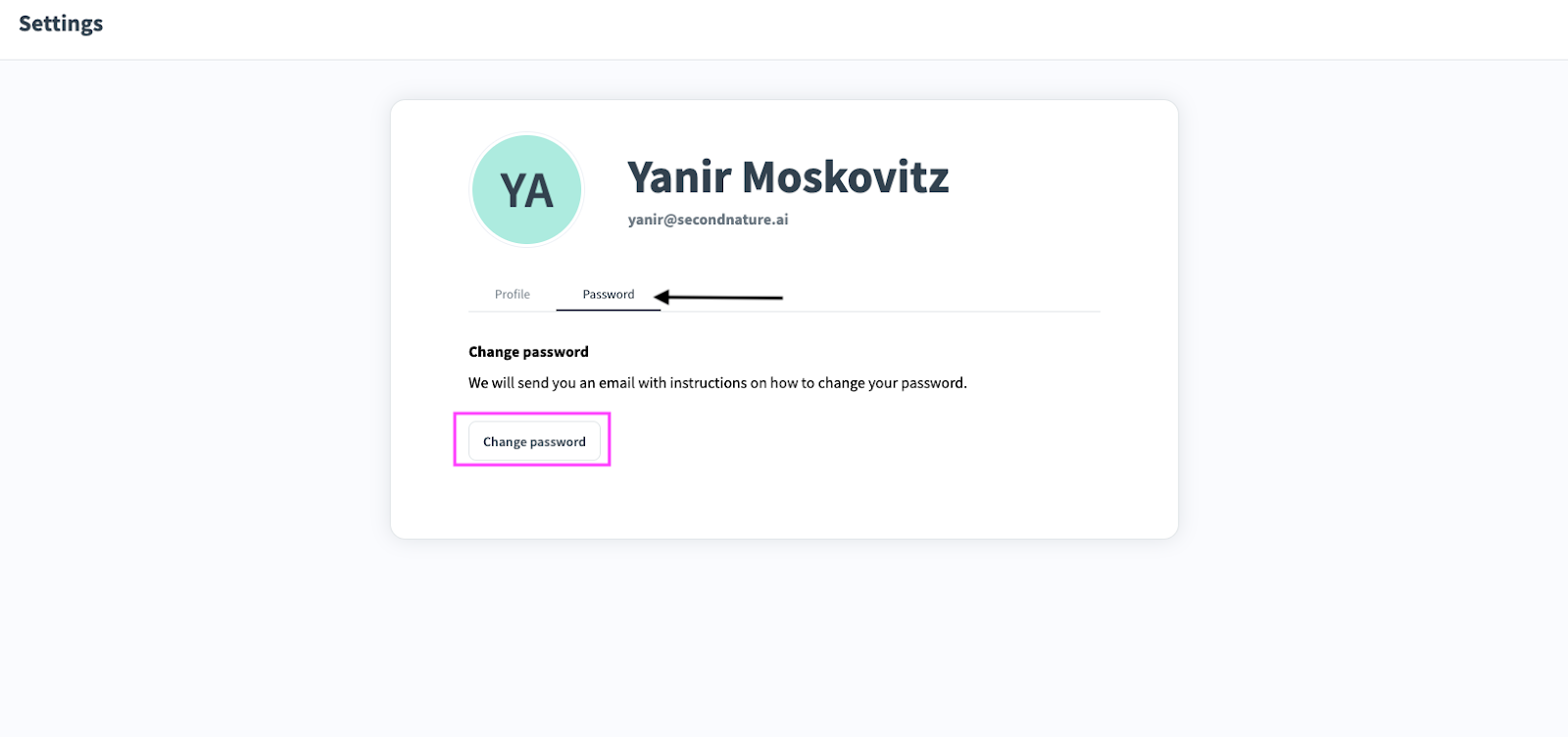
The Password tab includes the Change Password button [Pink rectangle above]. Once the user clicks on Change Password a link will be sent to their email address.