My Progress
Last updated: April 22, 2026
Overview
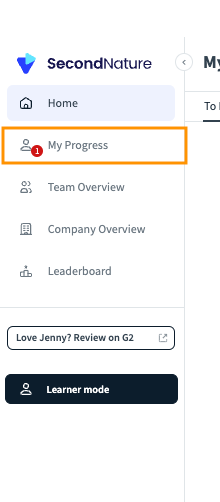
My Progress is where Second Nature users find information on their performance. It is located in the left-sided menu in the Second Nature app.
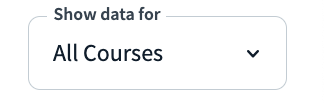
Within My Progress pages, there is a dropdown menu at the top right corner of the screen to filter out specific courses. After selecting a course from this menu, only the simulations, quizzes or other relevant information from this course will be displayed. By default, the All Courses option is selected, in order to display a more comprehensive breakdown of your progress.
The My Progress pages are broken down into four sections:
Assigned Courses
Sessions are the iterations (attempts) at interactive simulations. Trainees are encouraged to repeat simulations, adjusting their approach based on the feedback they are provided. This results in multiple sessions per simulation. If a course has one simulation task, and a trainee tries that same simulation three times, it should appear as three unique sessions associated with one course.
Example of “Assigned Courses” page:
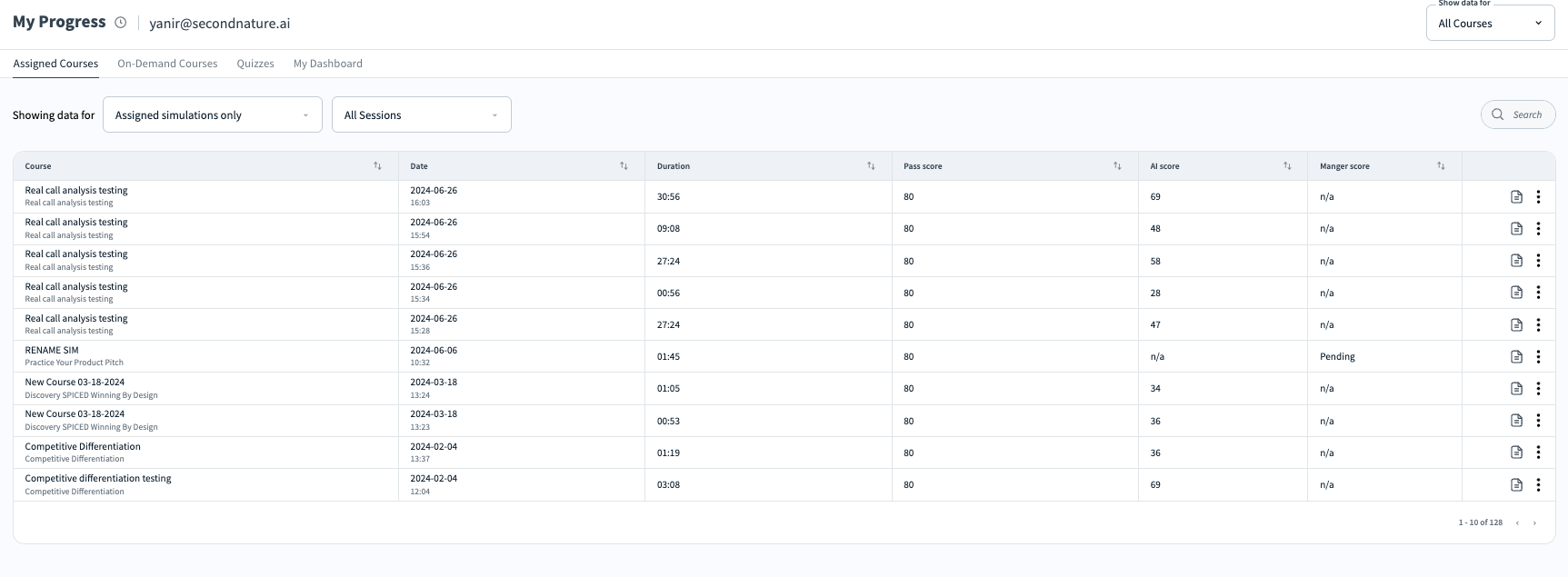
Within the My Progress > Assigned Courses section, there is information on your session's performance of only the courses that you were assigned to.
This info can be filtered according to 2 filters :
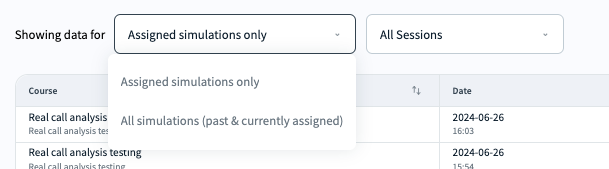
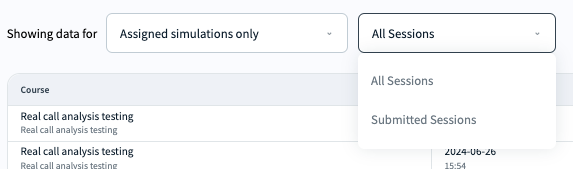
Assignment type - Filter the table data to show sessions based on the course assignment status:
'Assigned simulations only' - The table will show only simulations that the trainee is currently assigned to
'All simulations [past & currently assigned]' - The table will show simulations that the trainee is currently assigned and past simulations in which the trainee was assigned, started practicing, and then was un-assigned for some reason.
Submission type - Filter the table data to show simulations based on all sessions [AI-evaluated sessions and manual-evaluated sessions] or only the ones that were submitted for manual evaluation.
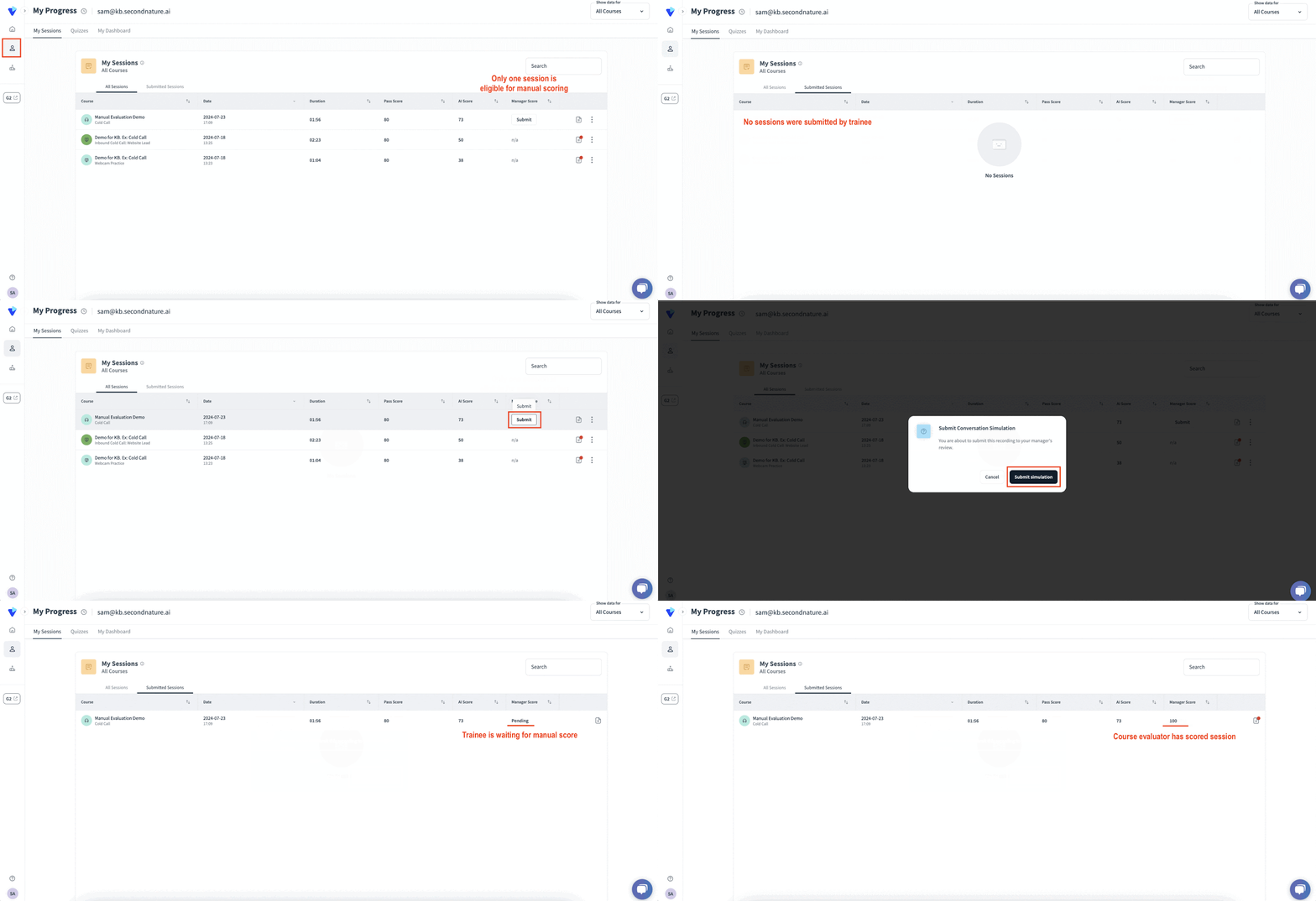
All Sessions - Shows all sessions that the trainee has done [regardless of the evaluation method]. If a session is eligible for manual grading, you will see a Submit (session) button in the “Manger Score” column of the relevant session, which you may press to notify the evaluator that a session is ready to be graded.
Submitted Sessions - filters out only the simulations that were submitted for manual evaluation by a course evaluator.
On the right-hand side of any record in My Sessions is a Sessions Analysis button

Within the Assigned Courses tab, you may also click the vertical ellipsis on the right-hand side of a record to reveal a dropdown menu. Press Delete to permanently delete a session.
TIP:
Trainees who complete the same simulation multiple times may opt to only submit their best attempt at a session.
GIF demonstrates what the Submitted Sessions section looks like 1. before the trainee, Sam, submits a session for evaluation 2. after submission 3. after it is evaluated
On-Demand Overview
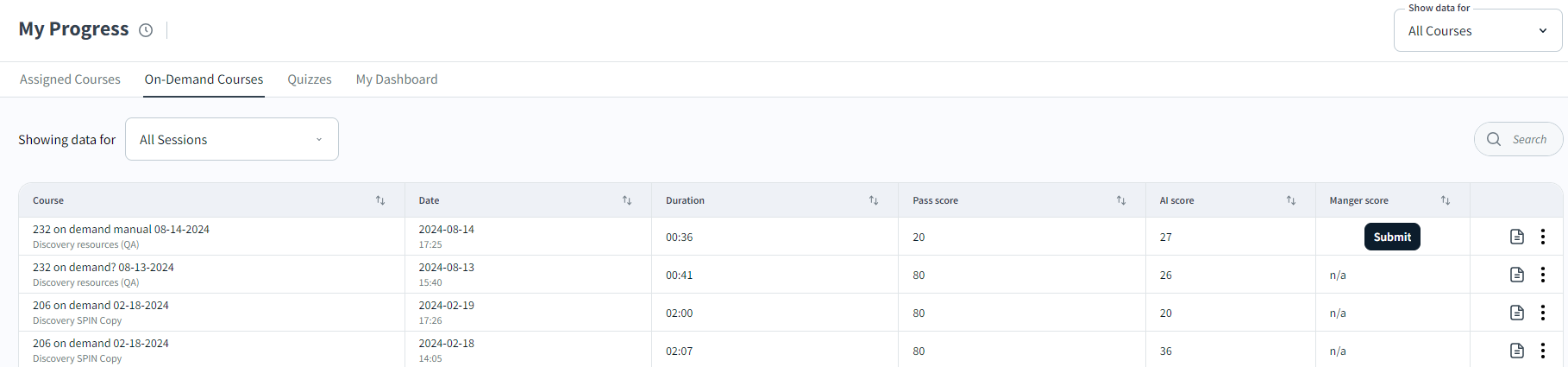
Within the My Progress > On-Demand Courses section, there is the performance data for your sessions from courses categorized as "On-Demand.".
Example of “On-Demand Courses” page:
This info can be filtered according to
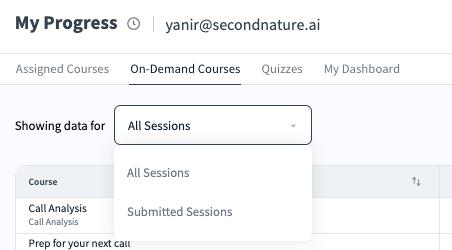
Submission type - Filter the table data to show simulations based on all sessions [AI-evaluated sessions and manually evaluated sessions] or only the ones that were submitted for manual evaluation.
All Sessions - Shows all sessions that the trainee has done [regardless of the evaluation method]. If a session is eligible for manual grading, you will see a Submit (session) button in the “Manger Score” column of the relevant session, which you may press to notify the evaluator that a session is ready to be graded.
Submitted Sessions - filters out only the simulations that were submitted for manual evaluation by a course evaluator.
Quizzes Overview
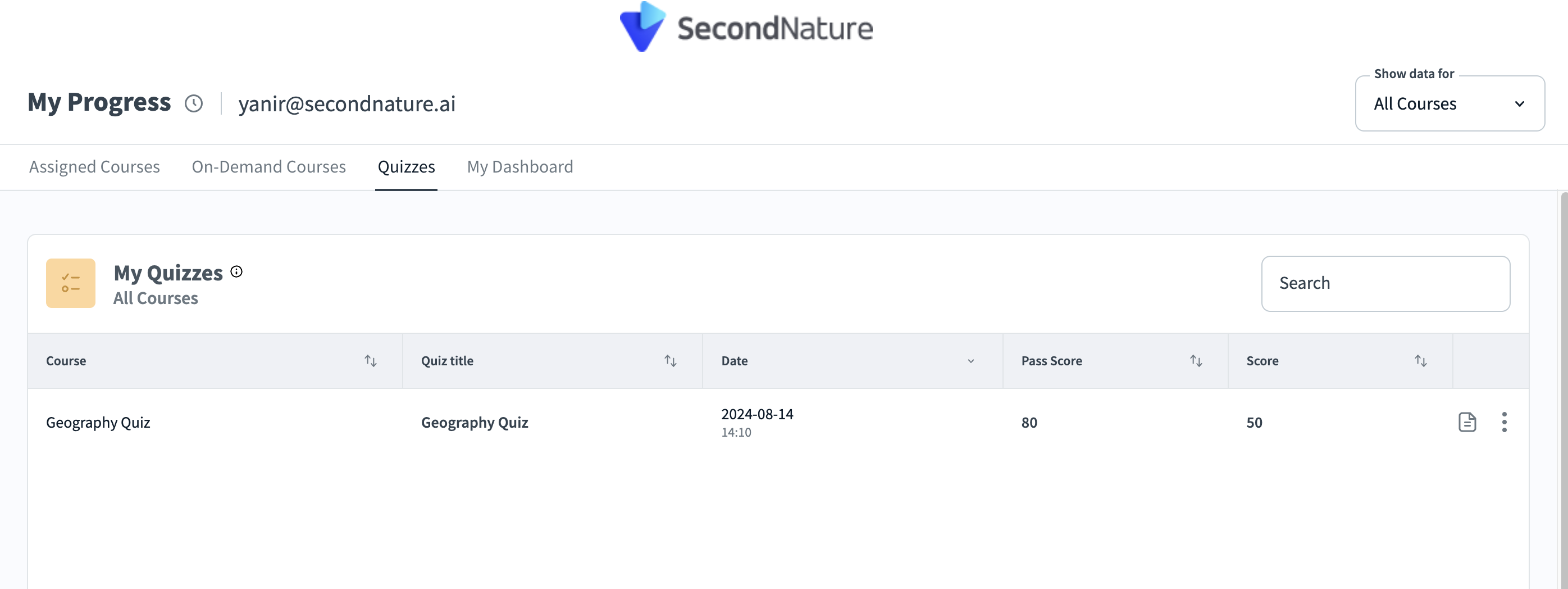
The My Progress > My Quizzes page provides an overview of your performance on quizzes, including the minimum score for passing (if provided) and your final score. In addition to providing this raw information, there are two actions which can be performed:
a. Press the Quiz analysis button
b. Press the ⋮ (vertical ellipsis) on the right-hand side of a quiz record to reveal a dropdown menu. Press Delete to delete your quiz.
My Dashboard Overview
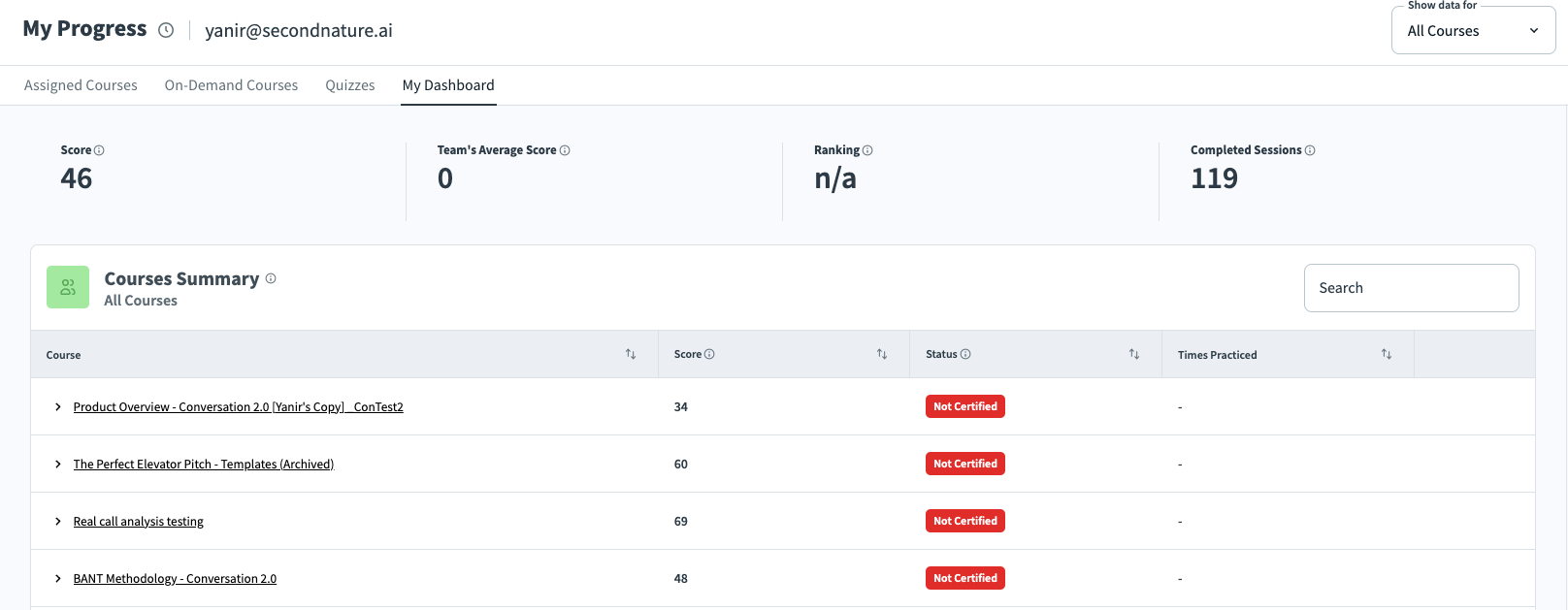
My Progress > My Dashboard provides an overview of your performance in comparison to your team, as well as how you performed overall on each relevant course. In the top row, there is an overall score (based on the average of all courses combined), the team’s average score (based on the averages of each of their courses), the team ranking and the raw number of completed sessions.
This page also contains the Courses Summary table. Within this table, you may click a course to expand it and see a list of the course’s assessable tasks (quizzes, SCORM and simulation tasks).
The status of the course will show certified or not certified, based on if you met the minimum requirements of the course, such as receiving passing grades.
NOTE:
A course is classified as Certified for a user only if they received a passing score on a majority of the course’s scorable tasks, including quizzes, SCORM and/or sessions.