Company Overview
Last updated: April 22, 2026
“Company Overview” Overview
The Company Overview pages are provided to administrative users to get information on their entire organization. These reports are similar to the Team Overview pages, but aggregate information from all the teams within a company. This page provides action items such as a button to assess simulation sessions.
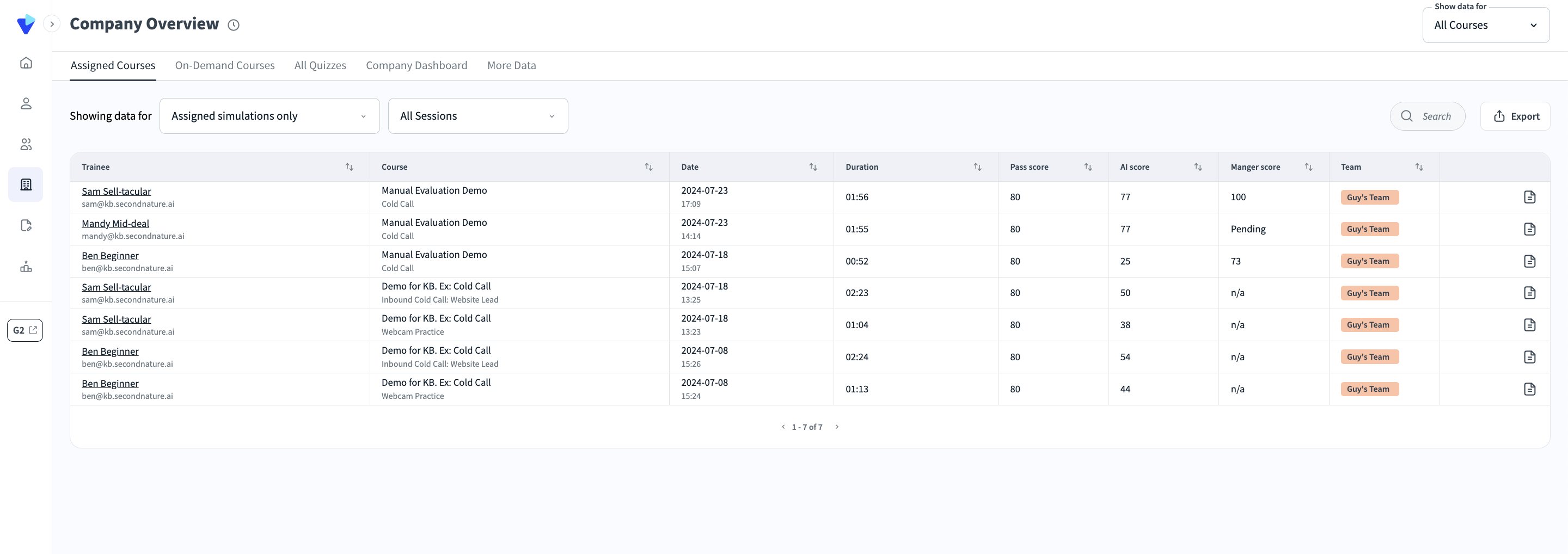
Within Company Overview pages, there is a dropdown menu at the top right corner of the screen to filter out specific courses. After selecting a course from this menu, only the simulations, quizzes or other relevant information related to this course will be displayed. The “All Courses” option is selected by default, in order to display a more comprehensive breakdown of your company’s progress.
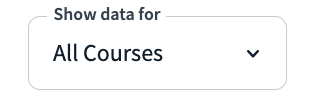
Company Overview is broken down into four sections:
Assigned Courses
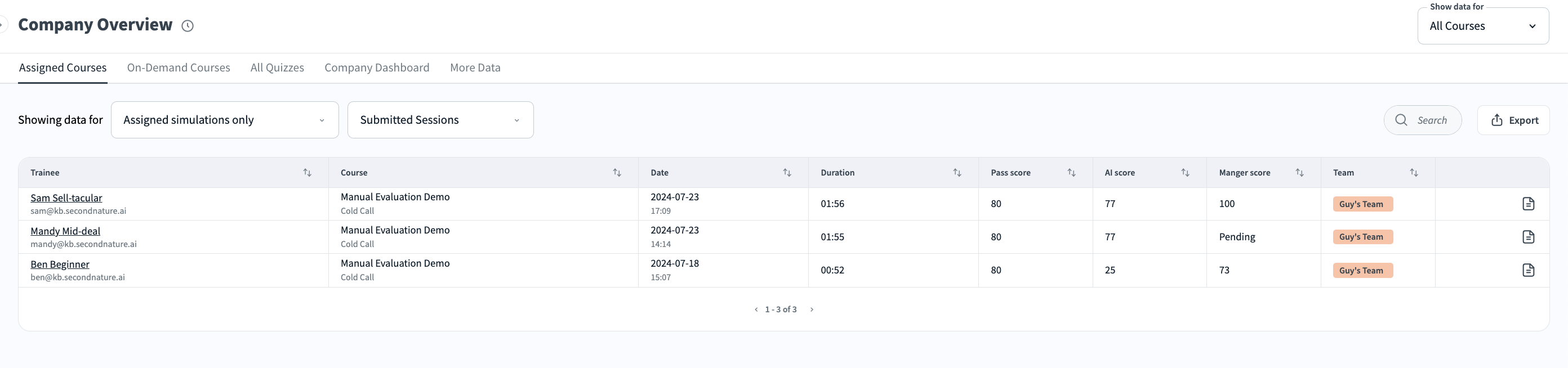
The Company Overview > Assigned Courses page provides a table with all records of sessions completed by trainees within your company.
Sessions are the iterations (attempts) at interactive simulations. Trainees are encouraged to repeat simulations, adjusting their approach based on the feedback they are provided. This results in multiple sessions per simulation. If a course has one simulation task, and a trainee tries that same simulation three times, it should appear as three unique sessions associated with one course.
Within the Company Overview > Assigned Courses section, there is information on your company's session performance of only the courses that they were assigned to.
This info can be filtered according to 2 filters :
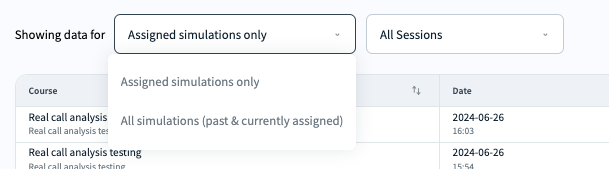
Assignment type: Filter the table data to show sessions based on the course assignment status:
'Assigned simulations only' - The table will show only simulations that the trainee is currently assigned to
'All simulations [past & currently assigned]' - The table will show simulations that the trainee is currently assigned and past simulations in which the trainee was assigned, started practicing, and then was un-assigned for some reason.
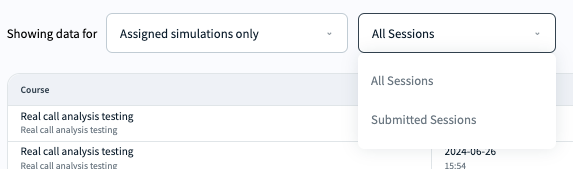
Submission type: Filter the table data to show simulations based on all sessions [AI-evaluated sessions and manual-evaluated sessions] or only the ones that were submitted for manual evaluation.
All Sessions: Shows all sessions that the trainee has done [regardless of the evaluation method]. If a session is eligible for manual grading, you will see a Submit (session) button in the “Manger Score” column of the relevant session, which you may press to notify the evaluator that a session is ready to be graded.
Submitted Sessions: filters out only the simulations that were submitted for manual evaluation by a course evaluator.
On the right-hand side of any record in My Sessions is a Sessions Analysis button. Press this button to launch the session Analysis page in a new tab in which you can see your score breakdown by topic. See “Analysis Page” for more information.
Within the Assigned Courses tab, you may also click the vertical ellipsis on the right-hand side of a record to reveal a dropdown menu. Press Delete to permanently delete a session.
Company Overview > Assigned Courses > All Sessions
There are five actions available on this page:
a. If a session was submitted by a trainee for evaluation, a Review Now button will be visible. Press this button to launch the Analysis page, watch the trainee perform a simulation task, and then provide a grade based on the topics configured for the simulation.
b. Press the Export button to generate an Excel (.xlsx) file containing details on all of your org’s completed sessions. When the file is already, a popup will appear. Press here in “Click here to download” to download the file.
c. Press the arrow(s) button to the right of a column’s header to sort the table. For example, click the arrows by Course to sort the table alphabetically by course name. Press a sort button a second time to reverse the sorting.
d. Press the Session analysis button on the right hand side of a record to launch an analysis of the relevant quiz in a new tab. This will show the quiz questions, trainee’s answers and correct answers.
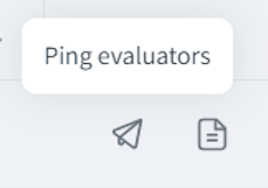
e. There may be an additional Ping Evaluators option if the session was submitted. Continue reading to learn more about this option.
Company Overview > Assigned Courses > Submitted Sessions
In the Submitted Sessions section you can filter the company trainees’ sessions that were submitted for evaluation.
A manager can ping evaluators that have not yet submitted their session evaluation using the Ping evaluators icon
On-Demand Courses Overview
Within the Team Overview> On-Demand Courses section, there is the performance data for your sessions from courses categorized as "On-Demand.".
This info can be filtered according to
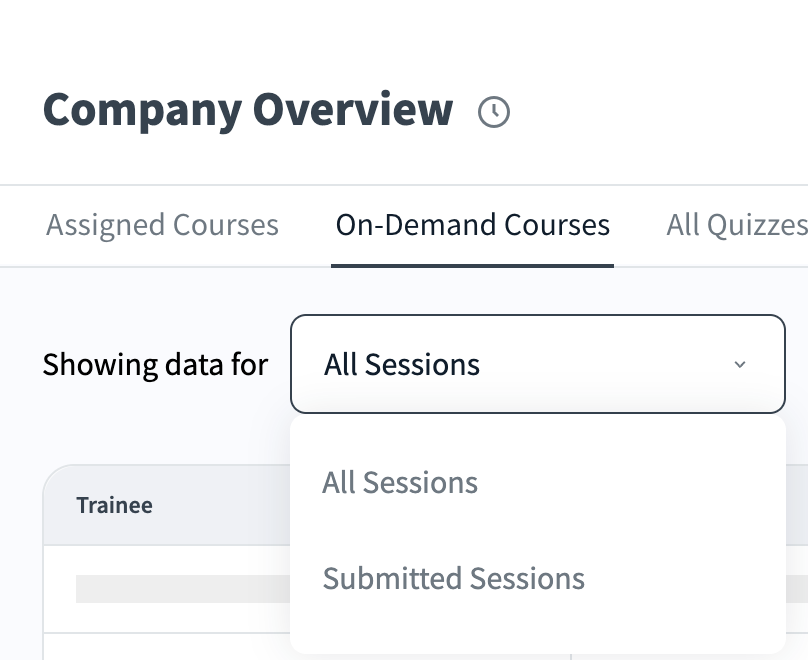
Submission type - Filter the table data to show simulations based on all sessions [AI-evaluated sessions and manually evaluated sessions] or only the ones that were submitted for manual evaluation.
All Sessions - Shows all sessions that the trainee has done [regardless of the evaluation method]. If a session is eligible for manual grading, you will see a Submit (session) button in the “Manger Score” column of the relevant session, which you may press to notify the evaluator that a session is ready to be graded.
Submitted Sessions - filters out only the simulations that were submitted for manual evaluation by a course evaluator.
All Quizzes
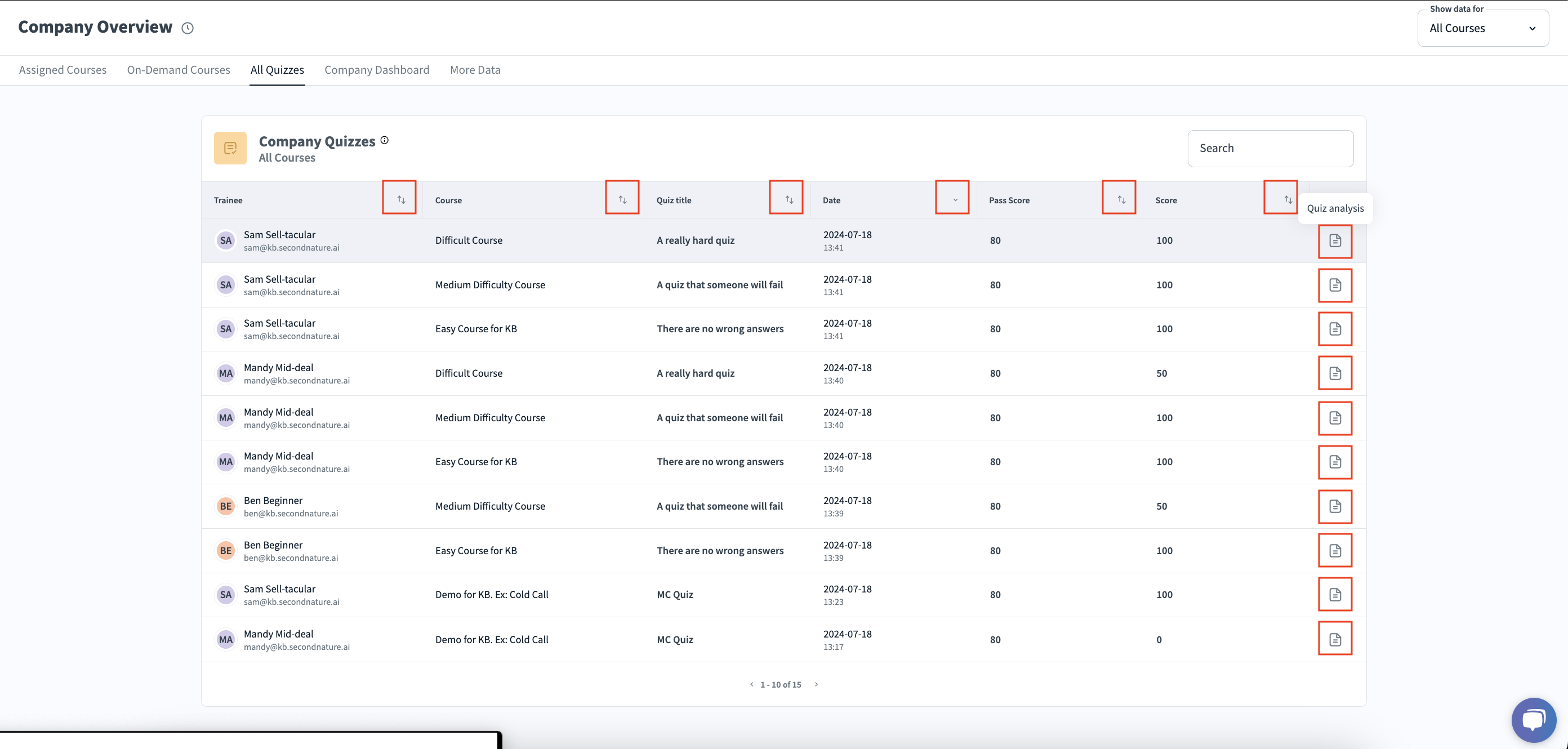
The Company Overview > All Quizzes page provides a table with all records of quizzes completed by trainees within your org. There are two actions available on this page.
a. Press the arrow(s) button to the right of a column’s header to sort the table. For example, click the arrows by Quiz title to sort the table alphabetically by the quiz title. Press a sort button a second time to reverse the sorting.
b. Press the Quiz analysis button on the right hand side of a record to launch an analysis of the relevant quiz in a new tab. This will show the quiz questions, trainee’s answers and correct answers.
Company Dashboard
The Company Overview > Company Dashboard page provides an overview of your company’s overall performance. At the top of the page the raw number of Completed Sessions across all teams and users is displayed.
Within this page, there is a table displaying a heatmap of each team’s performance, based on average scores. The heat map uses colors to represent progress and n/a if not all members completed the assessments. Users who are not assigned to a team will be displayed within an ad hoc group labeled “Unattributed reps”. See "Heatmap Explanation" for more information.
Above the table:
a. Use the search bar to filter the table based on a user’s first name, last name or email.
b. Press Sort by to reveal additional sorting options, Most proficient and Least Proficient.
c. Press the Export button to generate a report similar to the table provided. After the report is generated, press the here button in “Click here to download” to download an Excel (.xlsx) file.
Below the heatmap table there is another table with an overview of performance on all courses. Alongside each course available within the org, there is an average score (of all users who completed the course), the number of certified reps (users who passed the course) and number of times practiced.
Both tables on this page have arrow buttons to change the sorting. Below each table, you may use the left and right arrow key for pagination.
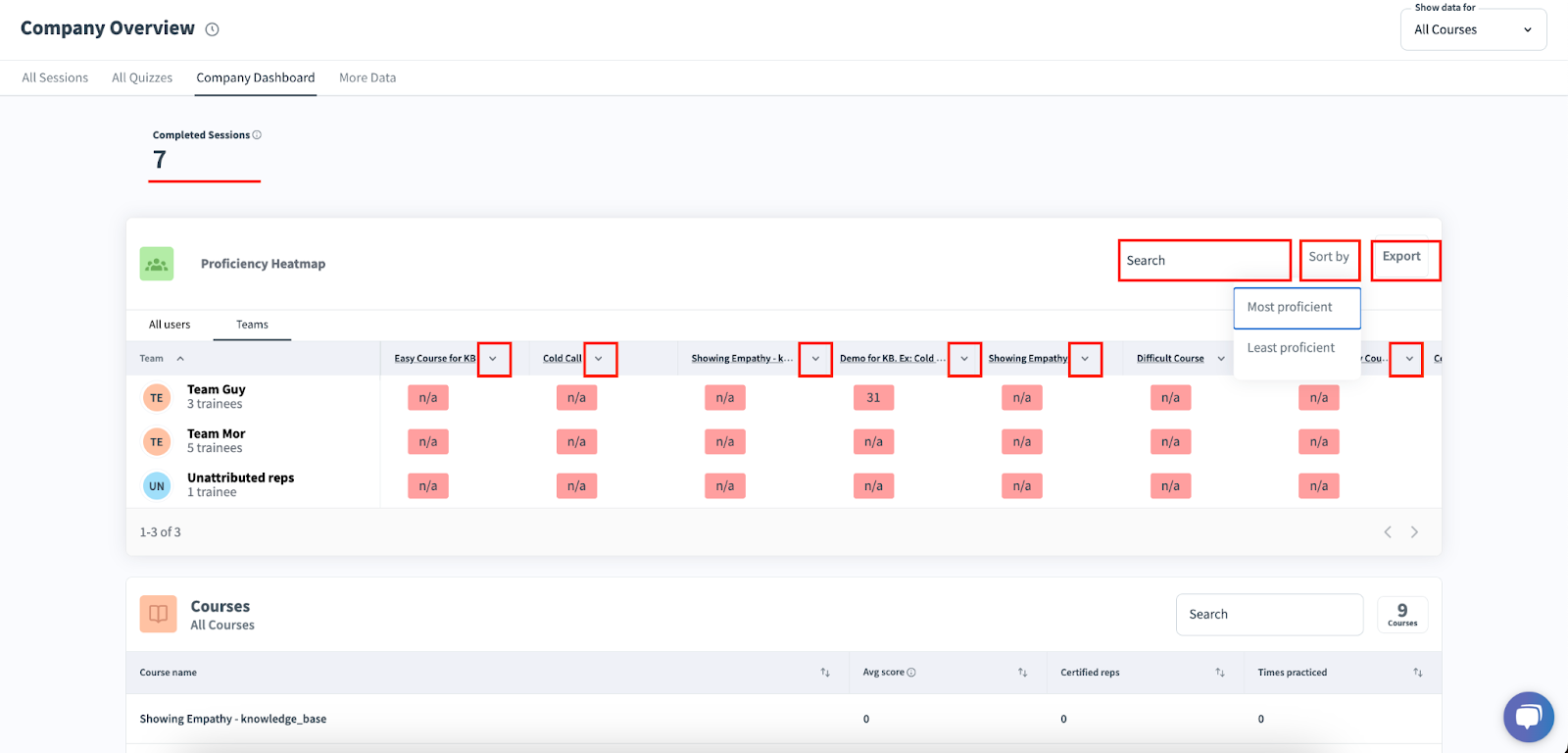
The same comment as in the Team Overview page applies to here as well - if an admin clicks on one of the teams on the heatmap, they are redirected to that team’s Team Overview page.
Heatmap Explanation
# of Tasks in Course With Pass Scores | # of Tasks Trainee Passed | Heatmap Color |
0 | N/A | |
1 | 1 | Green |
1 | 0 | Red |
2 | 2 | Green |
2 | 1 | Yellow |
2 | 0 | Red |
3 | 3 | Green |
3 | 1-2 | Yellow |
3 | 0 | Red |
More Data
More Data reports are also available via API, for more information - read here.
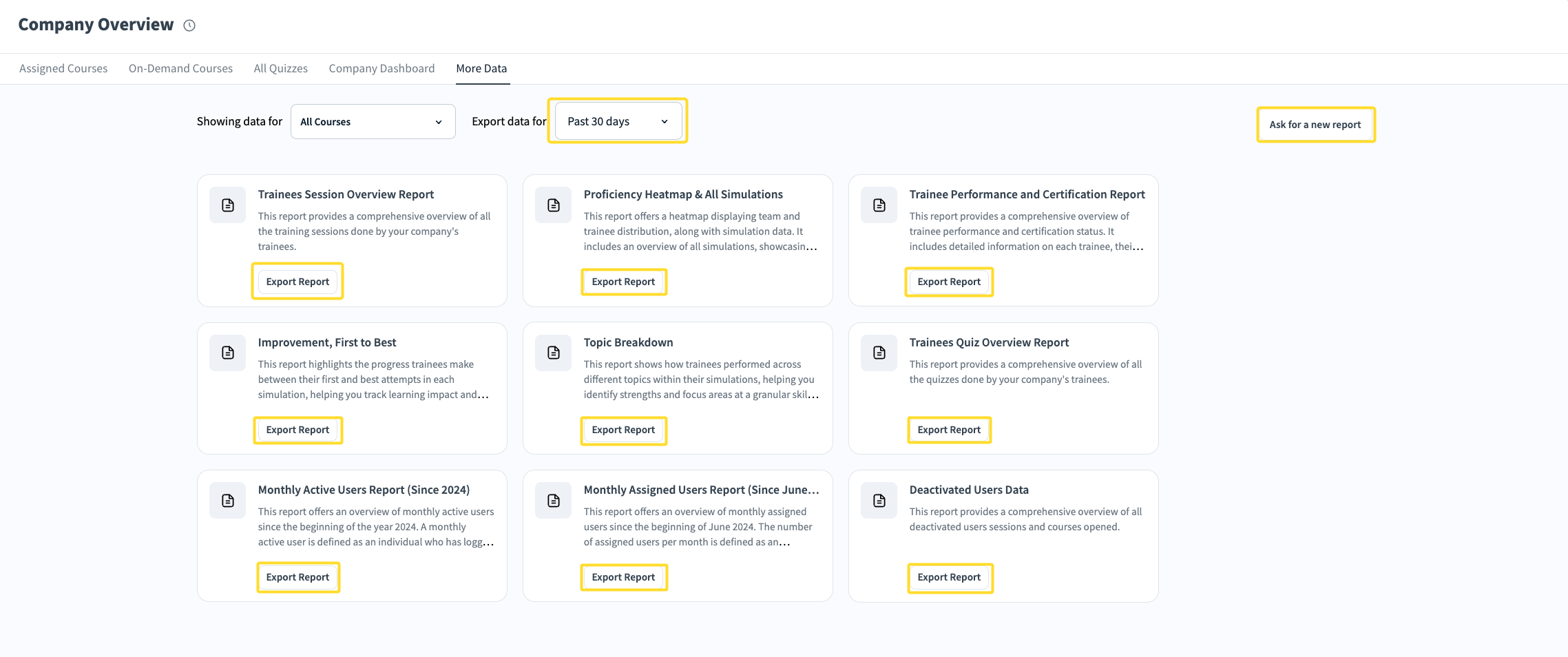
The Company Overview > More Data page provides more information on your company.
At the top of the page is a Export data for time filter which can be adjusted for Past 30 days, Past 90 days, Past 180 days, Past Year or All Times. This will affect subsequent reports which are generated. [Remember there is also a filter at the top for individual courses.]
Each available report has an Export Report button. When clicked, this will generate the report. A popup will inform you “Your report is being processed and will be sent to your email address in the next few minutes.”
Currently there are four reports available:
Trainees Session Overview Report: This report provides a comprehensive overview of all the training sessions done by your company's trainees.
Similar to the report provided in All Sessions.
Proficiency Heatmap & All Simulations: This report offers a heatmap displaying company and trainee distribution, along with simulation data. It includes an overview of all simulations, showcasing passed and available simulations, sessions completed by trainees, and their best scores. Additionally, the proficiency heatmap reveals the highest scores achieved by each trainee in various courses.
Similar to the report provided in the Company Dashboard.
Trainee Performance and Certification Report: This report provides a comprehensive overview of trainee performance and certification status. It includes detailed information on each trainee, their assigned manager, and their respective team and regional affiliations. The report covers various metrics such as course and task names, passing scores, top AI and manager scores, certification status, and session data.
Improvement, First to Best: This report highlights the progress trainees make between their first and best attempts in each simulation, helping you track learning impact and skill development over time.
Topic Breakdown: This report shows how trainees performed across different topics within their simulations, helping you identify strengths and focus areas at a granular skill level.
Trainees Quiz Overview Report: This report provides a comprehensive overview of all the quizzes done by your company's trainees.
Similar to the report provided in All Quizzes.
Monthly Active Users Report (Since 2024): This report offers an overview of monthly active users since the beginning of the 2024 calendar year. A monthly active user is defined as an individual who has logged into the system during a specific month.
Monthly Assigned Users Report (Since June 2024): This report offers an overview of monthly assigned users since the beginning of June 2024. The number of assigned users per month is defined as an individual who was assigned to at least one course during a specific month.
Deactivated Users Data: This report provides a comprehensive overview of all deactivated users sessions and courses opened.
Press Ask for a new report to generate an email to support@secondnature.ai if the reports provided are not sufficient. Please include all relevant information on what the requested report should include.