Editing User Info (Account Settings)
Last updated: April 22, 2026
Overview
Account settings are primarily related to managing users within your Second Nature account. Topics discussed in this guide include:
Please read “Inviting New Users” for information on inviting users to your account.
NOTE:
You must have admin permissions in order to make account changes. These options will not be visible to non-admin users.
Get to Account Settings
The following guides for editing user details begin on the Account Settings page. To get to Account Settings, click this link: https://app.secondnature.ai/management/users
Alternatively, you may navigate to the Account Settings like so:
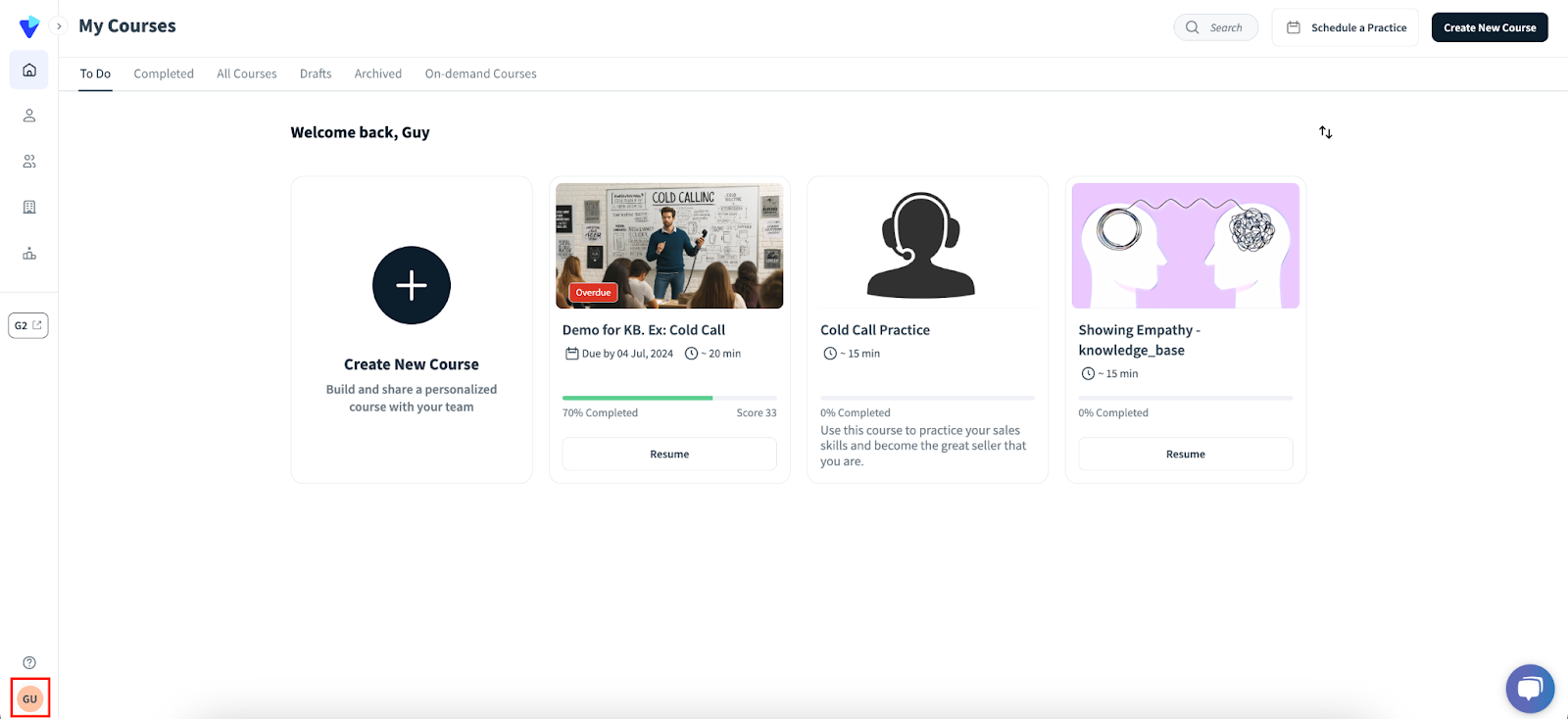
1. Within the Second Nature Homepage, click on your profile details (icon, name and email) at the bottom left corner of the navbar. This will reveal a new menu.
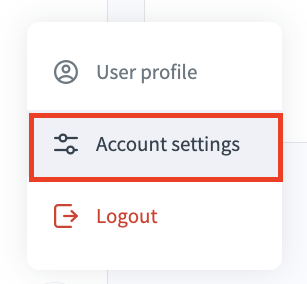
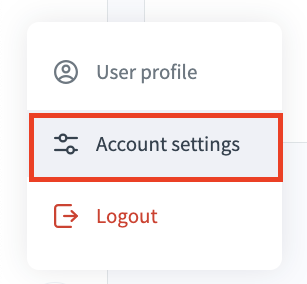
2. Click Account settings within this new menu to go to the Account settings page.
Edit Users One-by-One
1. Locate the record of the user you wish to edit.
a. There is a search bar at the top to help with finding users.

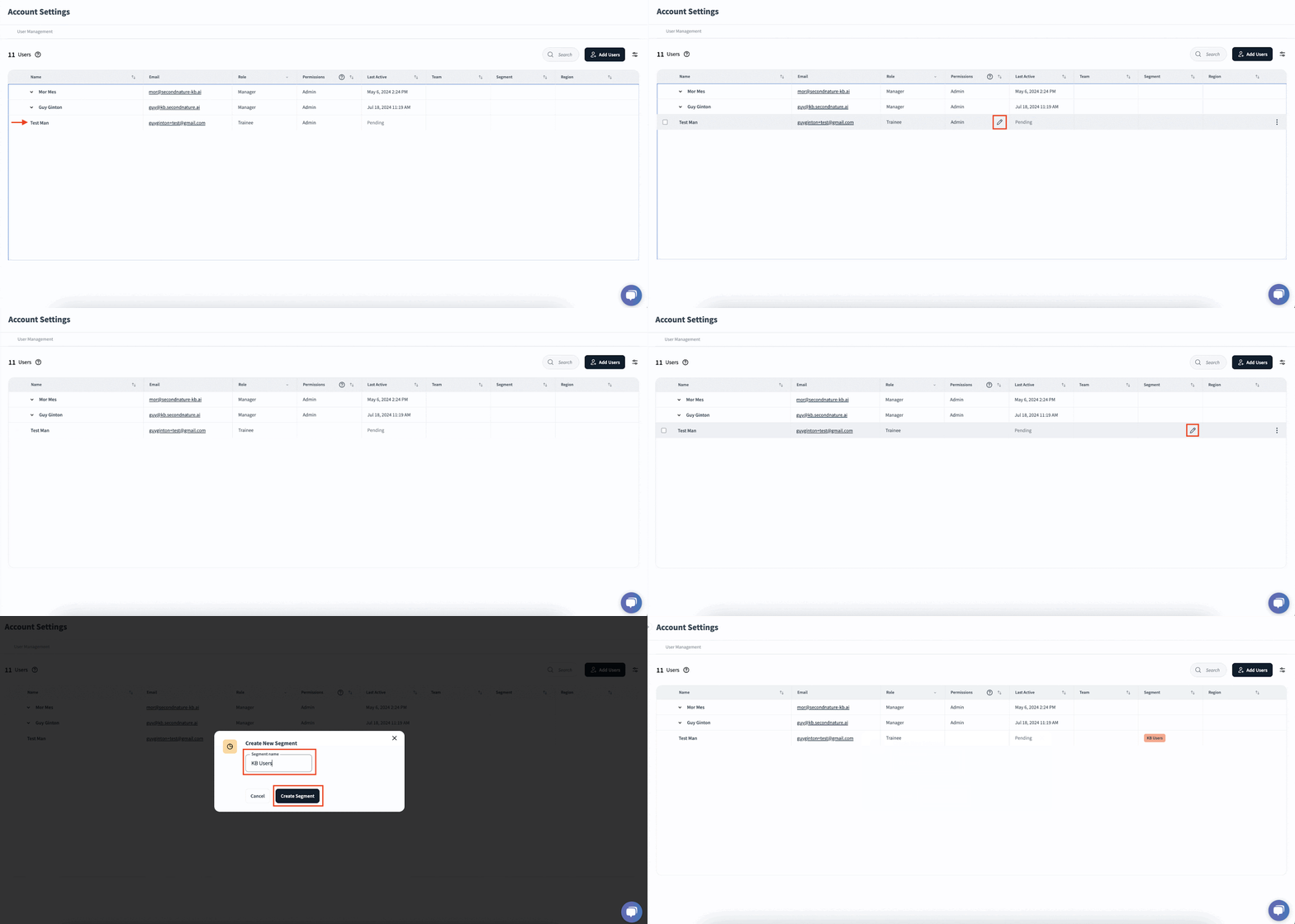
2. Hover over the field you wish to edit to reveal a pen icon. Click the pen icon to reveal a menu of available edit options.
a. Role: Either trainee or manager.
b. Permissions: Either admin, course creator or null (empty cell). If a permission option is already selected, click it to make the option null. See GIF below for demo.
c. Team: Editing this field will provide a list of existing teams. Press + New team to create a new team on the fly.
d. Segment: Editing this field will provide a list of existing segments. Press + New segment to create a new segment on the fly.
e. Region: Editing this field will provide a list of existing regions. Press + New region to create a new region on the fly.
3. Adjust options as needed. An example is provided below where a trainee, Test Man, has their permissions removed and a new segment added.
Bulk Edit User Fields
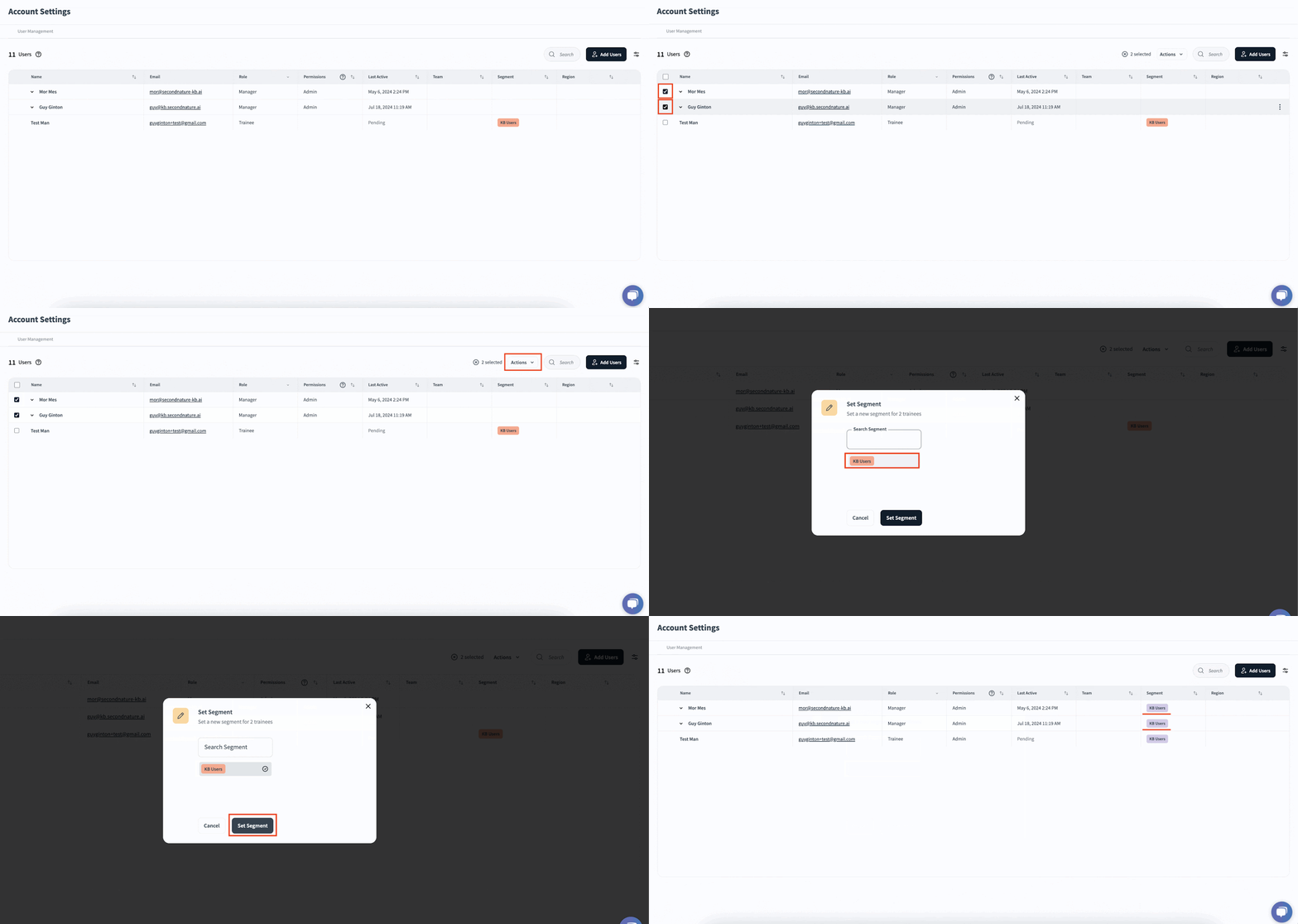
1. Alongside each record you wish to adjust, mark the checkbox on the left hand side.
2. After one or more records are selected, an Actions dropdown menu will appear above the list of users. Click this Actions dropdown menu to reveal bulk editing options. Select the requested option.
a. Edit Region: Select an existing region for all selected users.
b. Edit Segment: Select an existing segment for all selected users.
c. Resend Invite: Re Invite all selected users to Second Nature.
d. Deactivate users: Make all selected users deactivated. This action can be undone.
TIP:
See section above to learn how to adjust individual user teams, or to create regions and segments on the fly.
Additional User Actions (Deactivate, Resend Invite, Edit Team)
Within your account settings (user management) page, you can hover over the utmost right side of any row to reveal a ⋮ (vertical ellipsis) button. Click this button to reveal a menu of available options, which may include:
Resend invite: This option will resend the user a Second Nature invite email. It is only visible if the user has not yet activated their account.
Deactivate: This option deactivates a user, removing them from the user management table. Deactivated users may not access Second Nature.
Edit Team: This option opens a popup where you can manage teams. Use this popup to edit one or more users’ teams.
Edit Users Using a CSV file
Large organizations may wish to adjust users using a CSV file. Please read “Inviting new users” to learn how to make a CSV of users and import it to Second Nature. Any existing records will be updated by the imported CSV.
Locked Elements Due to Auto-Sync
If your company has chosen to use auto-sync, certain columns will be locked for editing. Columns that cannot be edited will display a lock icon next to their field titles.
