Course Overview
Last updated: April 22, 2026
Overview
The Course Overview section is a one stop shop for all information related to your courses.
In this tab, managers and admins can see statistics on course completion, assign users, edit and view the course.
How do I get to Course Overview?
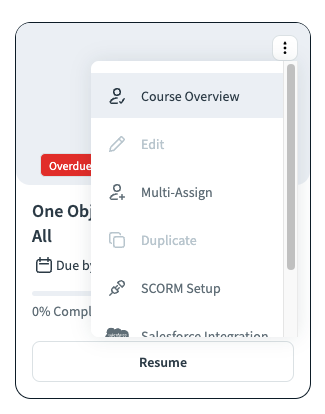
In the Second Nature homepage, go to the desired course card layout and click the ⋮ (3 dotted menu) on the top right part of the card. In the drop-down menu, you will see the Course Overview option as the top option.
Course Overview Structure
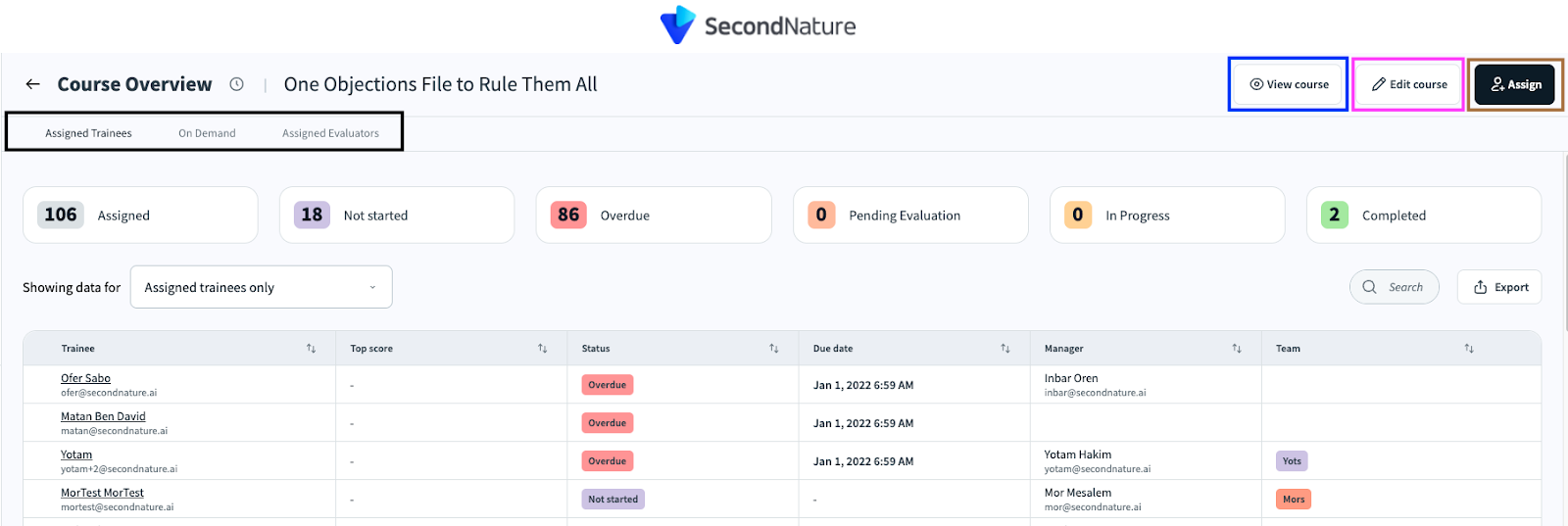
The Course Overview section is divided into 3 main tabs: Assigned Trainees, On Demand and Assigned Evaluators.
There are additionally three action buttons on the top right corner of these pages:
a. View Course: Opens the course in trainee view [blue rectangle below].
b. Edit Course: Enables editing the course [pink rectangle below]
i. Read “Modifying Existing Courses (Edit, Duplicate, Delete)” to learn more about editing a course.
c. Assign: Managers and Admins will be able to assign new users to the course [brown rectangle below].
Assigned Trainees tab
The Assigned Trainees tab is the default tab that appears when clicking Course Overview. This tab holds all information on the users that are assigned to the course.
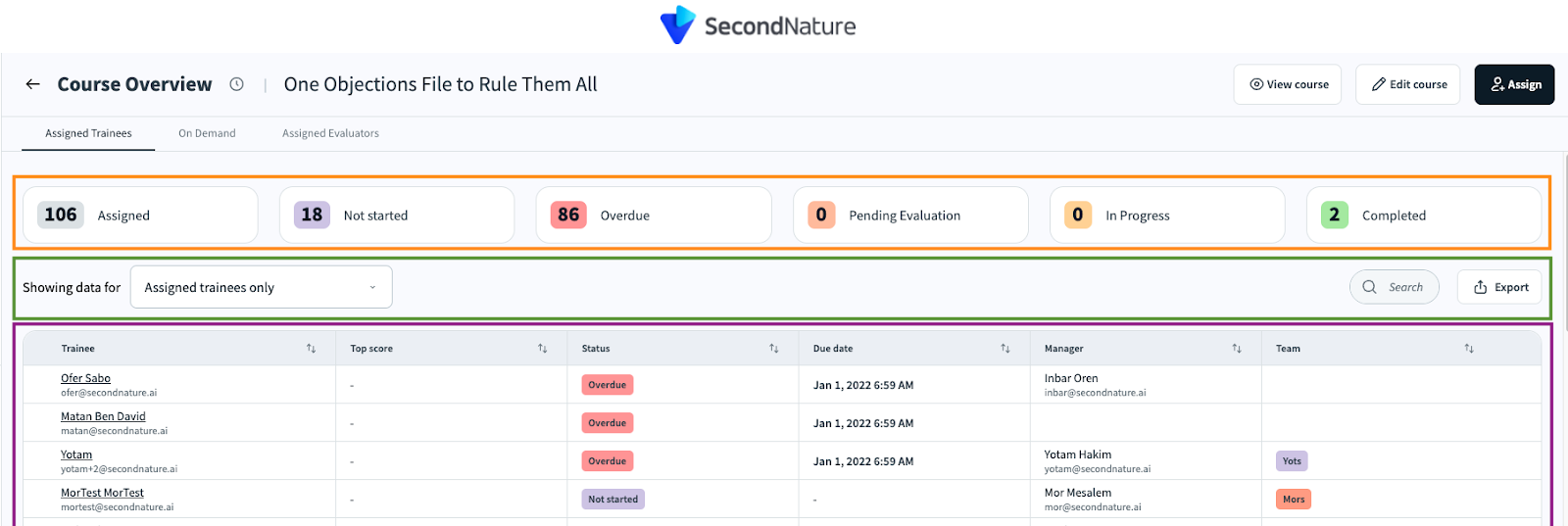
On the top part of the tab you can see metrics regarding the users completion funnel of the course [orange rectangle below]. Those metrics track the status of different users from the moment they were assigned to the course until completion:
Assigned: When clicked, displays the list of assigned users.
Not Started: When clicked, shows the list of assigned users who have never opened the course.
Overdue: When clicked, displays all the users that haven't completed the course within the given time period.
Pending Evaluation: When clicked, displays the users who are still waiting for their sessions to be evaluated within the course
In Progress: When clicked, displayed the users that have started the course but haven't completed it yet
Completed: When clicked, displays the users that have completed the course. Completion means that all tasks in the course [both the scorable tasks–Quizzes, SCORM and Simulations–and non-scorable tasks like video and HTML] have been reviewed and passed their passing score.
Managers and Admins can also [green rectangle]:
a. Filter the data displayed in the user management table by selecting different data sets in the “Showing Data for” filter
b. Search
c. Export data
The bottom part of the Assigned users” tab holds a user management table that enables easy tracking and management of the different users assigned to this course [purple rectangle].
On Demand tab
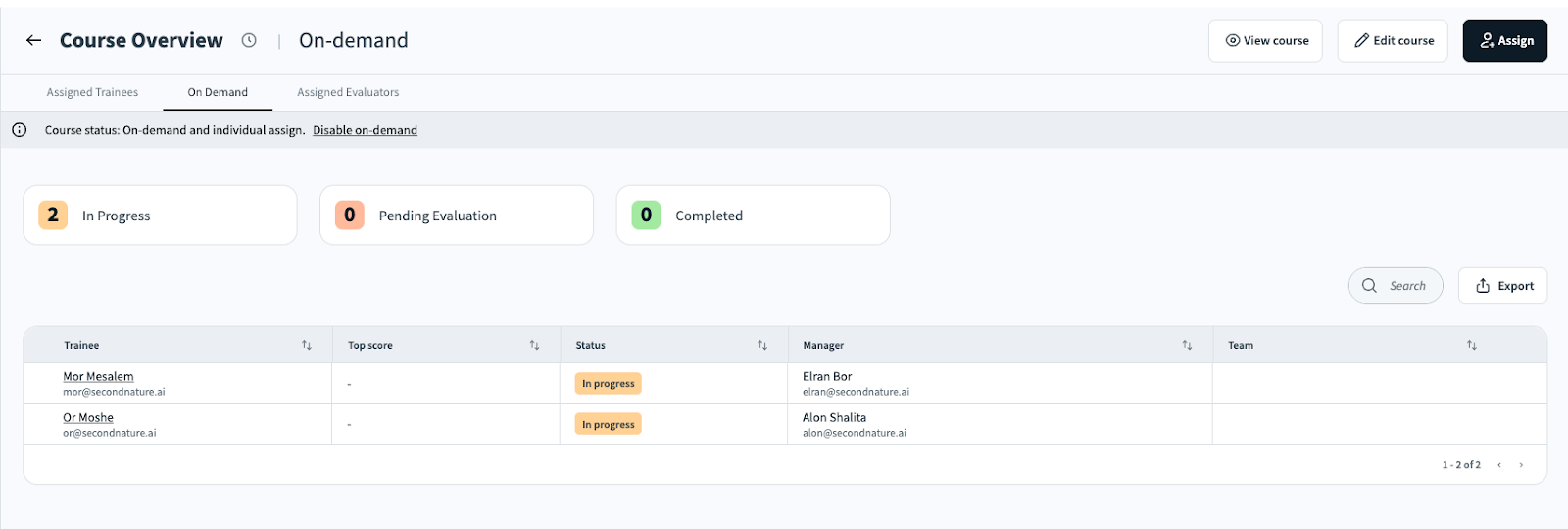
If the course is marked as an “On Demand” course , all user data for participants who have begun this On Demand course can be accessed in this tab.
The functionality of the On Demand Tab mirrors that of the Assign Trainees tab.
NOTE:
In the case that a course is both assigned and marked as On Demand, the course editors may revoke the course’s On Demand status by clicking the Course status notification on the top part of the tab.

Assigned Evaluators tab
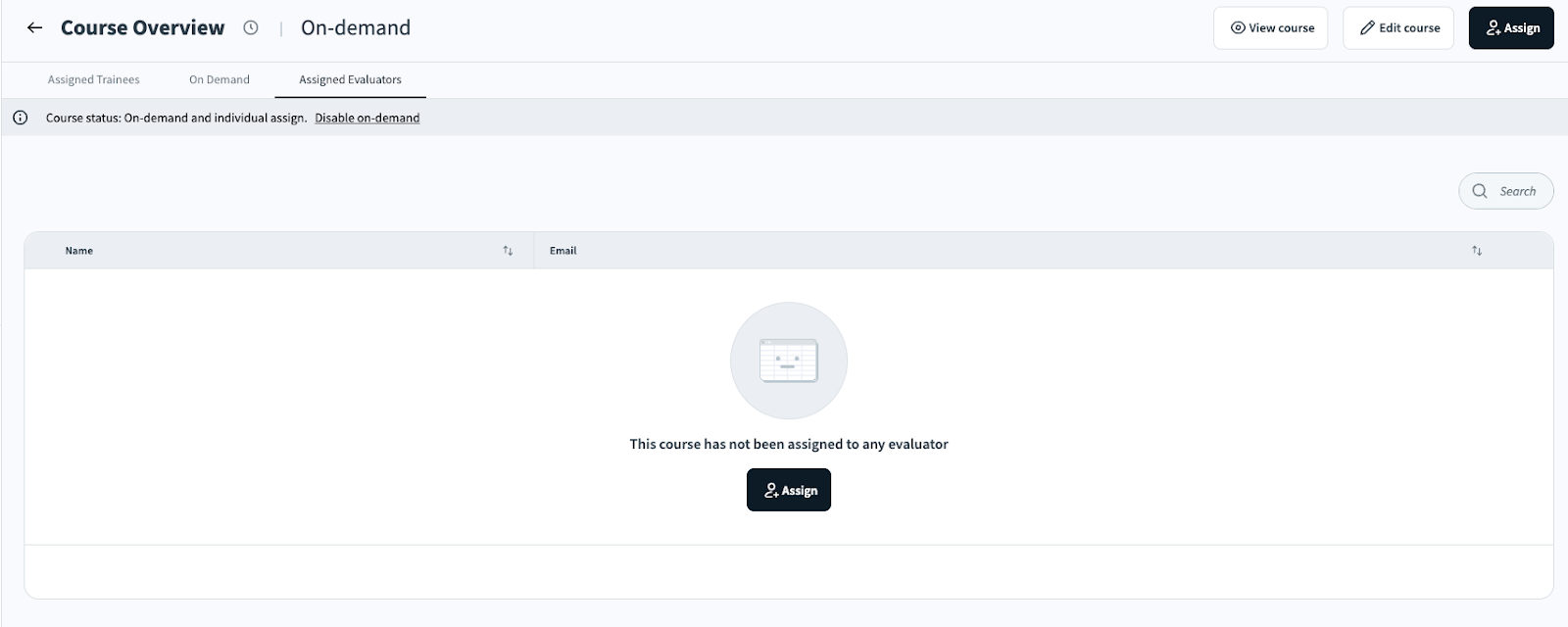
This tab allows to review and assign new evaluators for this course. Read “How to Assign a Course” to learn more about assigning evaluators to a course.