Modifying Existing Courses (Edit, Duplicate, Delete)
Last updated: April 22, 2026
INFO:
Course creators may edit any course they previously created. By default, other users with edit permission, in the same organization, may also edit courses.
While creating a course, users may disable the ability for others to edit a course.
Editing or Duplicating a Course
1. Find the relevant course you wish to modify. For example, you may go to the Second Nature Dashboard to see My Courses > All Courses or Archived.
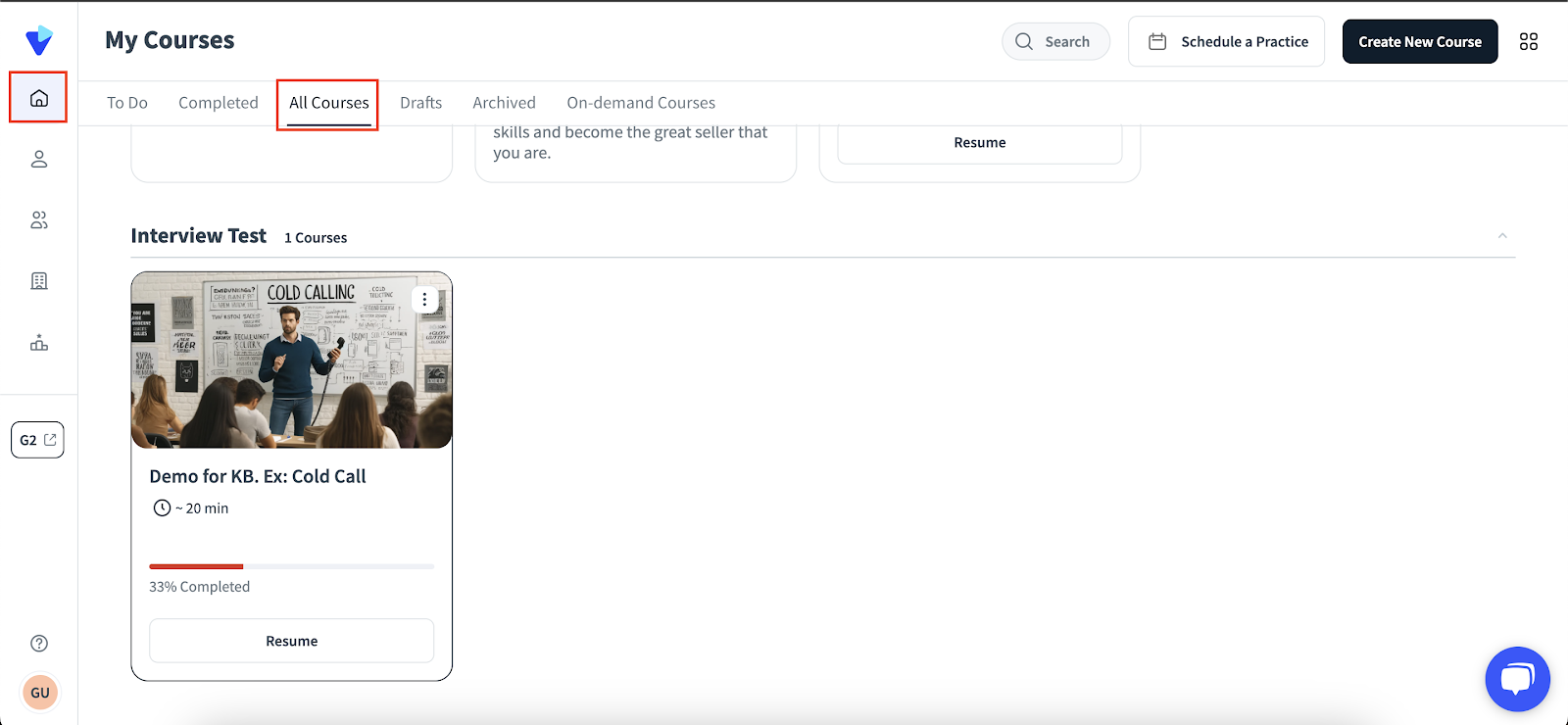
2. Click on the ⋮ (vertical ellipsis) at the top right of the relevant course to reveal a menu of edit options. Click on the relevant option to continue:
a. Course Overview: This option redirects you to the Course Overview page. This page highlights the overall progress of all trainees who were assigned the course, followed by providing a table indicating each individual trainee's performance.
i. Within this page you may edit the Course's due date for each of the assignees.You may also see which users were assigned or completed the course.
ii. See “Course Overview” for more information on this page.
b. Edit: This option will open the Course Creator in a new tab, such that you may create edits to the Course Preview and Tasks. See "How to Create a Course" for more details.
i. Press Save as needed.
c. Multi-Assign: This option will redirect you to the Course Assign page, where you can modify assignments of Trainees and Evaluators. See "How to Assign a Course" for more details.
d. Duplicate: This option will duplicate a course, add "- Copy" to the course's name, then redirect you to the Course Editing page. This is useful if you would like to assign the same or similar courses quickly, as opposed to having to recreate the entire course from scratch.
f. Archive: This option will archive a course so that the assigned trainees do not see the option to complete it any longer. Data on the trainees who started or completed the course will persist after archival. The course’s creator can still see the course in their Archived Courses page, in case they need to unarchive it.
Deleting a Course
NOTE:
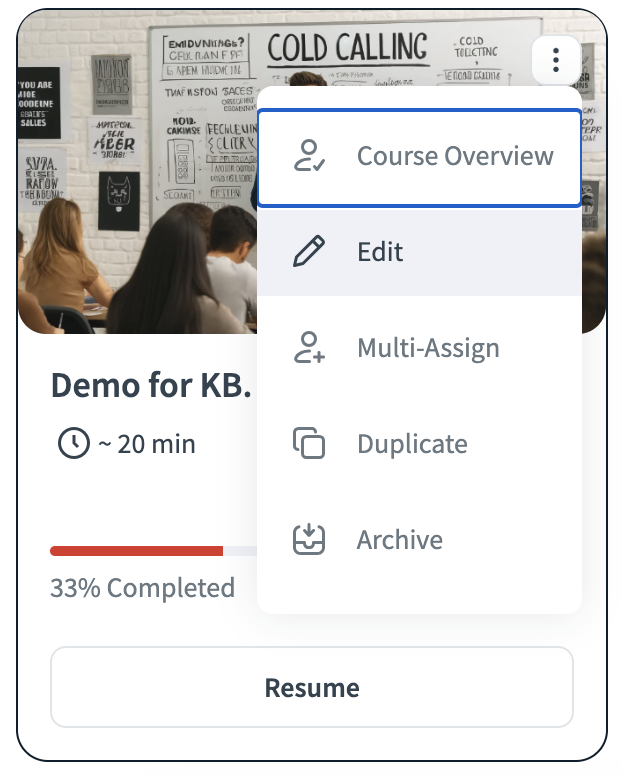
A course creator can only delete the courses they have personally created. It can be done in any section in the app [Drafts, All Courses, On Demand..]
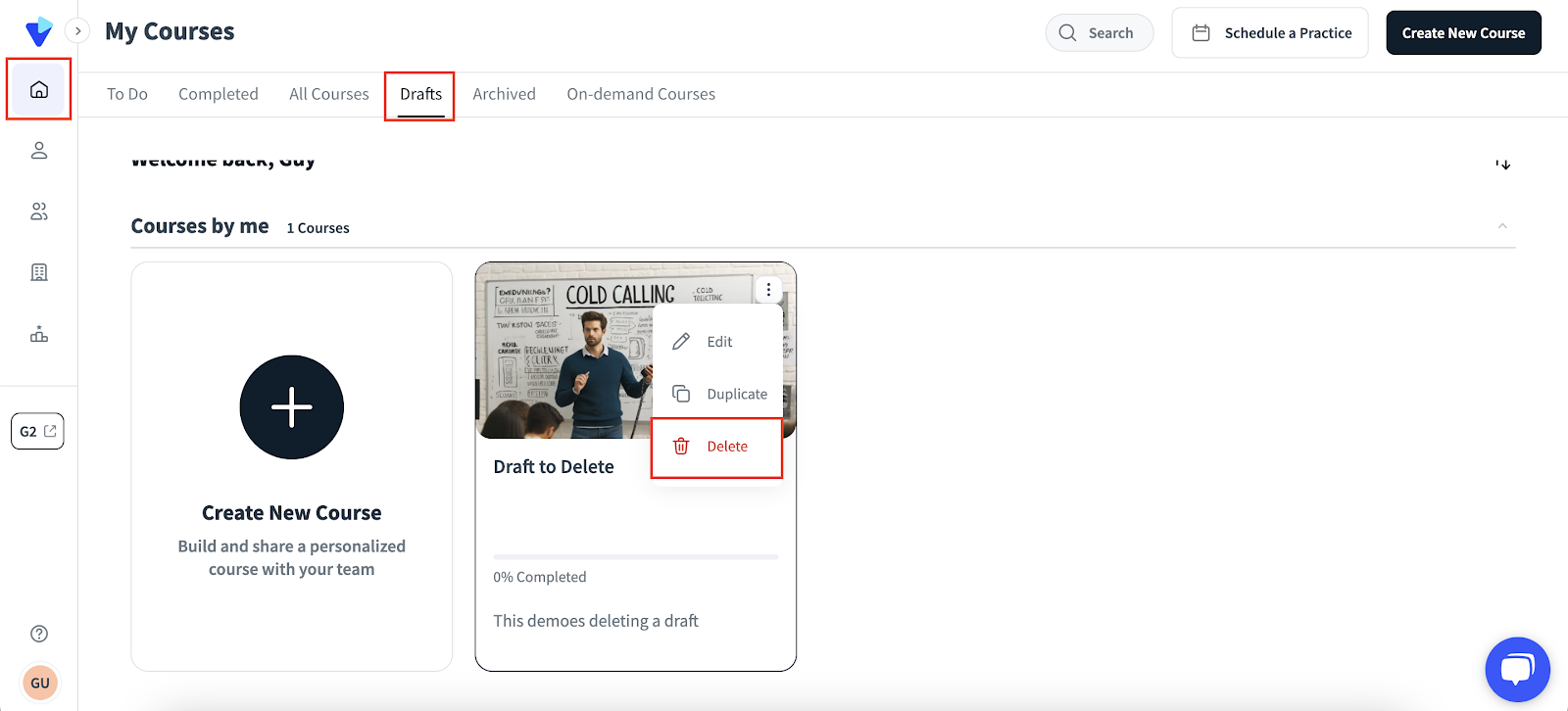
1. Go to the Second Nature Dashboard to see My Courses > Drafts. Then find the course you would like to delete.
2. Click on the ⋮ (vertical ellipsis) at the top right of the relevant course to reveal a menu of edit options. Click on Delete.
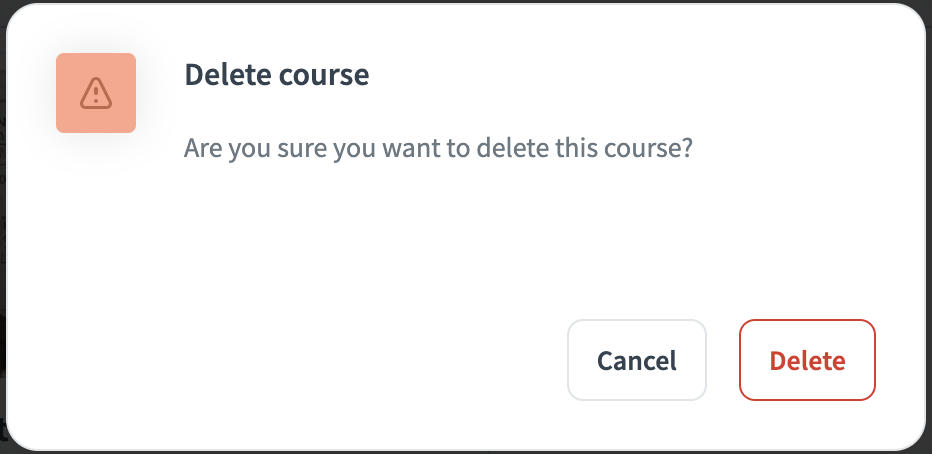
3. A popup will ask if you are sure you want to delete this course. Press the Delete button to finalize deletion.
Common Issues Editing or Deleting a Course
After a course is published, there are aspects which can not be modified. Examples of things that cannot be modified within a published course include:
Simulation tasks may not be added.
Passing scores may not be changed.
AI Scoring Weights may not be changed.
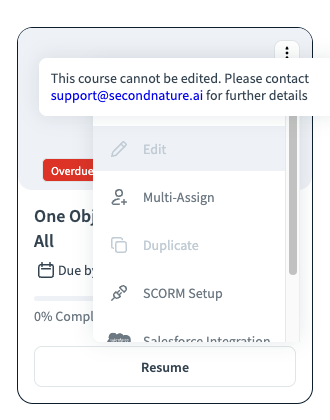
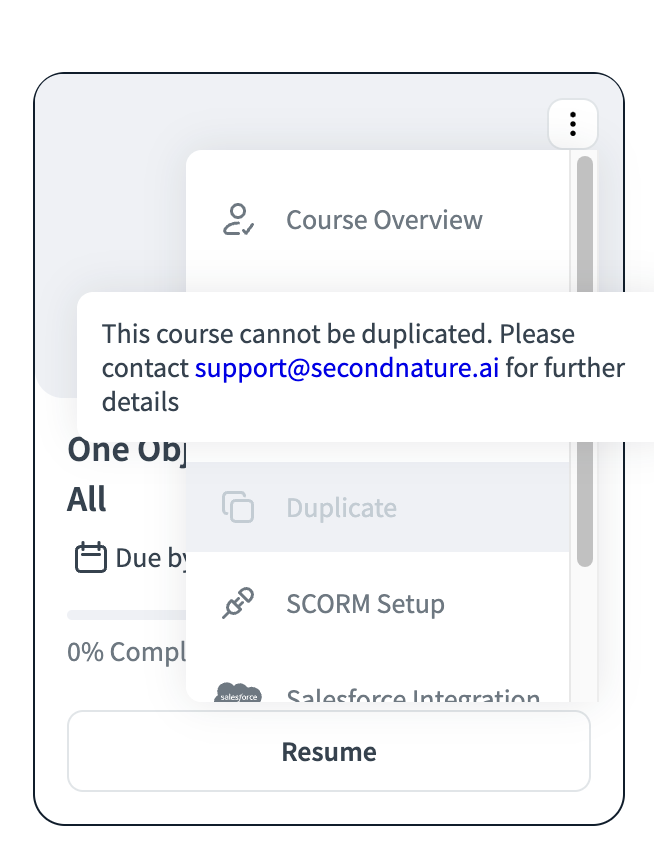
Additionally, there may be courses that are no longer supported. These courses can not be modified or duplicated, so related buttons are grayed out. Attempting to edit or duplicate such courses will display an error message.