Analysis Page
Last updated: April 22, 2026
“Analysis Page” Overview
The analysis page is where each trainee can view their performance regarding assessable tasks. Trainees can receive analysis for their interactive simulations, webcam practices, scripted simulations and quizzes.
Analysis page structure
General Info Segment
The upper segment of the analysis page provides general information about the course and interactive simulation.
In the left hand side [Orange rectangle]:
a. The conversation (task) type [“Conversation simulation”]
b. The course name [“Real call analysis testing”]
c. The trainee name [yanir@secondnature.ai]
d. The date in which the session took place [August 8th , 2024]
In the middle section [Purple rectangle]:
e. This part provide high level insights based on the trainee simulation performance
In the right hand side [Green rectangle]:
f. This is the average score of the trainee. This score takes under consideration all the scoring elements. Under the AVG score the trainee can see their passing score for this session.
g. Practice again [Blue rectangle] - Trainees can click Practice again on the top right corner this and practice their sessions again.

VIdeo, Scoring and Feedback Segment
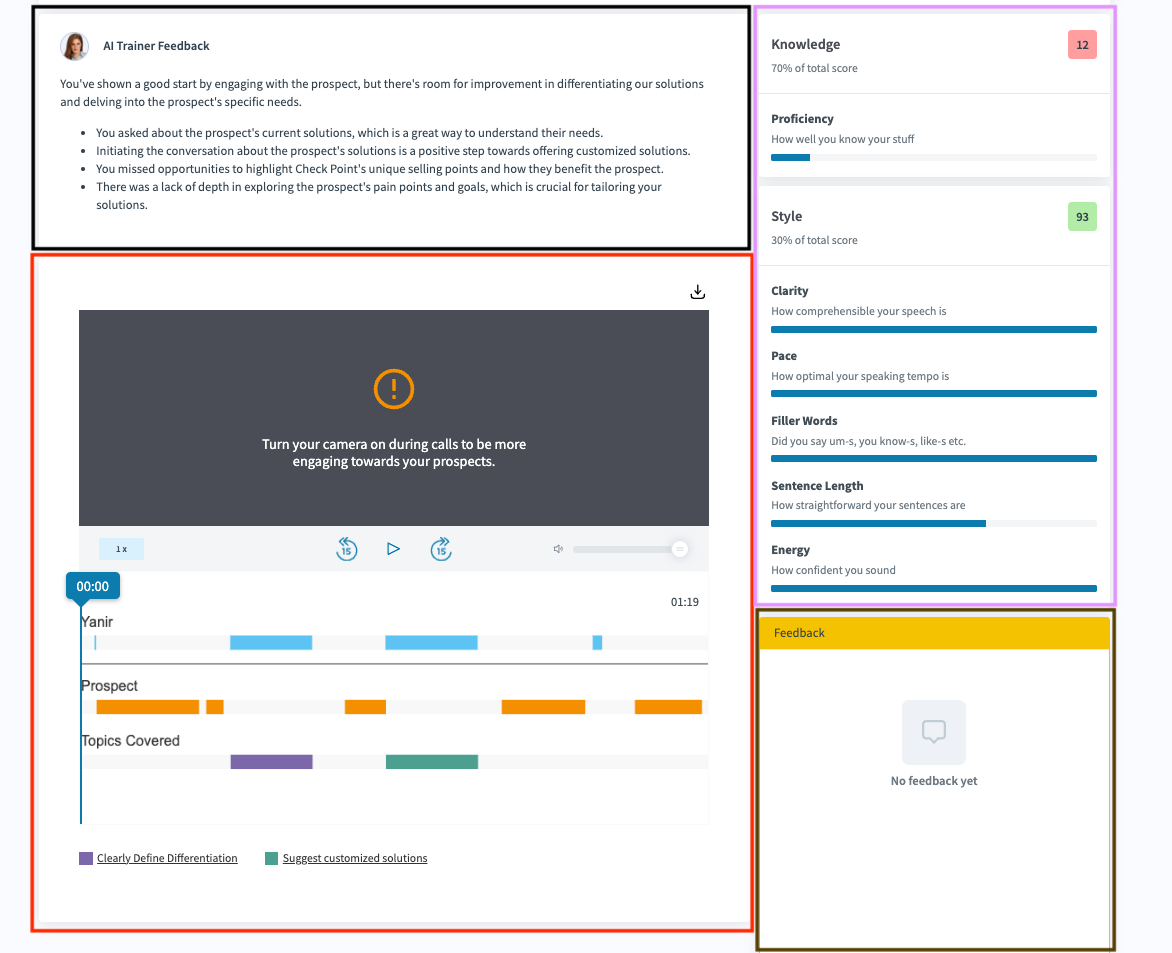
The middle segment of the analysis page provides a understanding of the feedback and scoring the trainee got, along with their video recording:
a. AI Trainer feedback [Black rectangle]: This is the feedback given to the trainee for their simulation performance. It highlights both their strengths and areas for improvement based on their simulation.
b. Video recording [Red rectangle]: In this section the trainees can view their session video recording. The recording is broken down according to speakers: the trainee [marked below as Yanir], the prospect [marked below as “Prospect”] and the different topics that were covered during the simulation.
c. Score breakdown [Pink rectangle]: In this section the trainees can see their scoring breakdown. There are 2 main scoring categories: Knowledge and Style. The knowledge scoring is based on the topics that were covered during the simulation. The Style scoring is a predefined set of criteria that scores the trainee based on their verbal communication.
i. In cases where there is no manual evaluation of the session, the AVG score of the session is compiled out of a Knowledge component and Style component with different weights. The course creator can decide what will be the weight for Knowledge and Style when building the course. For more information go to “Customizing Simulation Tasks” or jump to "Score Settings and Creating Scorecards".
ii. If there is manual evaluation for the session, the AVG score will take it under consideration along with the Knowledge and Style scoring [see example below].
d. Feedback [Brown rectangle]: This section is relevant for sessions that were submitted to manual scoring by managers or evaluators. In this box the managers and evaluators can add text-based feedback for the trainees to see.
How can I share my sessions?
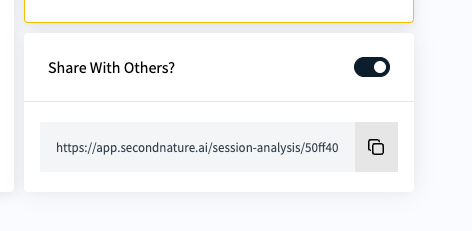
On the analysis page scroll down to the right side where you have the 'Share With Others' toggle [beneath the "Feedback" section]. The user needs to toggle this on [only a user can do this on their session page, otherwise it will be greyed out]
Score breakdown segment
The bottom segment of the analysis page provides a deep understating of both the Knowledge and Style scoring the the trainees received for their session:
Knowledge
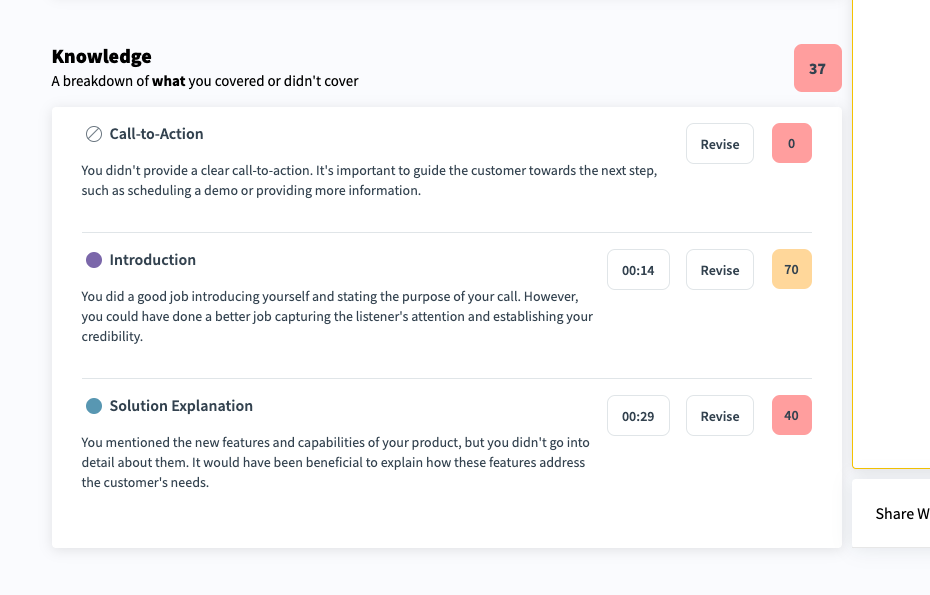
In this section the trainee can see the breakdown of how well they covered different topics throughout the simulation. The trainee can see the name of the topic, a textual summary scoring their topic performance, a time stamp indicating the exact moment that the topic was discussed in the simulation and the “Revise” option.
“Revise” enables the trainees to revise their score if they think it doesn't reflect the actual coverage of a specific topic. After clicking the Revise button, the trainee can mark the part of the simulation in which they think the topic was actually covered and submit the revision for review.
Example of knowledge section:
Revise option
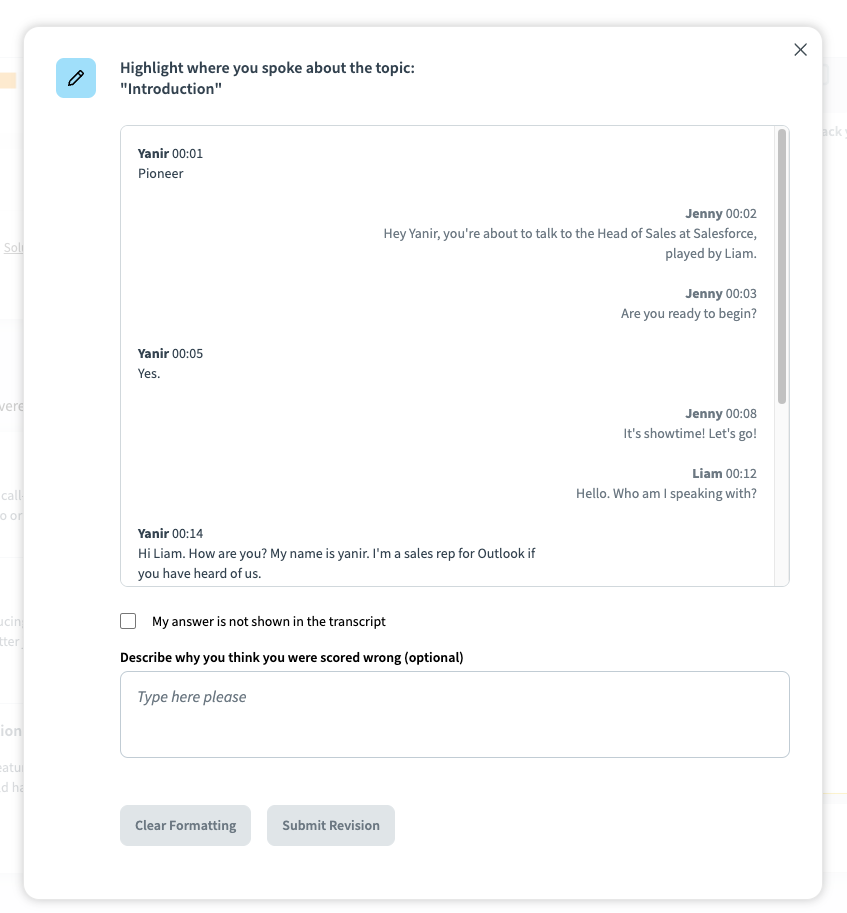
For more information about the revision functionality see “A simulation topic I covered was not scored properly”.
Style
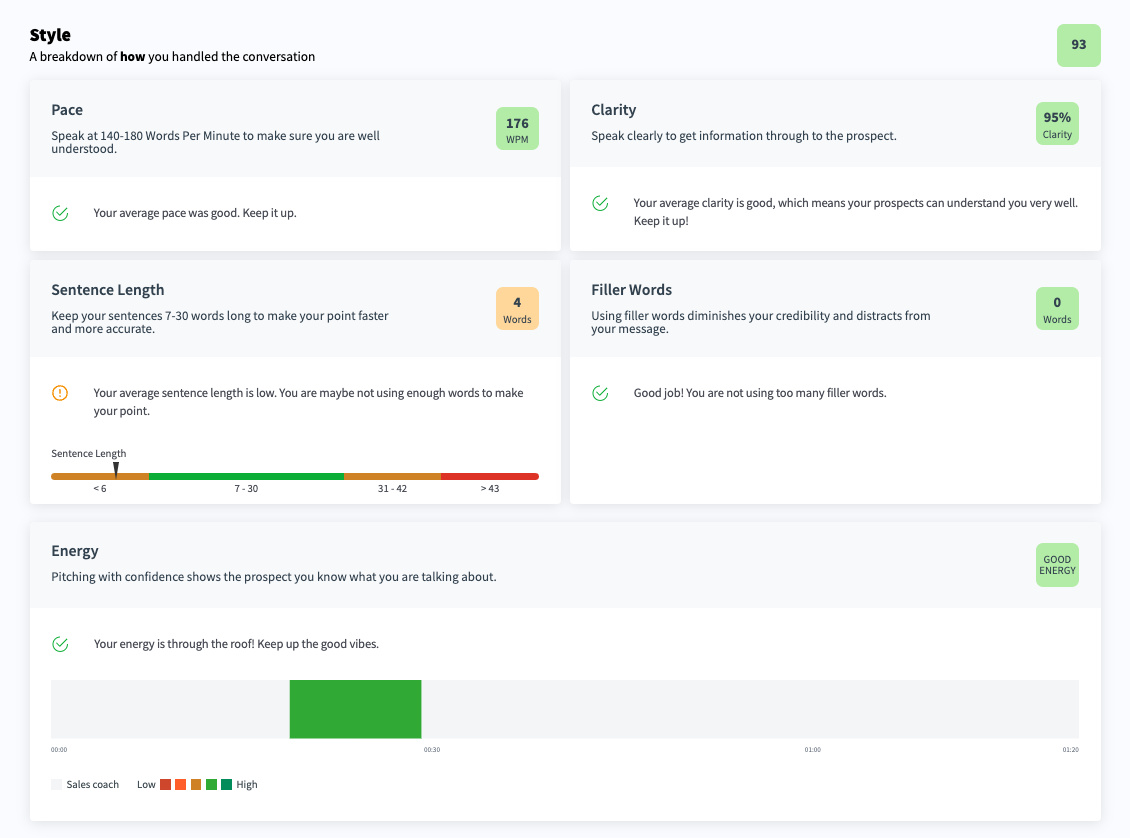
In this section the trainees can see their verbal performance, broken down to the following metrics: Clarity, Pace [words per minute], number of filler words used, sentence length and energy.
Every metric has its own box in which the trainee can the see their
a. Metric Name
b. Metric description
c. Metric score
i. If the score background is green: the score is in the expected range
ii. If the score background is orange: the score is slightly above/beneath the expected range
iii. If the score background is red: the score is highly above or beneath the expected range
d. Score explanation: A short explanation about the scoring the trainee got
e. Metric range: In some metrics [such as Energy or Sentence Length] the trainees can see their entire scoring metrics range.
List of Analysis Pages
1. Analysis page for manual evaluation: The analysis page for sessions that needs to be manually evaluated has the exact same components as the analysis page depicted above, with one major difference: In the analysis page upper section there is a Submit For Evaluation CTA button. After clicking this button, the session will be sent to the relevant managers/evaluators for review.

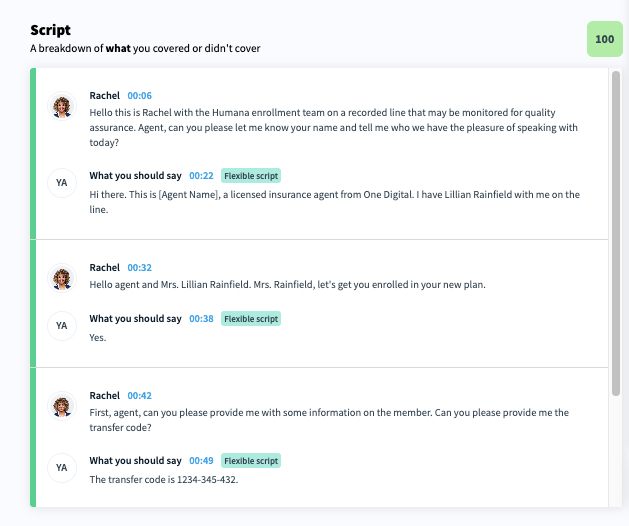
2. Analysis page for scripted simulations: The analysis page for scripted simulations has the exact same component as the analysis page depicted above, with one major difference: In the analysis page middle section, instead of a “Knowledge” section, there is a “script” section which evaluates the trainee’s performance in a scripted simulation.
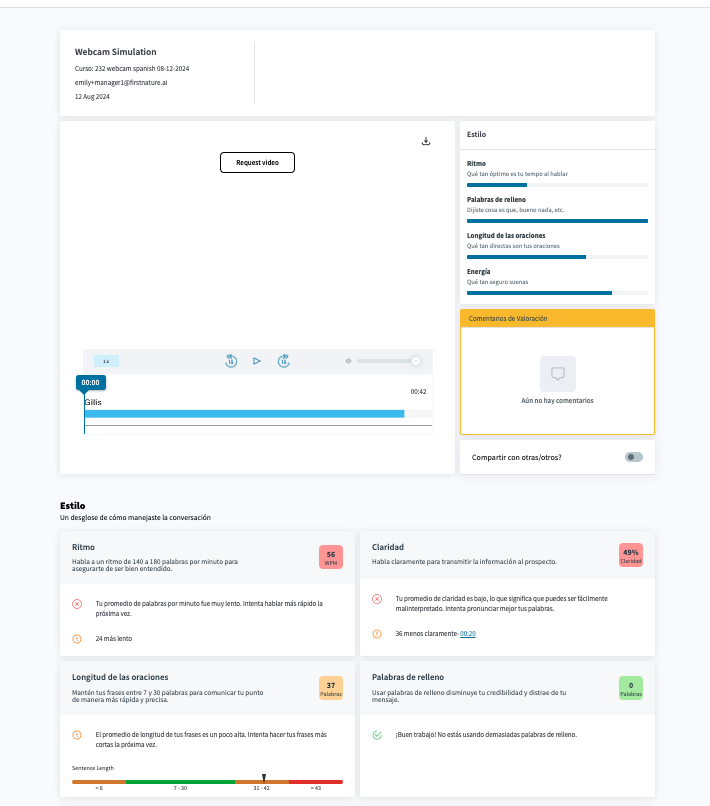
3. Analysis page for a non-English webcam simulations: The analysis page for non-English webcam simulations has the exact same components as the analysis page depicted above, with two major differences: There is no AI trainer feedback and no “Knowledge” section in the analysis. It only has a “Style” analysis.
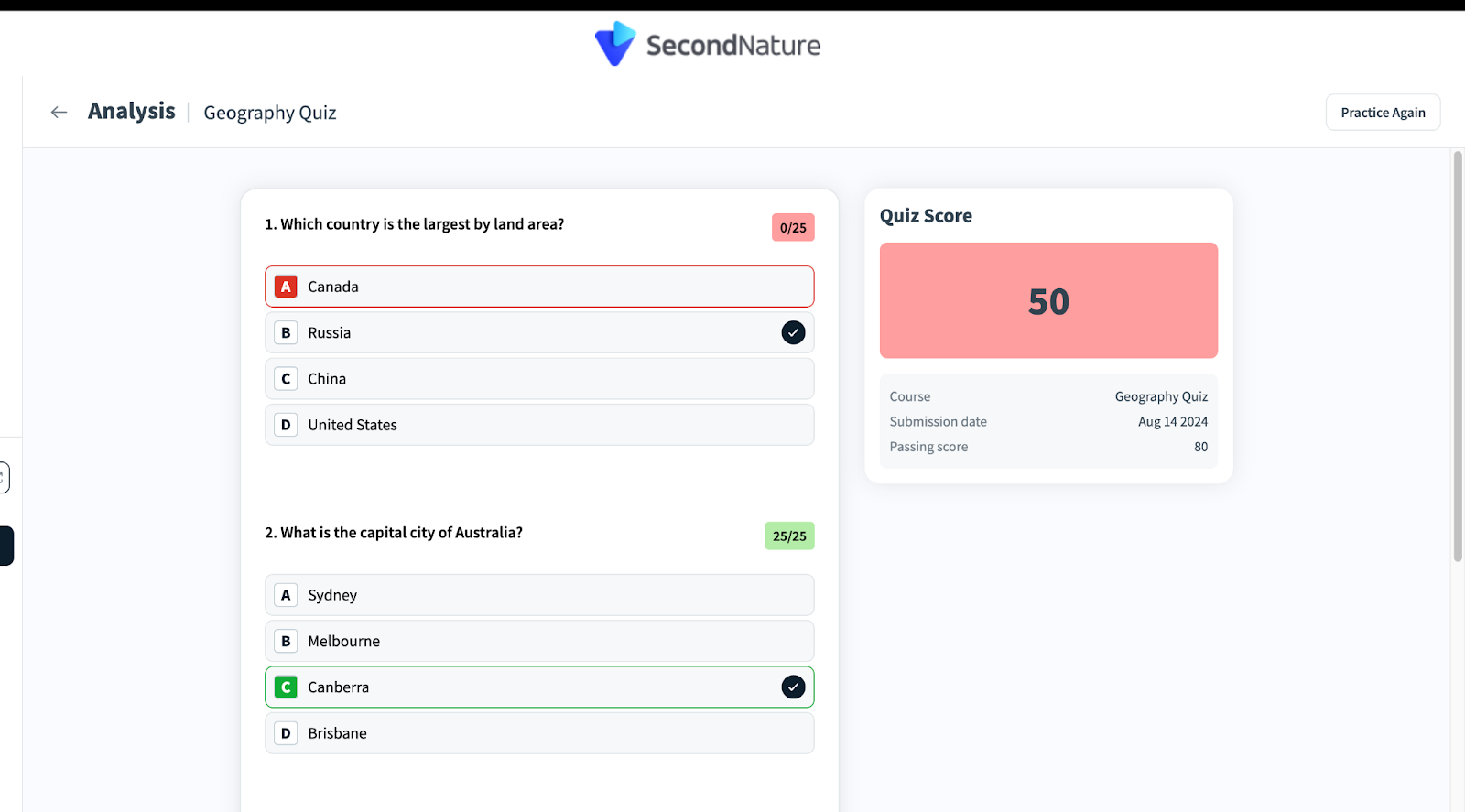
4. Analysis page for quiz: The analysis page for quizzes differs from simulation analysis. It only includes the average score for the entire quiz, along with a list of the quiz questions and their respective scores.