Simulation Actions (Pause, Restart, End simulation and more)
Last updated: April 22, 2026
Simulation Overview
Second Nature sessions typically begin with an explanation of the simulation by Jenny, an AI Persona that narrates the simulation and can help you out when needed (unless this intro is disabled). Following the explanation, the selected AI Persona will begin the conversation. Trainee’s should start speaking as soon as the AI Persona completes its initial lines of dialogue.
This guide focuses on the actions available to trainees during their simulation. Trainees may utilize these buttons throughout their simulation as needed.
TIP:
Throughout each session, trainees should engage as if they were in a real meeting with a client, during a cold call or engaged in another scenario. Listen carefully to the AI Persona and consider each topic that may be analyzed. If repeating a simulation, adjust your dialogue based on previous feedback./
After addressing all simulation topics, trainees end their sessions by pressing End Simulation. This indicates satisfaction with the conversation and cannot be undone. If you prematurely end the simulation, you will need to start a new session.
Simulation Action Buttons
Descriptions of available actions during a session:
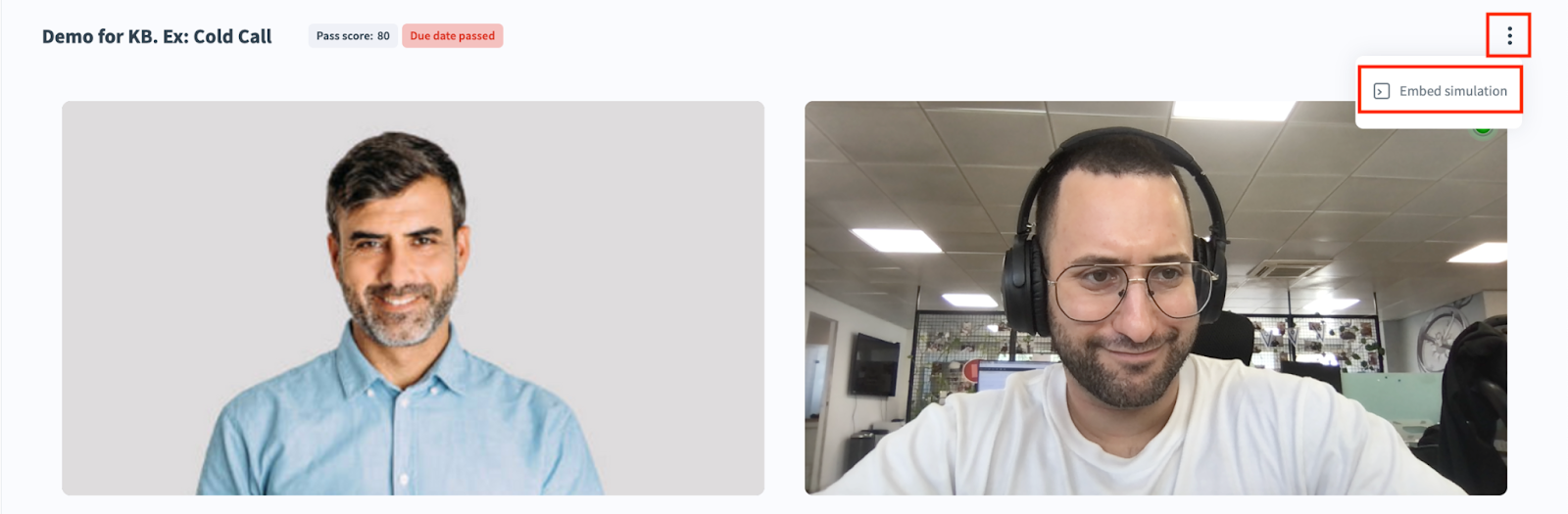
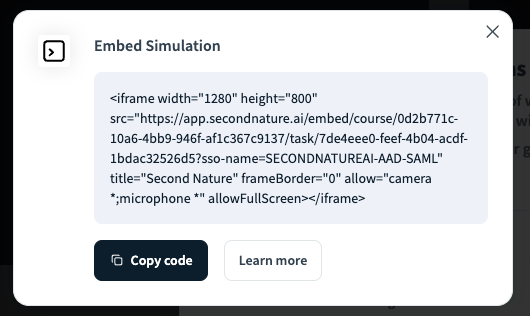
Embed Simulation: Above the local video feed (trainee feed), click the ⋮ (vertical ellipsis) button to reveal a dropdown menu. Select Embed simulation to receive the HTML code for adding your simulation to another page.
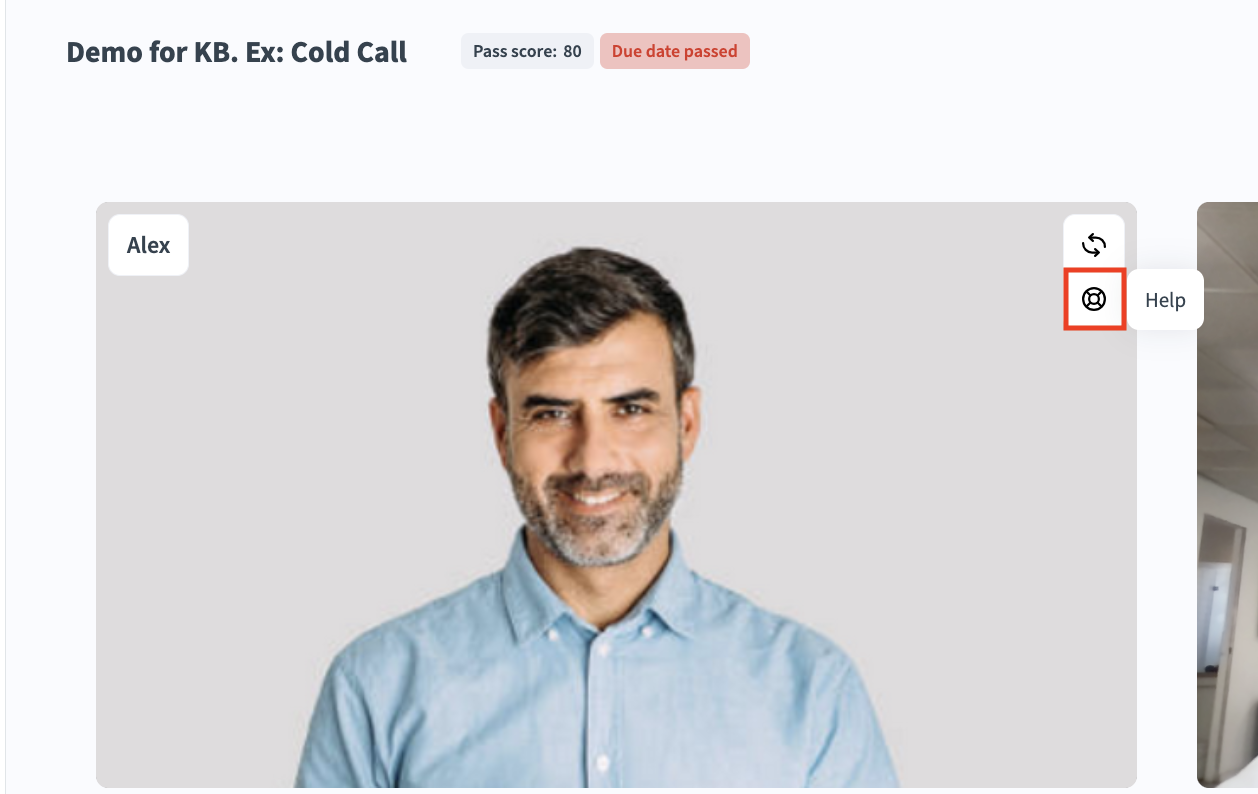
Help: Click the Help button at the top right of the AI Persona’s video feed to have the AI Persona explain the context and objective of the simulation.
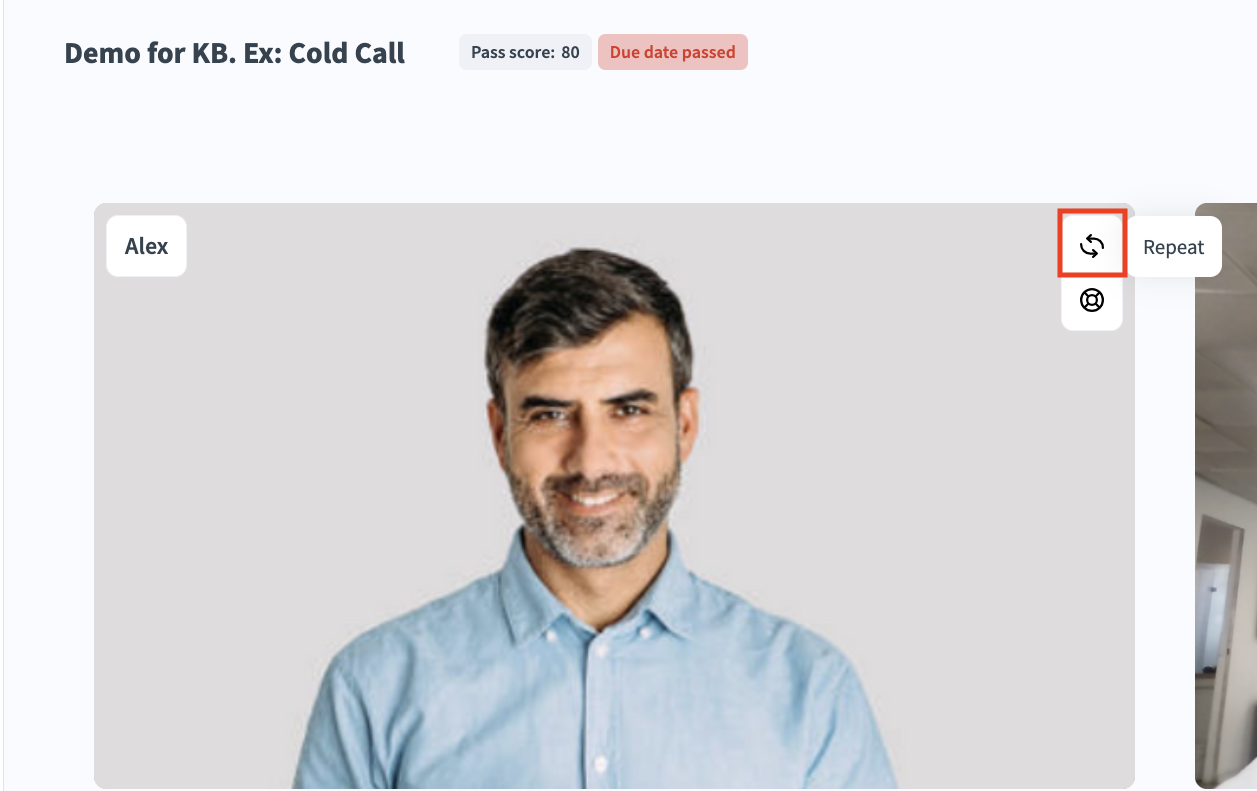
Repeat: Click the Repeat button at the top right of the AI Persona’s video feed to have the AI Persona to repeat their last statement(s).
(Enable) Noisy Mode: Click the Noisy Mode button at the bottom of the simulation if you are in a loud area. By using this feature, users will be able to engage in the conversation only when they click the "Noisy Mode" button [similar to how a walkie-talkie works].

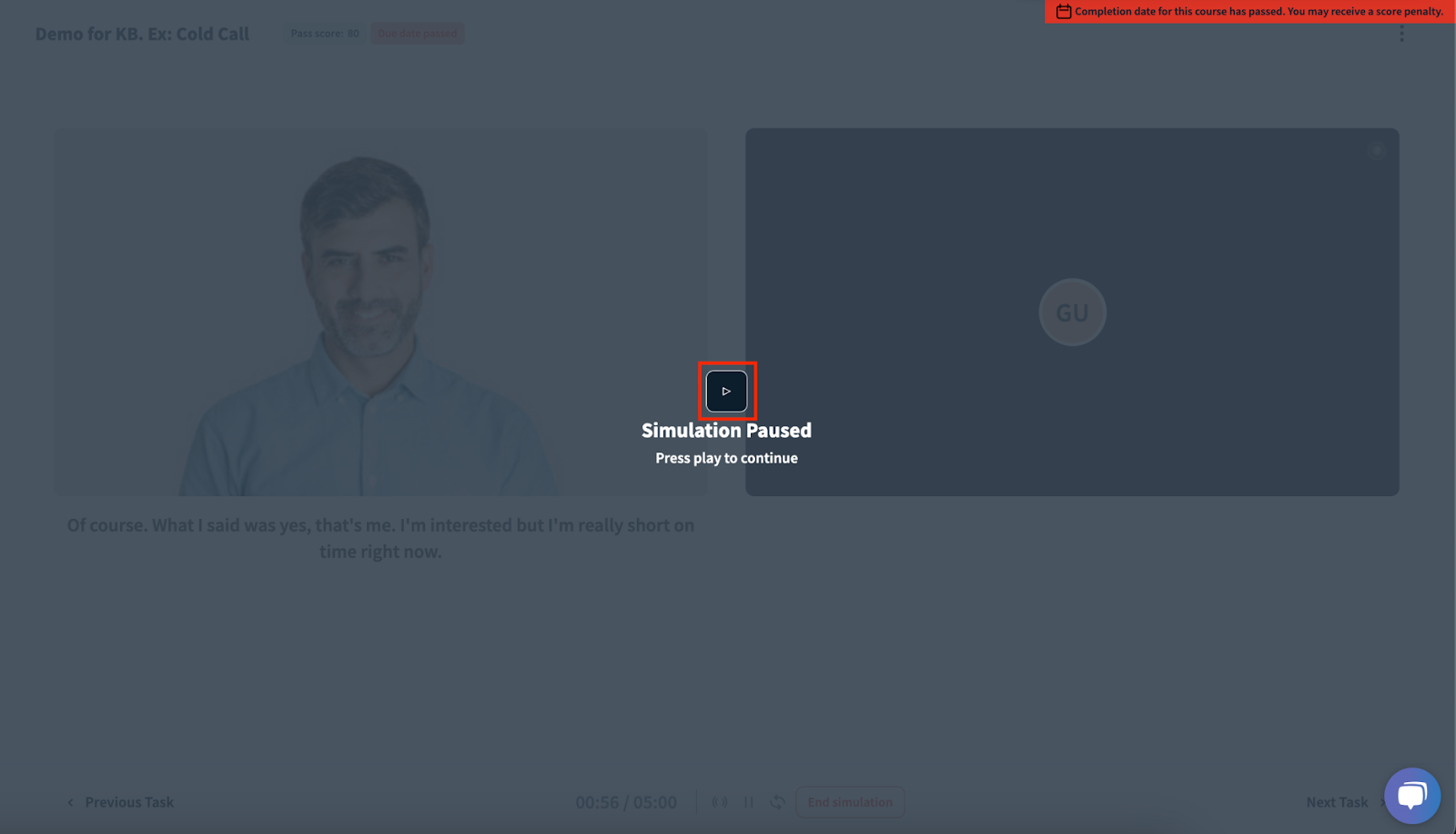
Pause: Click the Pause button if you need a break, such as receiving an urgent message or needing to leave the room. This will stop the simulation timer and display a paused screen. Click the play (resume) button when you are ready to continue.

End Simulation: Click the End Simulation button when you are satisfied with your session.