Advanced Settings
Last updated: April 22, 2026
Advanced Settings Overview
Click on the Advanced Settings section to expand the card and access all simulation configuration options. Adjust fields as needed:
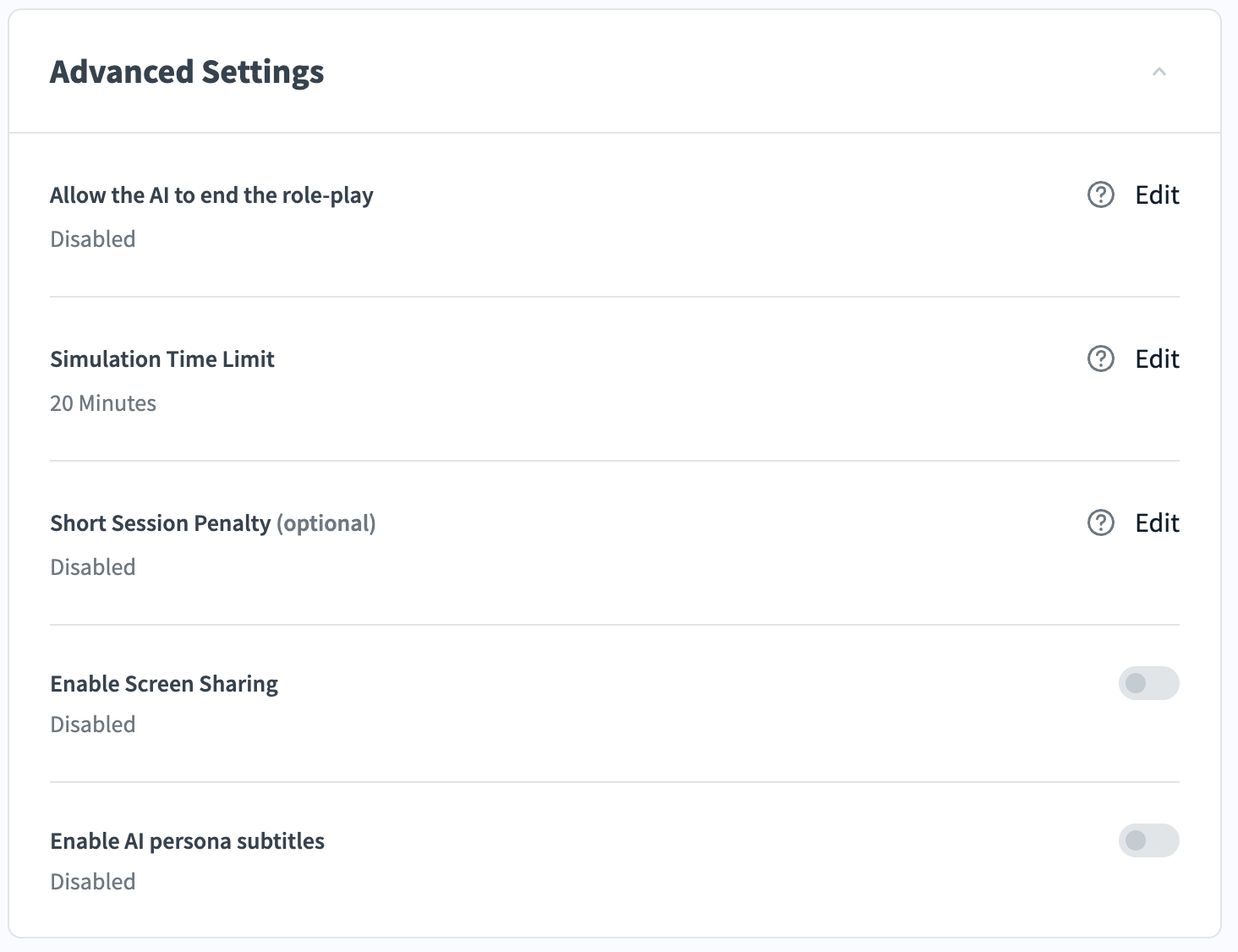
Allow the AI to End the Role-Play (optional)
Toggle this option if you would like the AI persona to have the ability to conclude the role-play on its own.
When enabled, you must provide clear instructions in the editor describing when and under what conditions the AI should bring the simulation to an end (e.g., after a successful booking, after all required questions are asked, or when the conversation reaches a natural conclusion).
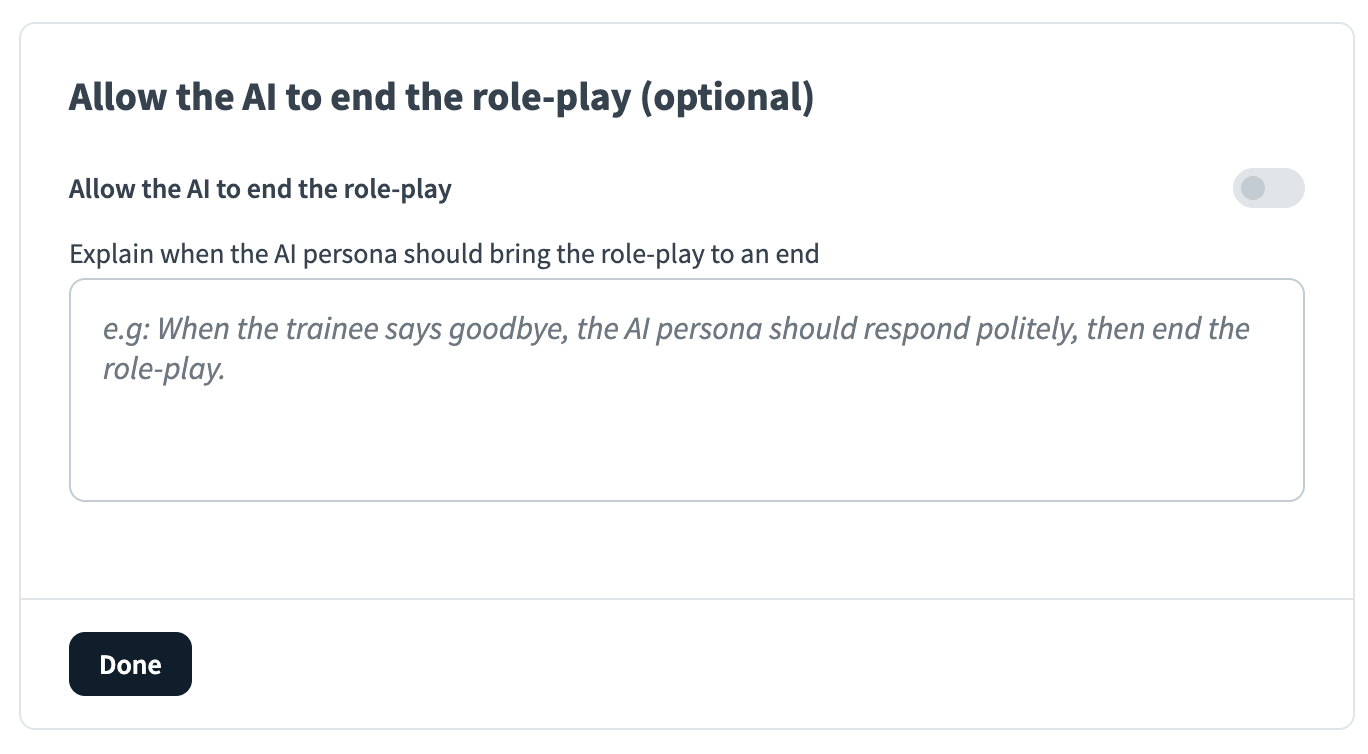
Simulation Time Limit (optional)
By default, the simulation time limit is set to 20 minutes. You may adjust the maximum time for a simulation to any duration between 1–30 minutes.
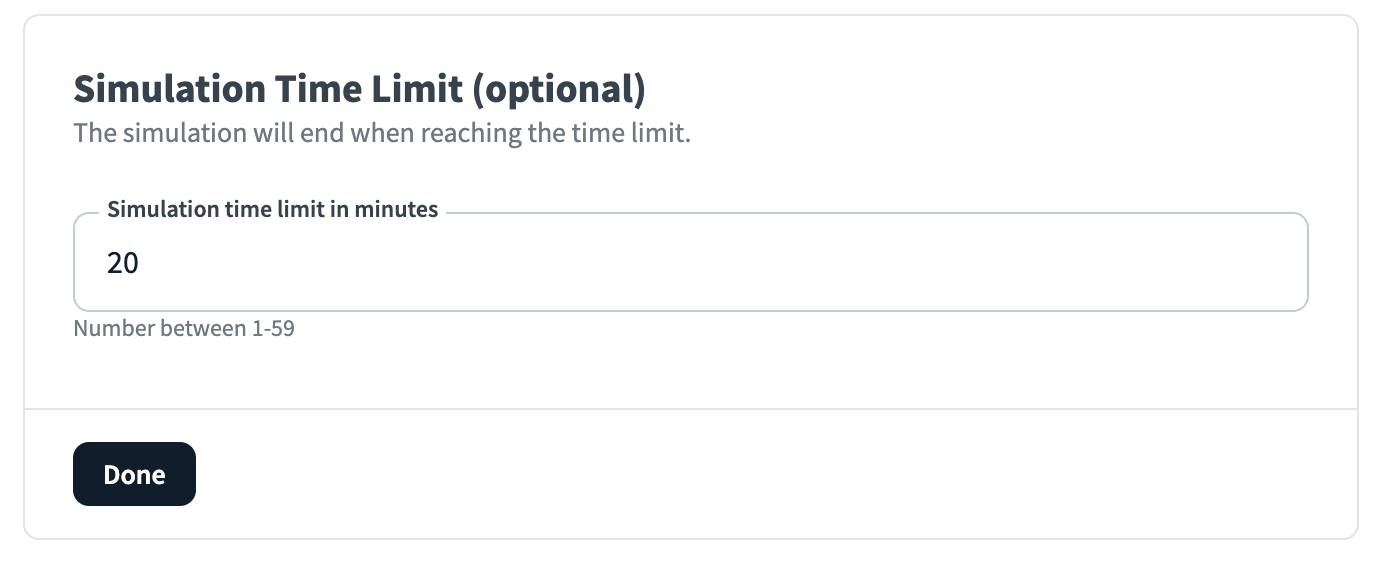
Short Session Penalty (optional)
You may enable a minimum required time that the trainee must stay in the simulation.
Click Edit to toggle this setting.
If enabled, enter both the minimum number of minutes and the penalty value.
Click Done when complete.
Example:
If the values 1 minute and 10 points are used, the trainee must stay in the simulation for at least 1 minute. Otherwise, they automatically lose 10 out of 100 possible points.
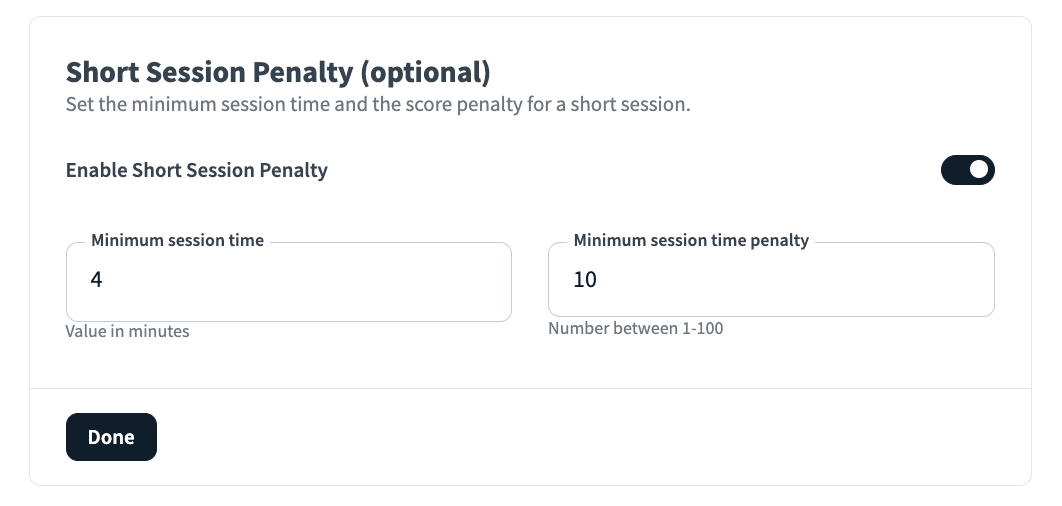
Enable Screen Sharing
Toggle this option if you would like to allow the trainee to share their screen during the simulation.
By default, this feature is disabled. When enabled, screen sharing will appear in the bottom menu during the interactive conversation.
Enable AI persona subtitles
By default, AI persona subtitles are turned off. Toggle this option if you want subtitles (captions) to appear for the AI persona during the simulation.