Score Settings and Creating Scorecards
Last updated: April 22, 2026
Overview
This guide relates to simulation scores. There are two sections:
Score Settings
Click on the Score Settings section to expand the card and reveal scoring options. Edit the default score settings as needed.
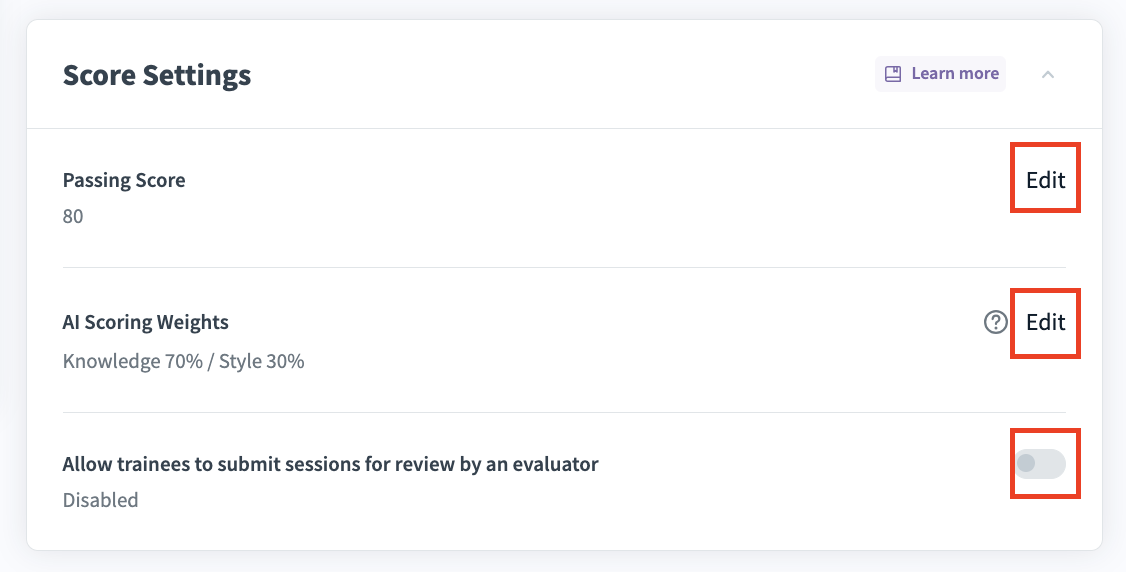
Passing Score is a minimum score that a trainee must receive to successfully complete a simulation. Click Edit to set the passing score as a number between 0 and 100. Press Done when you are complete.
a. By default, simulations require a passing score of 80.
AI Scoring Weight is a ratio of how much emphasis should be placed on “knowledge” compared to “style.” You can learn more by reading the document "Analysis Page".
a. By default there is an AI Scoring Weight criteria of Knowledge 70% and Style 30%. This can be adjusted as needed.
b. Second Nature AI uses these weights for evaluating sessions conducted in English.
Allow trainees to submit sessions for review by an evaluator is an option for human grading of simulations, in addition to the AI grading. By default it is disabled. You may adjust the toggle to enable this option.
If you enable Allow trainees to submit sessions for review by an evaluator you will see an additional two options: Trainees will only be able to submit the session for evaluation if they have achieved the passing score and Scorecard.
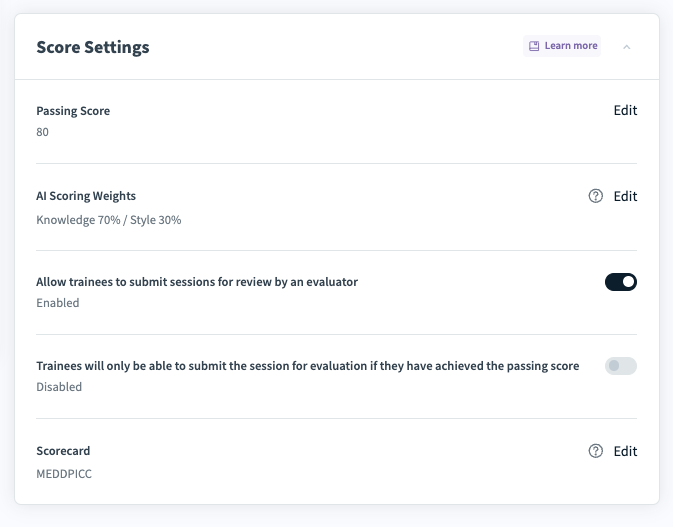
The setting to only have trainees submit scores if they pass their simulation is disabled by default. Enable this setting to reduce the amount of simulations sent to evaluators.
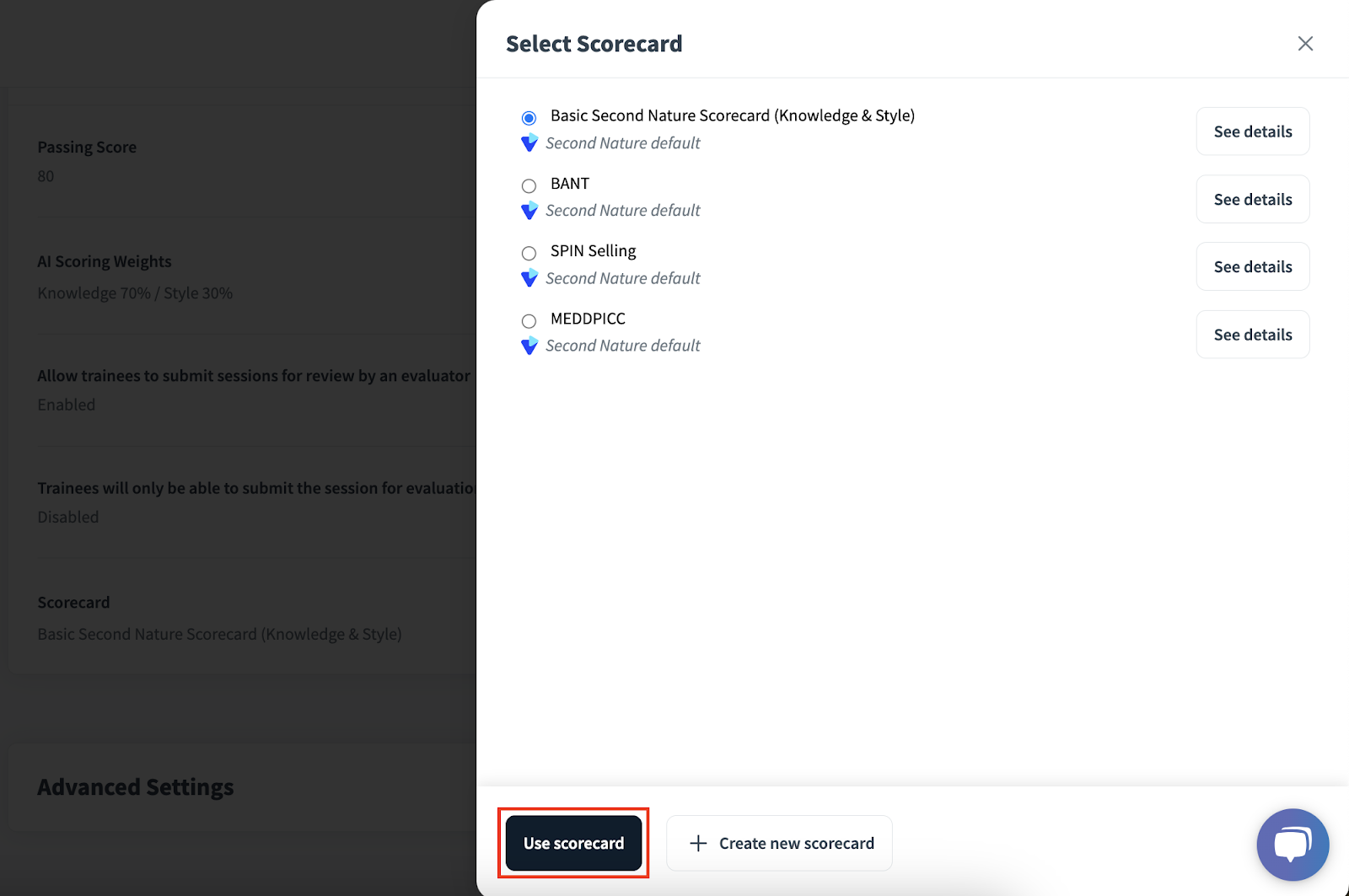
Press Edit on the scorecard setting to reveal the Select scorecard panel. From this panel you may adjust which of your existing scorecards will be used by evaluators to evaluate trainees. Press + Create new scorecard if you would like to create a new set of parameters for evaluators to use when grading trainees. These parameters act similarly to the “topics” described in step 6. They must also add up to 100%. Press Use scorecard after selecting the appropriate scorecard for your evaluators to use.
Continue reading for a deeper look into Scorecards.
Creating a New Scorecard
Course creators can create their own customized scorecard by clicking on the Create new scorecard button on the bottom part of the scorecard menu.
The scorecard has the following inputs:
The scorecard name
Scorecard guidelines URL (optional)
Scoring parameters
Name of the scoring parameters
Number of scoring parameters
Weight of each parameter
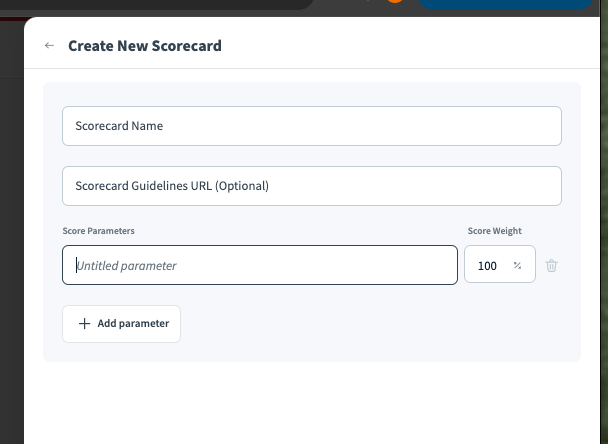
Once the scorecard creation is complete, click the Save Scorecard button at the bottom of the drawer.
Scorecard Details
Course creators can see the scorecard details by clicking the see details button.
In this section they can change the score parameters or the parameters weights.
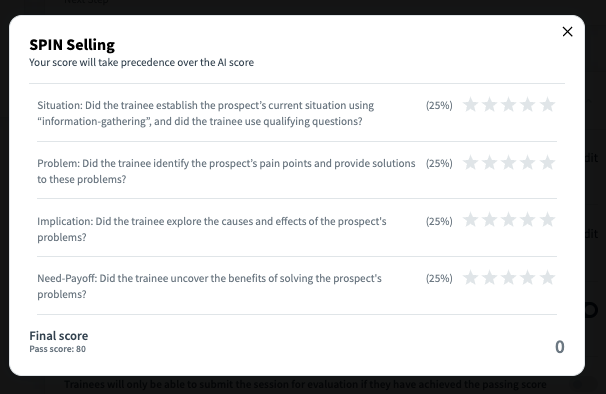
They can also get a preview of the scorecard that evaluators will see once the simulation is completed. The evaluation is graded in a 1-5 stars system.
If this is the scorecard that the course creator wants to use for this simulation, they just click on the Use this scorecard button on the bottom part of the drawer.
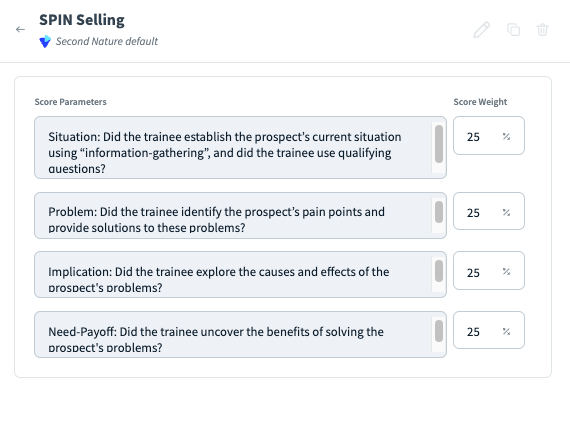
Preview of the scorecard the evaluators see when they need to provide: