How to upgrade existing courses
Last updated: April 22, 2026
Upgrade Tool
The Upgrade Tool helps you modernize existing courses that were built using older templates by using AI assistance. It reduces manual work and aligns your courses with the latest course structure and best practices.
What is the Upgrade Tool?
The Upgrade Tool includes two main capabilities:
Upgrade Course with AI - Converts an existing course into the latest course structure
Edit with AI - Lets you update role-play content by chatting with an AI assistant
Use it when you want to quickly bring older courses up to date or make targeted improvements without editing everything manually.
When should you use it?
Use the Upgrade Tool when you want to:
Update courses built with older templates
Align content with the latest course structure
Reduce manual editing effort
Quickly adjust role-play content (e.g., refine persona concerns)
Upgrade Course with AI
What it does
Automatically converts your course into the latest structure while preserving your existing content, while also improving overall course quality.
During the upgrade, the system:
Updates course structure to match the latest format
Improves content clarity and flow
Enhances persona behavior and conversation quality
Applies updated AI prompts
Enables newer capabilities, such as multilingual role-play experiences and further editing with AI
How to use it
Open the course you want to upgrade
Click Upgrade available
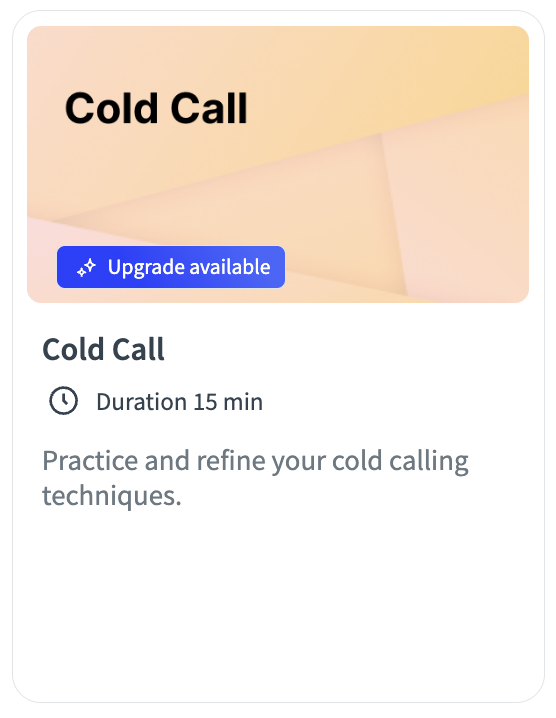
Choose one of the following options:
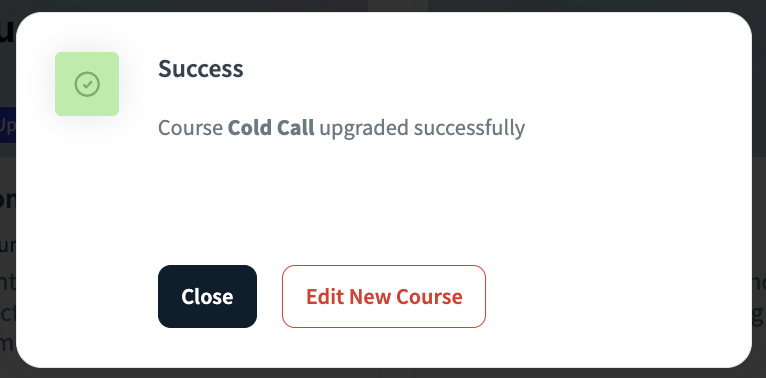
Upgrade the existing course
Create an upgraded draft (recommended if you want to review before replacing)
Wait for the upgrade process to complete
Review the updated course
What to review after upgrading
After upgrading, review the course to make sure it fits your needs:
Content accuracy and structure
Persona behavior and flow
Overall training experience
Edit with AI
What it does
Allows you to update role-play tasks by describing changes in natural language instead of editing fields manually.
When to use it
Use Edit with AI when you want to:
Adjust persona concerns
Refine scenarios or conversations
Make quick improvements without manual editing
Duplicate course
When duplicating a course, it creates a new course in the courses drafts page.
Having a new course means that you will have to:
Re-assign users
Use a new URL (SCORM)
See a new course name in the reportings
How to use it
Open a role-play task in the course editor
Click Edit with AI

Describe the changes you want (for example: “Make the persona more price-sensitive” or “Add a concern about implementation time”)
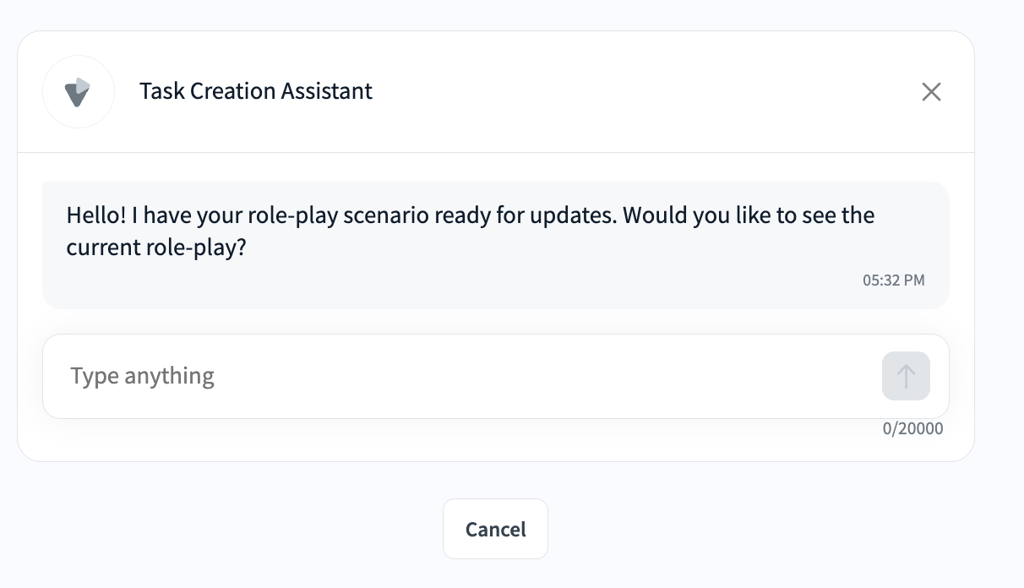
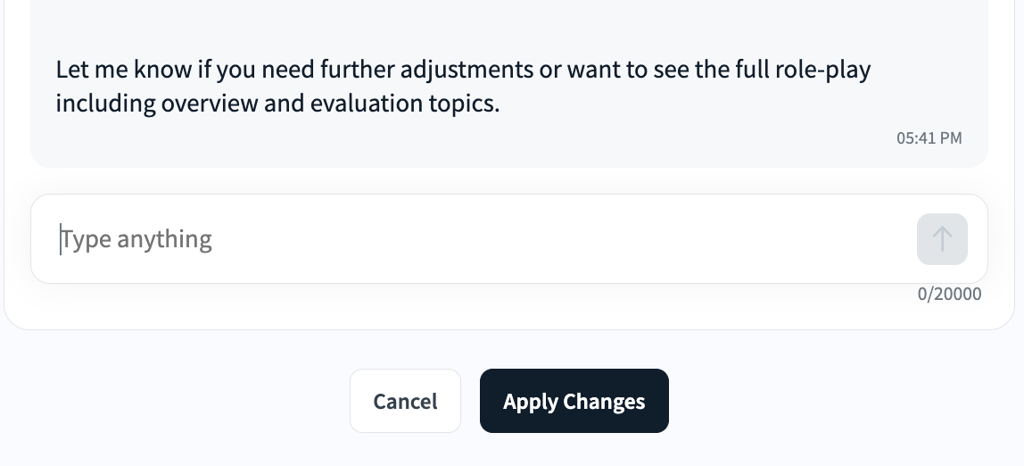
Review the suggested updates
Apply the changes
Important notes
Edit with AI is available only on supported role-play tasks
You can iterate and refine changes through multiple prompts
FAQ
Will my original course be overwritten?
Only if you choose to upgrade the existing course. You can also create a separate upgraded draft.Can I control what gets changed?
Yes. You can review the upgraded version and make additional edits before publishing.What kind of changes can I make with Edit with AI?
You can modify elements like persona concerns, tone, and scenario details (but not system-level instructions).