Creating a Quiz task type
Last updated: April 22, 2026
Overview
Second Nature offers the ability to create quizzes featuring both open-ended and multiple-choice questions. This task type effectively evaluates trainees' understanding of a subject. Incorporating quizzes into your courses enhances the learning experience, making it more immersive and engaging, while also providing trainers with valuable insights into areas where trainees may need additional support. Utilizing quizzes as part of the training process allows organizations to refine their programs and keep learners actively involved in their professional growth.
This guide covers:
Creating a Quiz
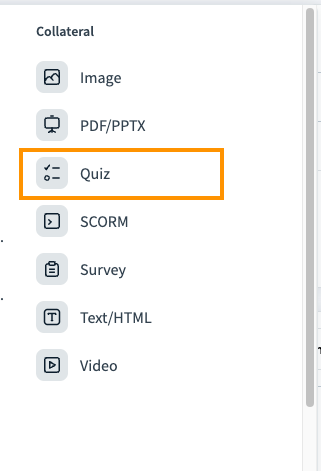
1. While creating a course, course creators can click the Quiz task type within their list of collateral task types.
See “Understanding Task Types: Simulation Task vs Collateral task” for more information on collateral tasks.
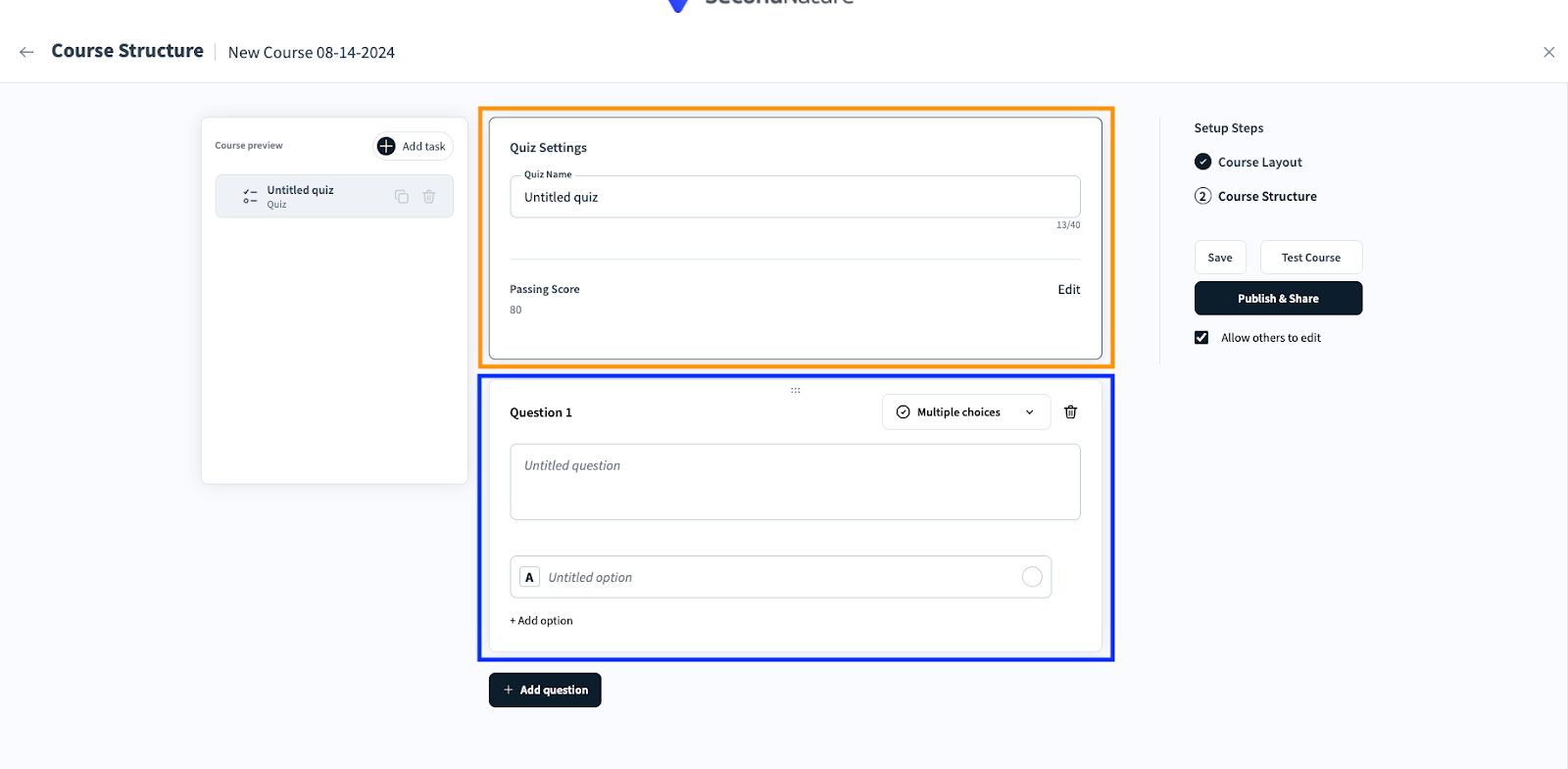
2. After selecting the Quiz task type, the course creator will see two sections: Quiz Settings and Questions (see image below). Fill out the quiz name and passing score in the quiz settings.
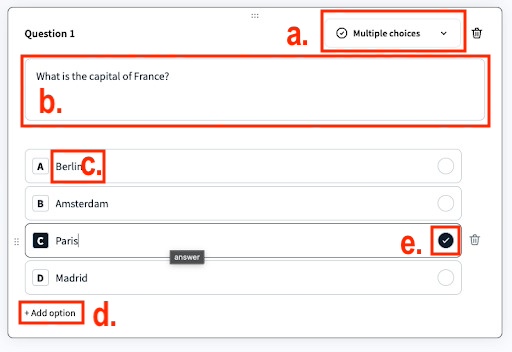
3. Add your first question by configuring the options provided. Two images are provided below for reference:
a. Question Type: Use the question type dropdown to select Multiple choice or Open question, based on how the trainee should respond.
b. Question: Write the question
c. Options: (Multiple choice only) Enter the labels for multiple choice options.
d. + Add option: Provide more multiple choice options (max 10 options).
e. Correct answer selection: (Multiple choice only) Select the option within a multiple choice question that is correct. You may only have one correct option.
f. Evaluation guidelines: (Open question only) Provide details on the evaluation guidelines that trainees should be scored on. These guidelines define the "Standard of Excellence," and adhering to them will result in a perfect score of 100 for the trainee.
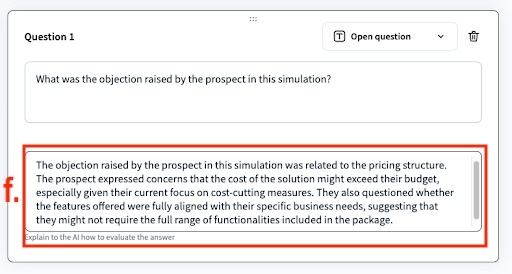
4. Press + Add question to continue to add questions as needed.

5. After adding all your questions, edit the quiz as needed. Actions are provided to make editing your quiz easier:
a. Rearrange Question: Drag and drop the six dotted icon to rearrange your questions.
b. Delete question: Click the trash icon to delete a question.
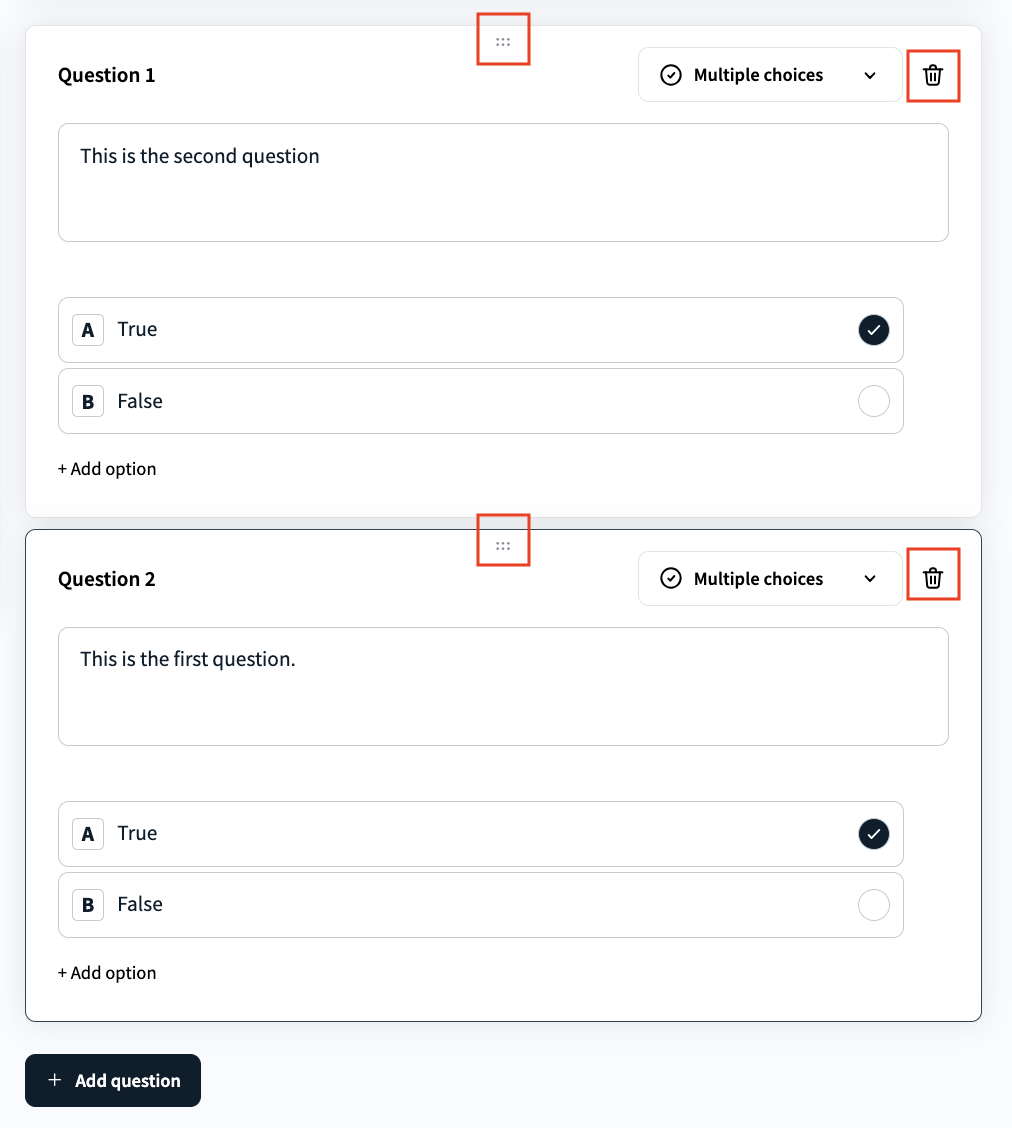
6. Carefully review your quiz questions, answers and evaluation guidelines before moving onto the next task in your course or publishing the course.
Taking a Quiz (Trainee View)
Upon reaching a quiz in a course, a trainee will see the questions in the same order they were set up, on one page. The trainee should select or type their responses one by one. They may revisit and change answers up until submitting the course.
When the trainee is satisfied with their answers, the trainee should press Submit your answers to get an evaluation. It may take a few seconds to receive an evaluation if open ended questions were used.
Image provided for reference:
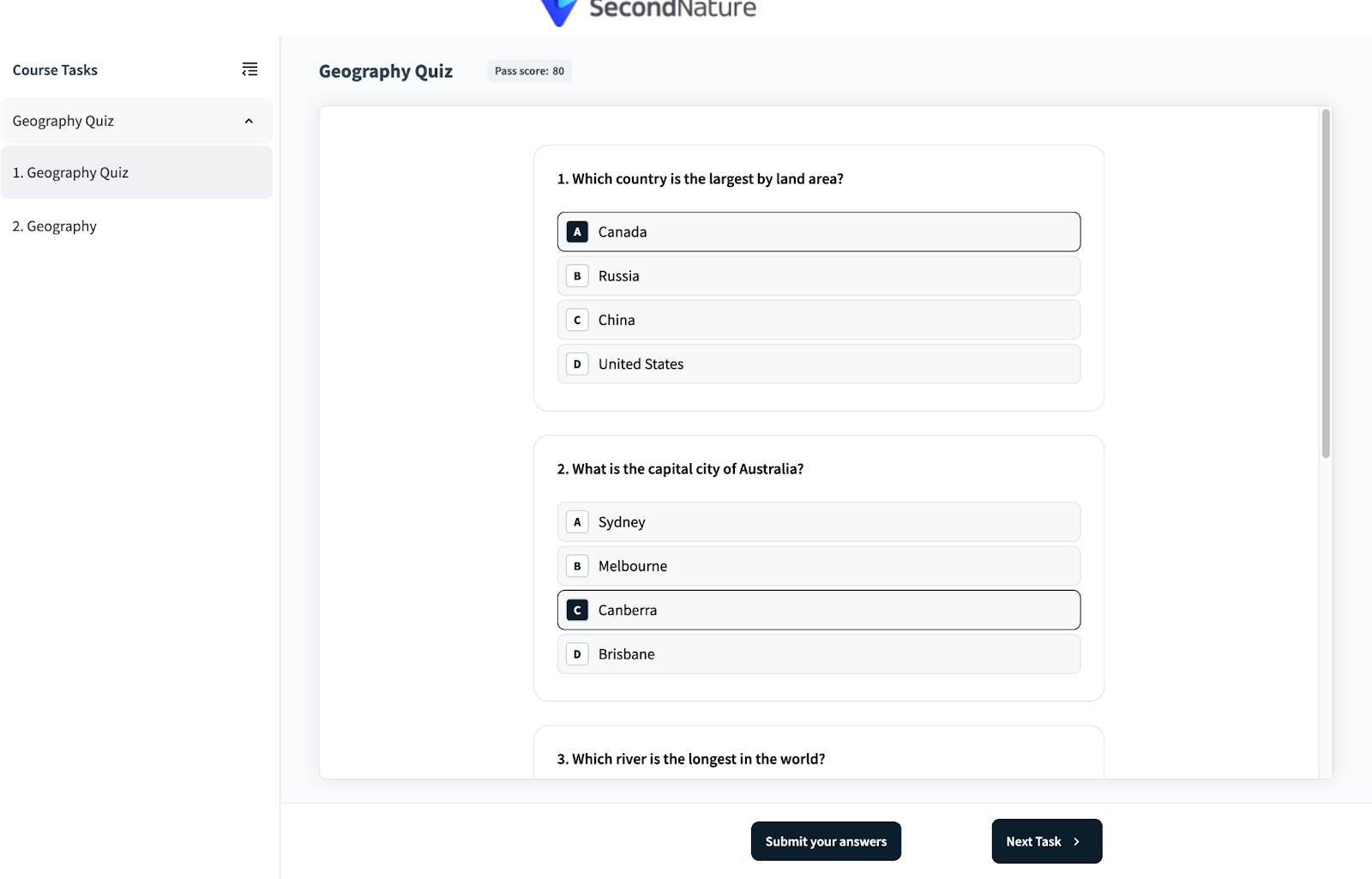
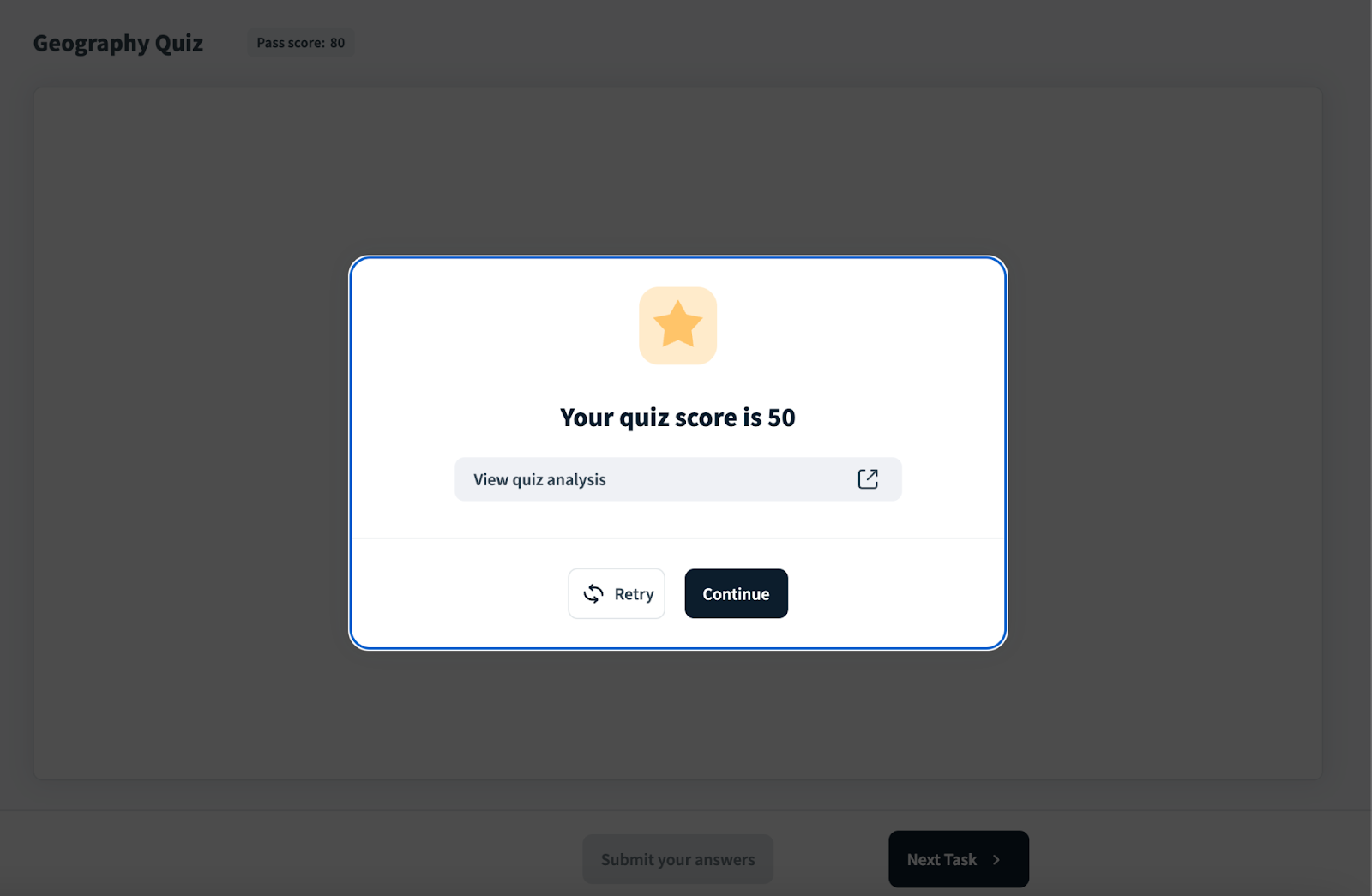
After submitting a quiz for evaluation, a trainee will see their score in a popup. The trainee can then choose how to proceed from the following options:
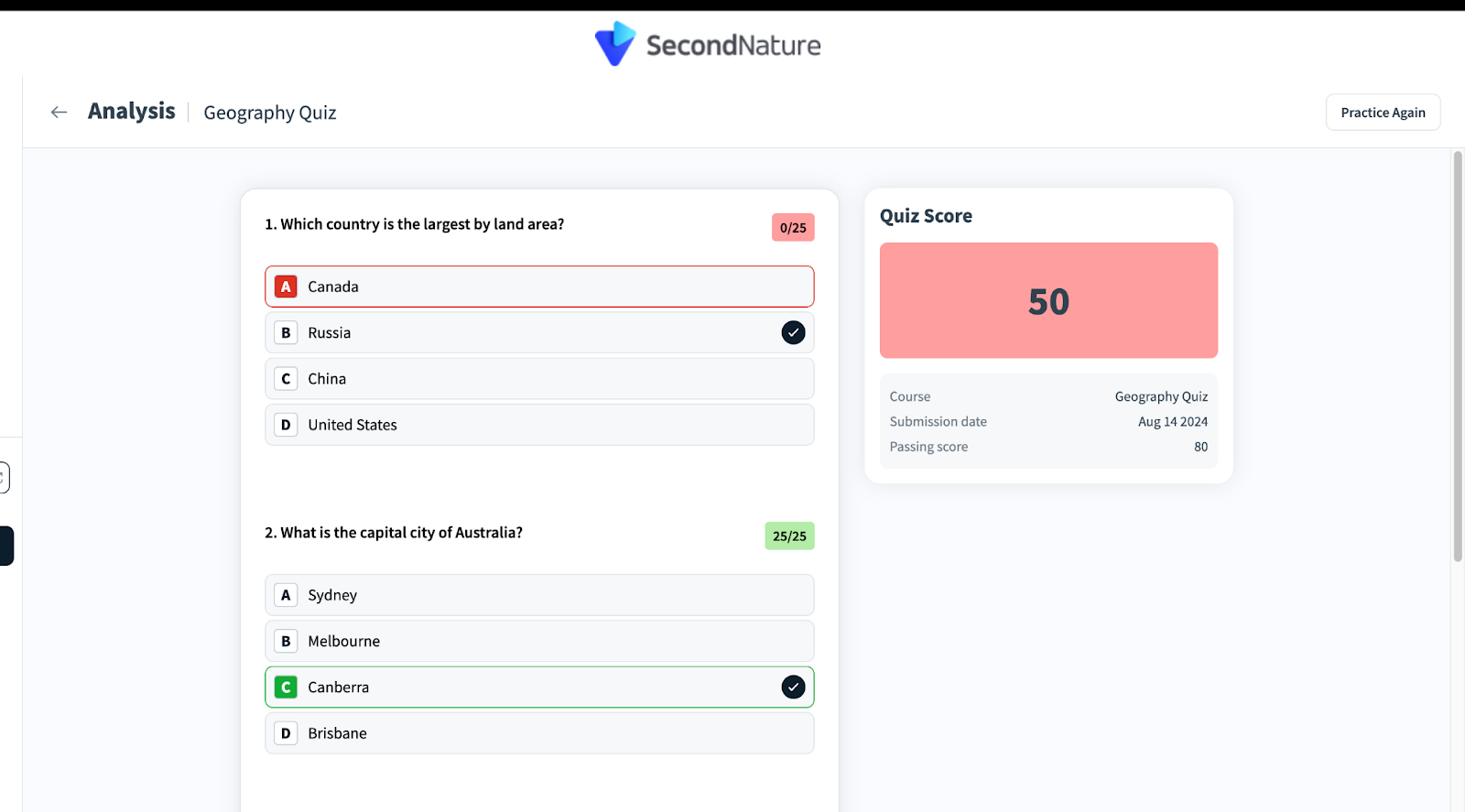
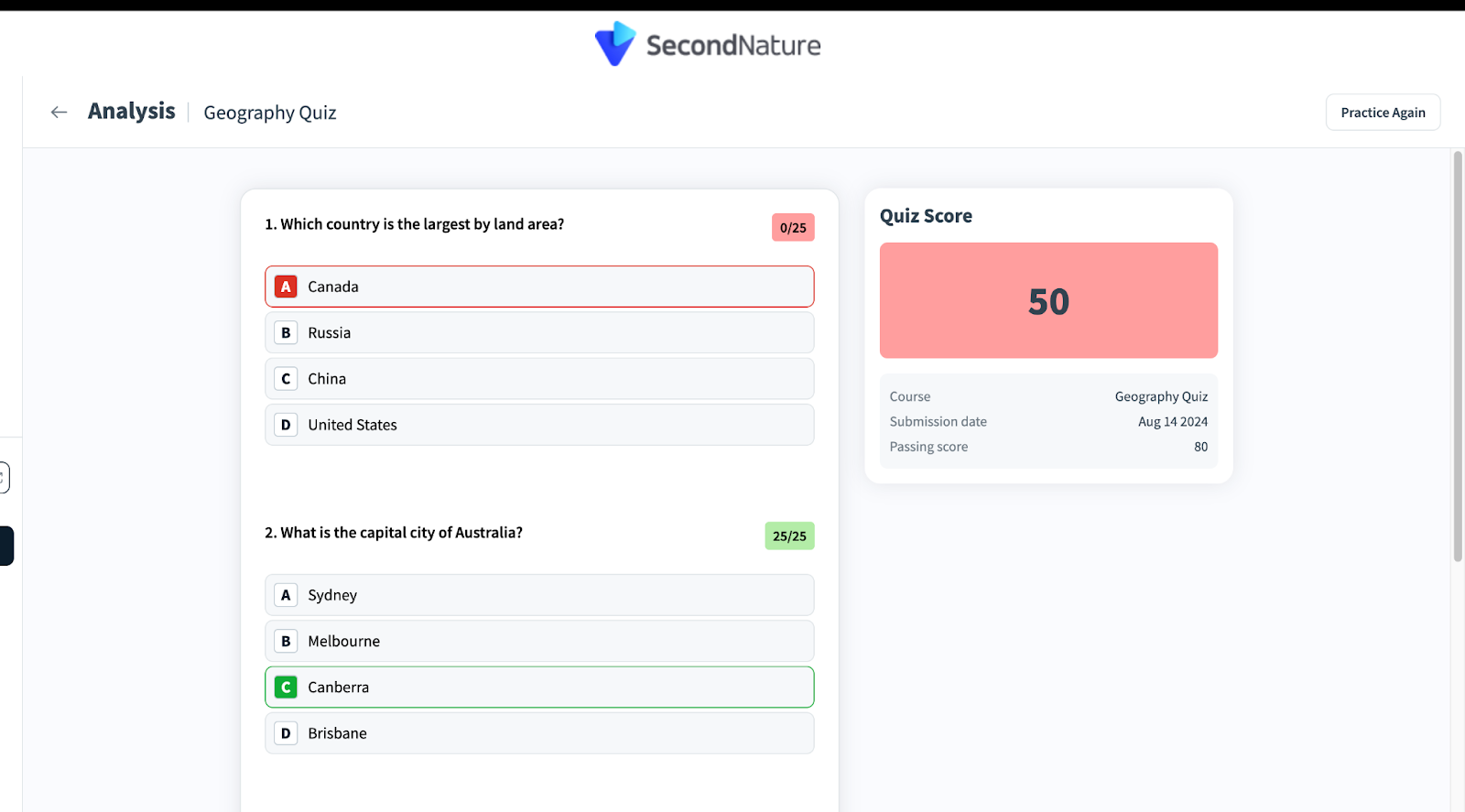
a. View Analysis: This option opens a list of quiz questions and trainee’s answers. If their answer was correct, it will appear with a green background. If the trainee got the question wrong, it will appear with a red background.
b. Retry (or Retake Quiz): The trainee can repeat the quiz to get a better score.
c. Continue: The trainee can leave the modal to continue or end their course.
If the trainee passes their quiz, they can press Next Task > to continue their course.
Quiz Analysis Page
Within the Quiz analysis page, trainees may see a list of the quiz questions, their answers, and their overall quiz score. Questions the trainee got wrong will have a red background. Quiz scores below the passing score will also have a red background. Correct answers and passing scores will have a green background.
Example of a quiz analysis page from a trainee’s perspective:
When an admin or manager views their trainees' quiz analysis page, correct answers are denoted by a black circle with a check mark inside.
Example of a quiz analysis page from an admin or manager’s perspective: