Creating a Scripted Conversation
Last updated: April 22, 2026
This guide covers the following topics:
Scripted Conversation Overview
Scripted Conversations are a simulation type where trainees are intended to follow a script rather than improvise. This simulation provides the ability to preemptively write what both the trainee and AI Persona should say at different points in the conversation.
NOTE:
This article only discusses the unique aspects of the Scripted Conversation simulation. Please see “Customizing Simulation Tasks” for additional information on how to customize simulations.
Scripted Conversation Terms
Speaker: The party who is directed to speak, depending on the sequence of events within the script. The speaker alternates between the trainee and AI Persona. Each parameter of an individual row relates to one specified speaker.
Script: This is the dialogue that the speaker and AI Persona are expected to follow. Continue reading to learn two methods of adding a script.
Adherence: This dictates how close the trainee needs to follow the dialogue provided in the script.
Strict (adherence): This means that the trainee needs to follow the script word-by-word (verbatim)
Flex (adherence): This means that the trainee can go off script and still receive a high score, so long as the gist of the dialogue is the same.
AI trainer help: The AI trainer can automatically assist the trainee if they fail to properly follow the script provided, by pausing the simulation and giving guidance. AI trainer help, or Helps, are often used for instances when trainees pause for an extended period when it is their turn to speak. By default, Helps only happen three times during the conversation (configurable) and reduces points from the trainee’s final score.
Step-by-step Guide to Adding a Script
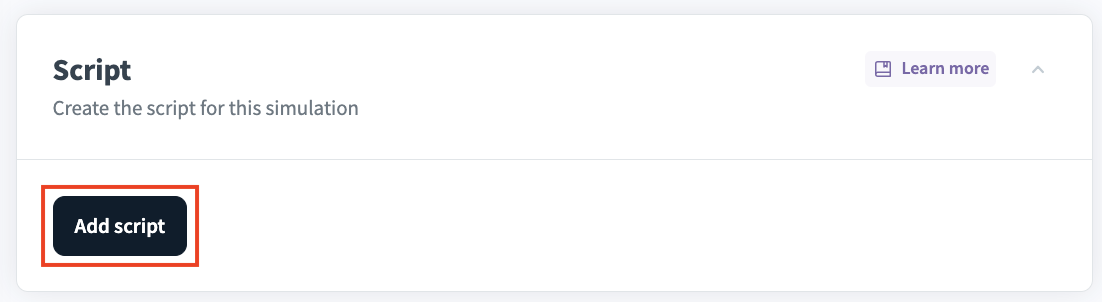
1. While creating a Scripted Conversation task, find the Script settings. Press Add script. You will be redirected to the Script Setup page.
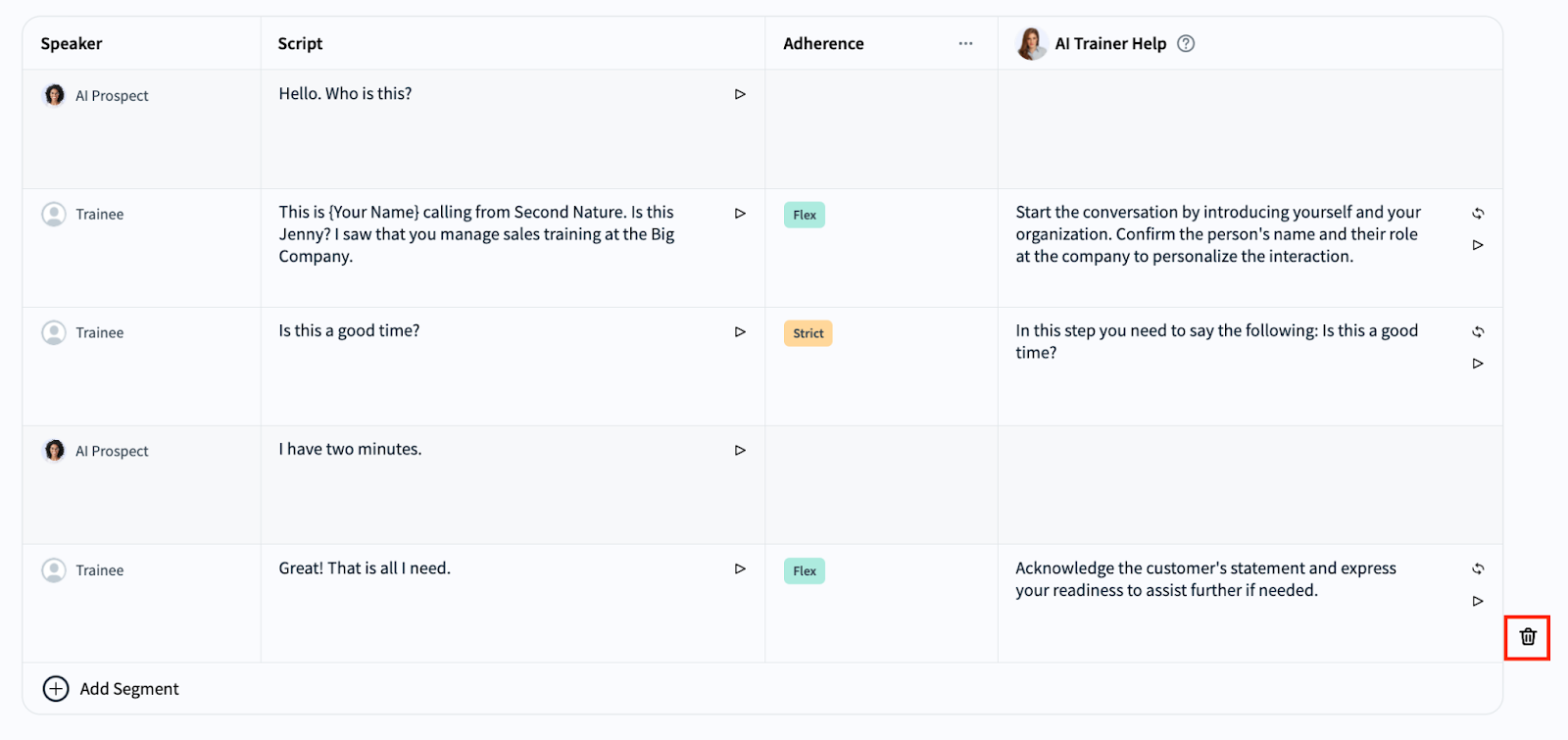
2. Within the Script Setup page, find the table used to visualize the plan for the conversation.
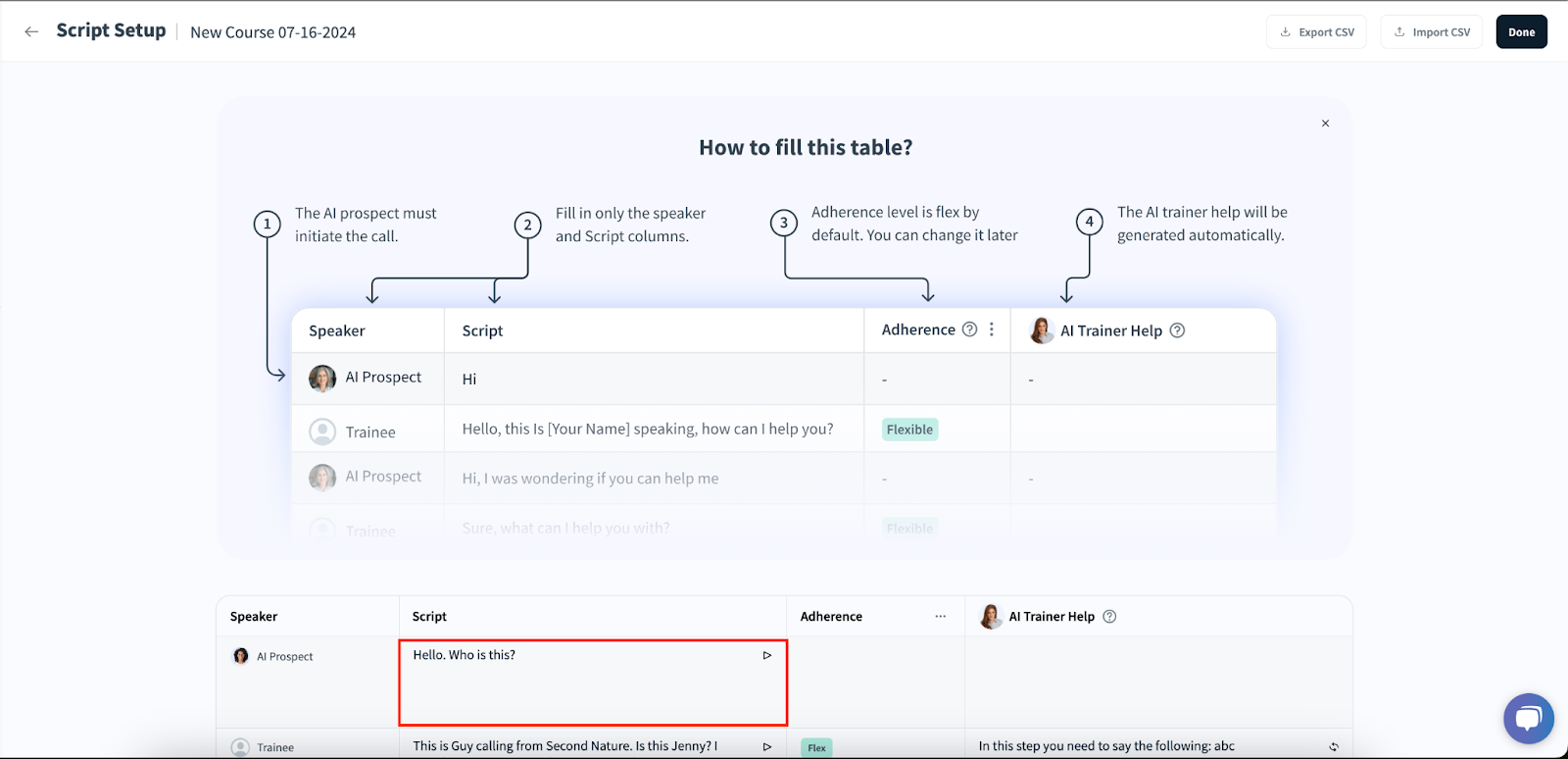
There are two ways to add a script:
Option A: Manually Adding a Script
3. Fill out the script text for the AI Persona.
a. All Scripted Conversations begin with an AI Persona answering the call.
b. The AI Persona will follow the script verbatim (exactly).
NOTE:
There is a play audio button at the top right corner of each script input. Press it to hear what the inputted lines will sound like with the selected voice for your AI Persona.
4. Fill out the script text for the trainee. Each trainee line has three aspects:
a. Enter the script text that the trainee is expected to now say.
b. Decide whether the trainee’s adherence to this scripted line should be strict or flex. This determines whether the trainee should not diverge from the provided script or may adjust individual lines to their liking.
i. Trainee lines may alternate between strict and flex, providing full control over the rigidity of the conversation.
c. Adjust the AI Trainer Help text in case the trainee is confused about what to do during the simulation. You may either press the top right Regenerate feedback button to have AI provide the text in case the trainee needs assistance, or you may enter your own custom text.
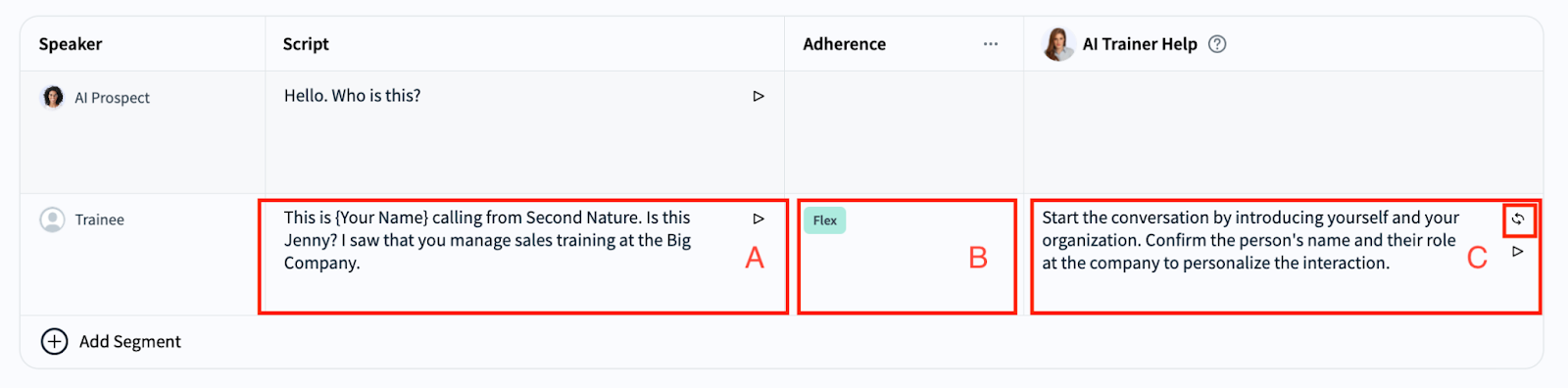
5. Press + Add Segment to reveal a dropdown. Within the dropdown press either AI Prospect or Trainee to determine the next scripted line. This will generate a new row in the table. Add script details to the new row.

6. Repeat adding and editing script segments. Check each individual segment as you add it. If you accidentally add an unneeded script segment, or select the wrong role to speak this segment, you may delete the segment by pressing on the trash bin icon to the right of the final segment. You may only delete the final segment.
7. When you are satisfied with the script, press Done at the top right corner of the page.

NOTE:
You may press the Export CSV button at the top right of the page to download a CSV file with the parameters of your script. This is recommended for record keeping and reusability.
Option B: Importing a Script via a CSV File
The instructions below use Google Sheets. You may use Microsoft Excel, Word or any other program to create your CSV that is preferred.
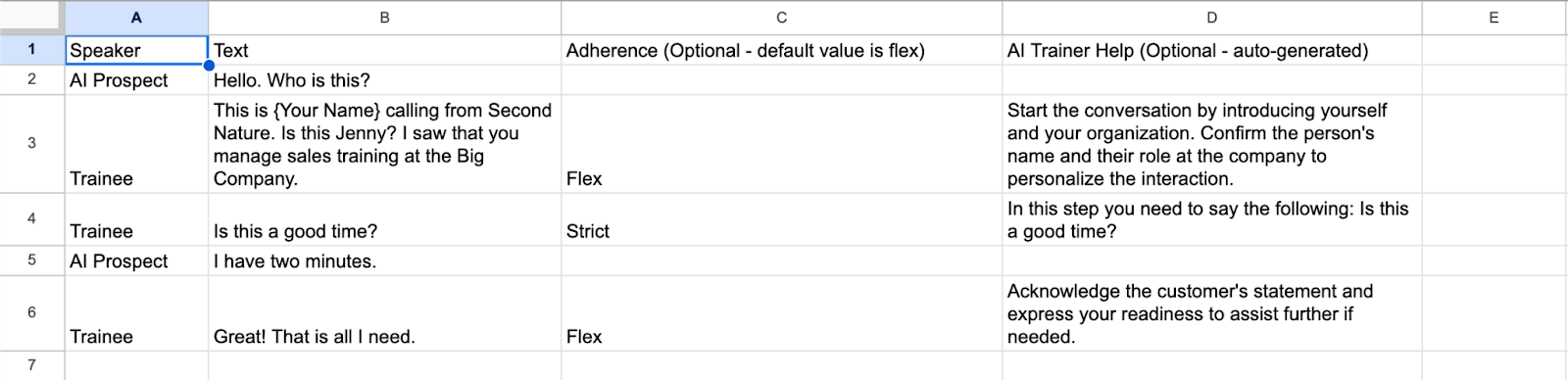
3. Generate your CSV file if you have not already done so. It should contain four columns based on the template provided with titles: Speaker, Text, Adherence (Optional; Default value is flex), AI Trainer Help (Optional; Auto-generated).
a. Within the Upload script popup, there is a button to Download a sample CSV if you need assistance formatting your script.
b. Alternatively, you may import a previously exported script. In the image below, the script from the guide above (“Manually Adding a Script”) is used.
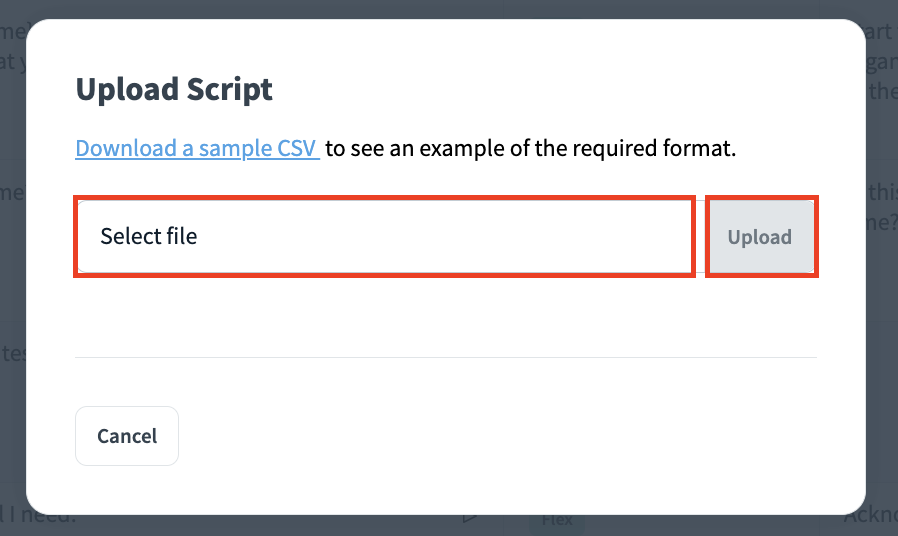
4. Within the Upload script popup, press Select file to upload the relevant CSV file. After selecting your CSV, press the Upload button. If the CSV has the appropriate details, you will return to the Script Setup page.
5. Within the Script Setup page, confirm that the table provided displays a script matching your CSV outline. You may adjust this script here as needed.
6. When you are satisfied with the script, press Done at the top right corner of the page.

Advanced Settings for a Scripted Conversation
Within the Advanced Settings panel of a Scripted Conversation simulation are the following additional options:
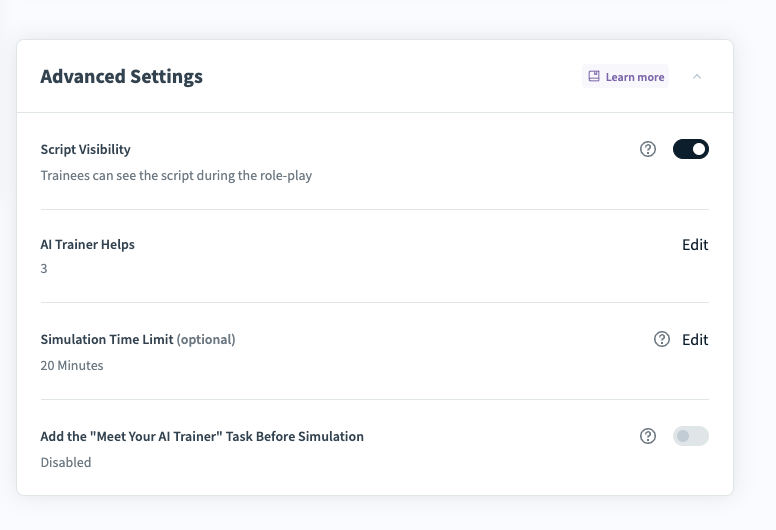
Script Visibility: Toggle this setting off if you do not want the trainee to see their script on screen. This option should only be disabled if the trainee has access to the script another way, such as a printed guide.
(# of) AI Trainer Helps: Press Edit to adjust the maximum number of AI Trainer Helps provided to a trainee, per simulation, from 0-5.
See “Customizing Simulation Tasks” for details on additional advanced settings.
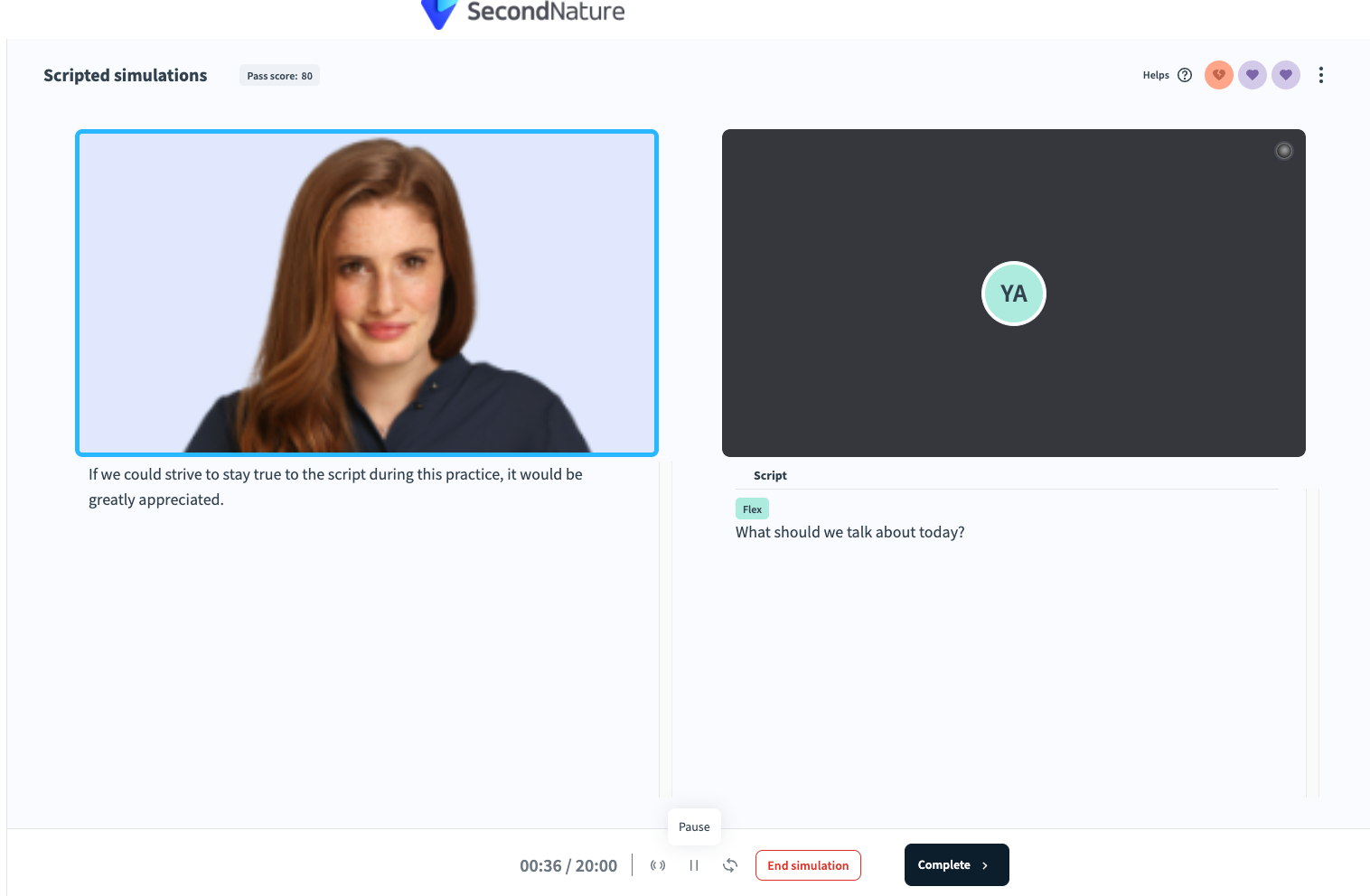
Scripted Conversation - trainees view
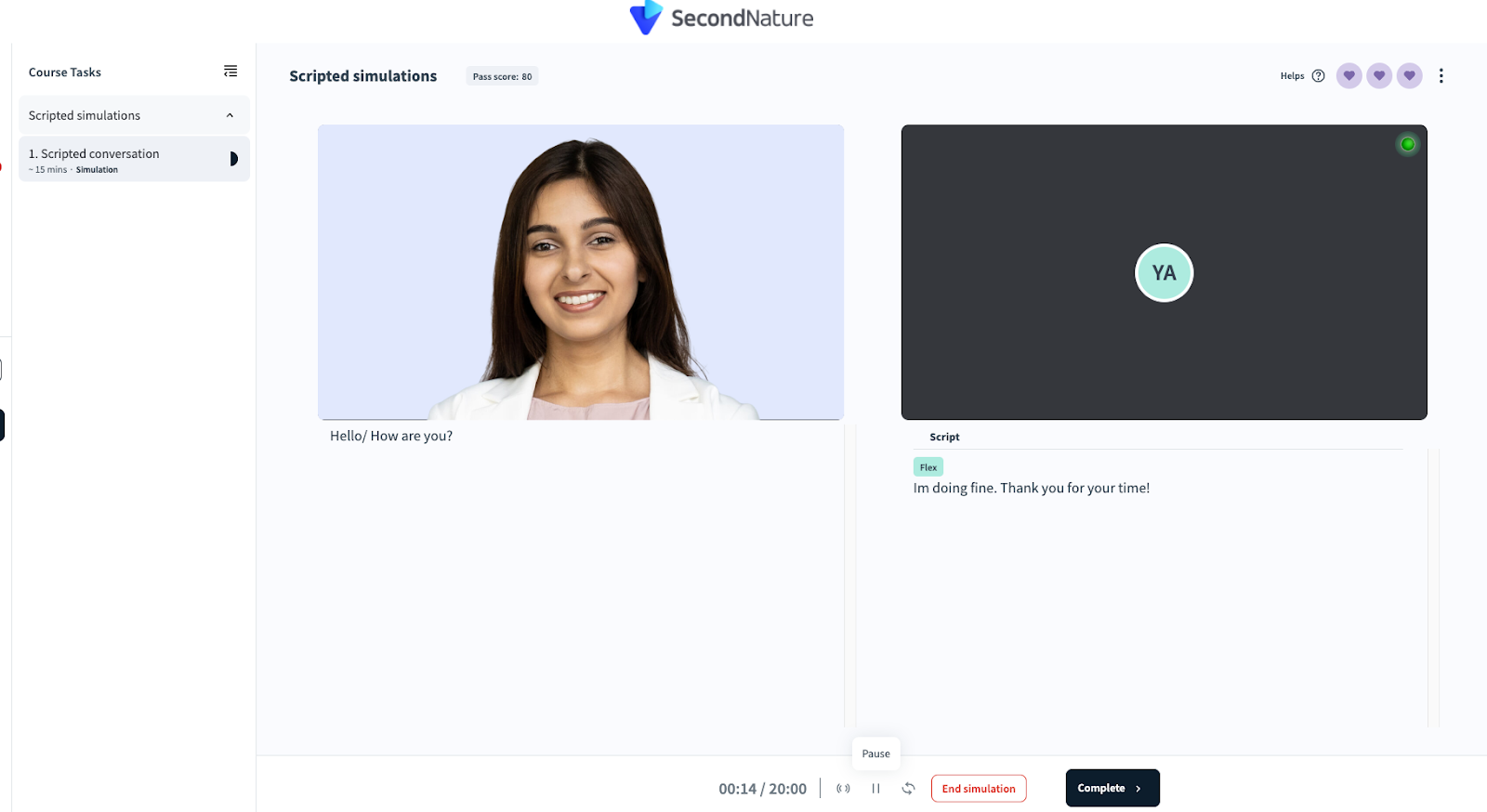
If the “Script Visibility” setting is enabled, the trainees will see their lines below their simulation feed. The remote feed (AI Persona) and local feed (trainee) are separated to provide clarity over who should speak different lines.
At the top right corner of the simulation, there are heart symbols that signify how many Helps the trainee has left. Each time a trainee deviates from their script, a Help is used and the heart symbol is adjusted from lavender to a red color.
Screenshot of a Scripted Conversation simulation: Trainee is asked to say the line “I’m doing fine. Thank you for your time!” Because the line is set to “flex,” the trainee may deviate from the exact text provided. The trainee has three Helps available.
Screenshot of a Help: The trainee deviated from their script, prompting the simulation to stop and Jenny (AI Persona) to provide assistance. A heart icon changes colors to reflect that one of three Helps was used, reducing the trainee’s score accordingly.