How to Assign a Course
Last updated: April 22, 2026
Content:
Step-by-step Guide to Assigning a Course to Trainees
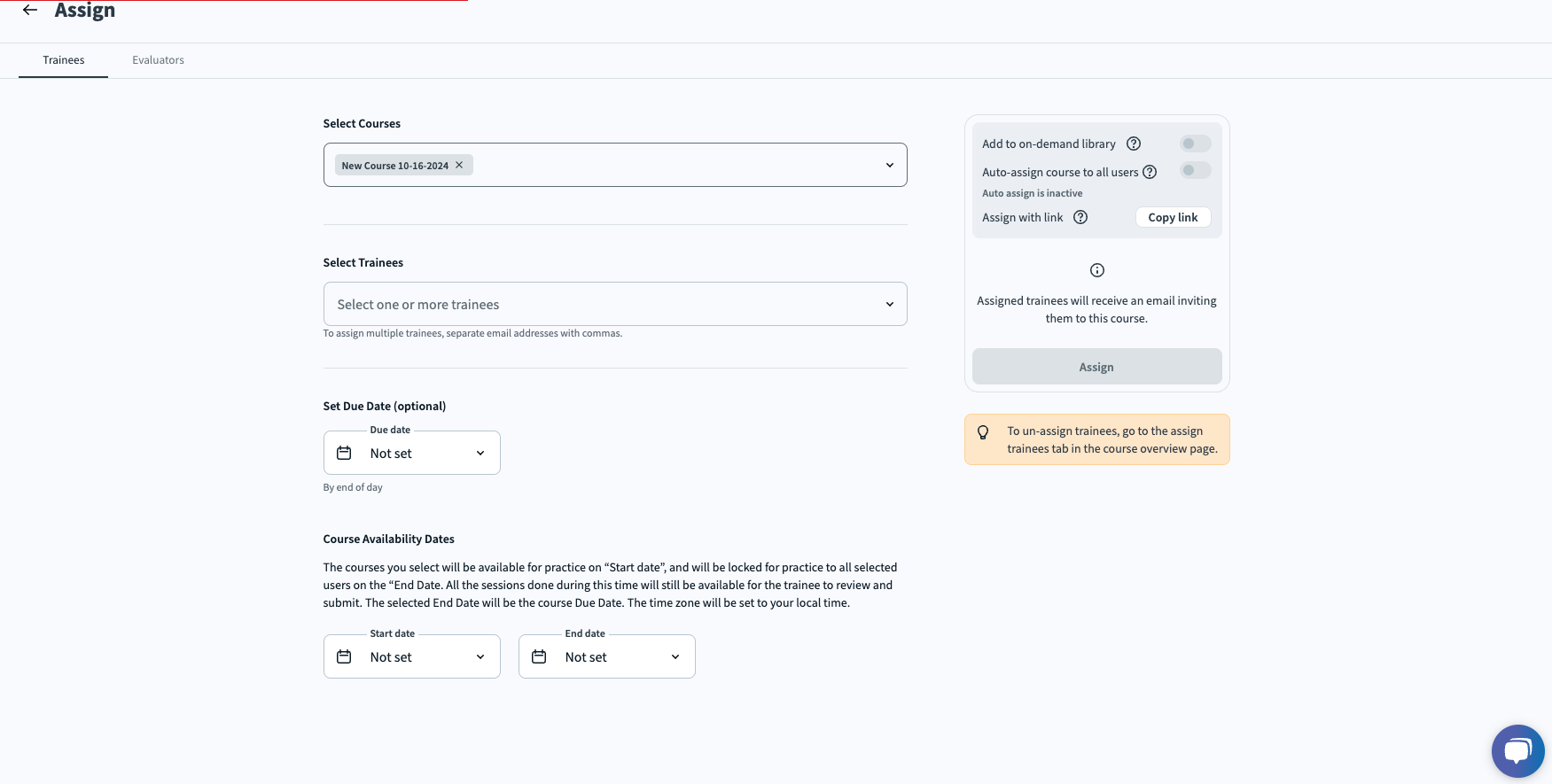
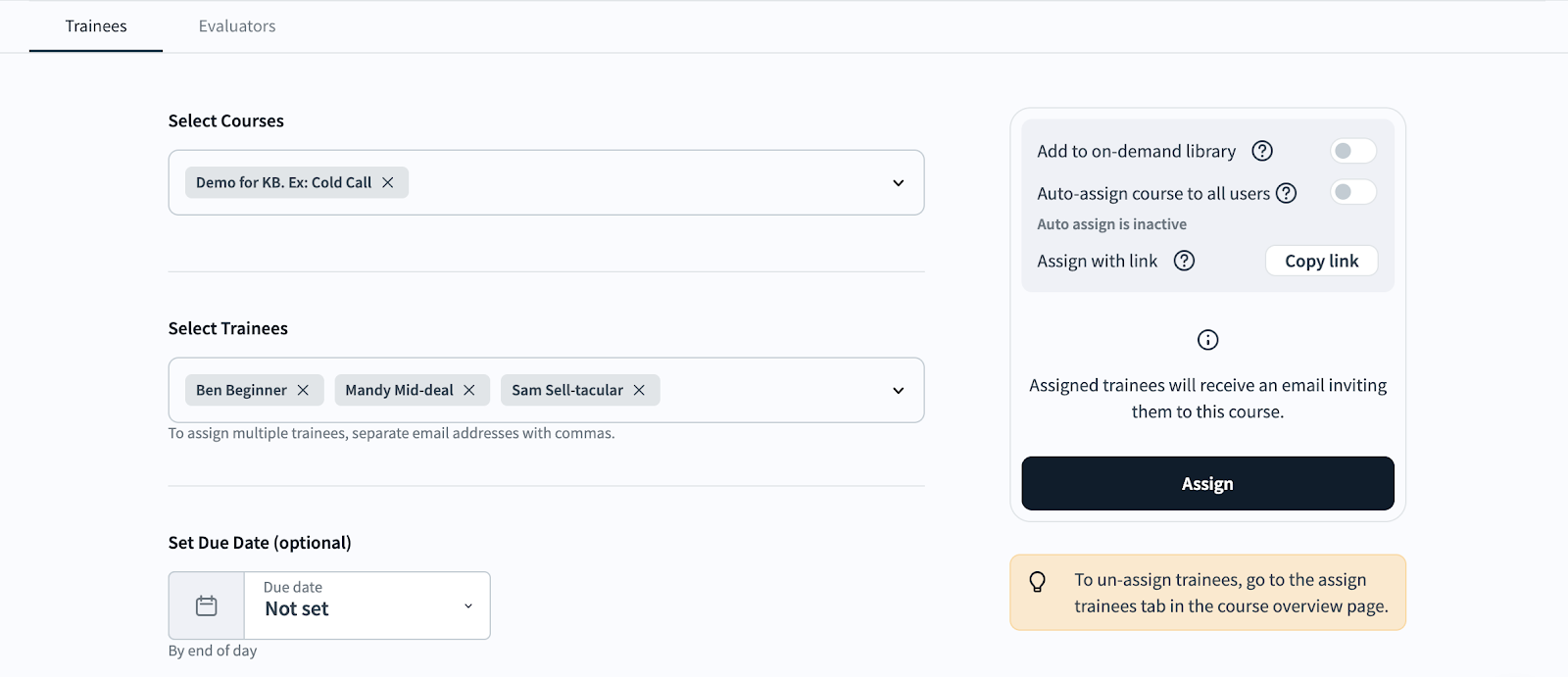
An image depicting the Assign Trainees screen before filling out:
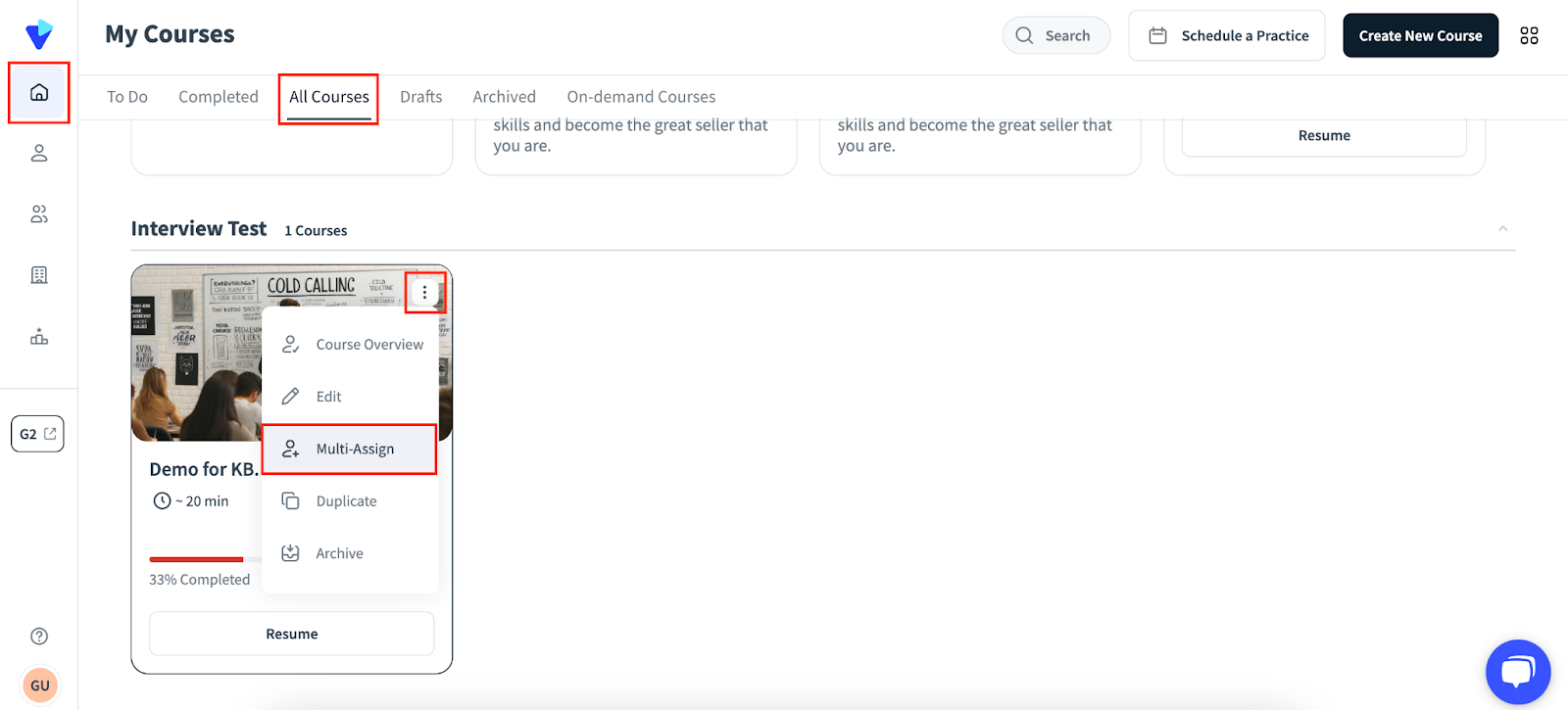
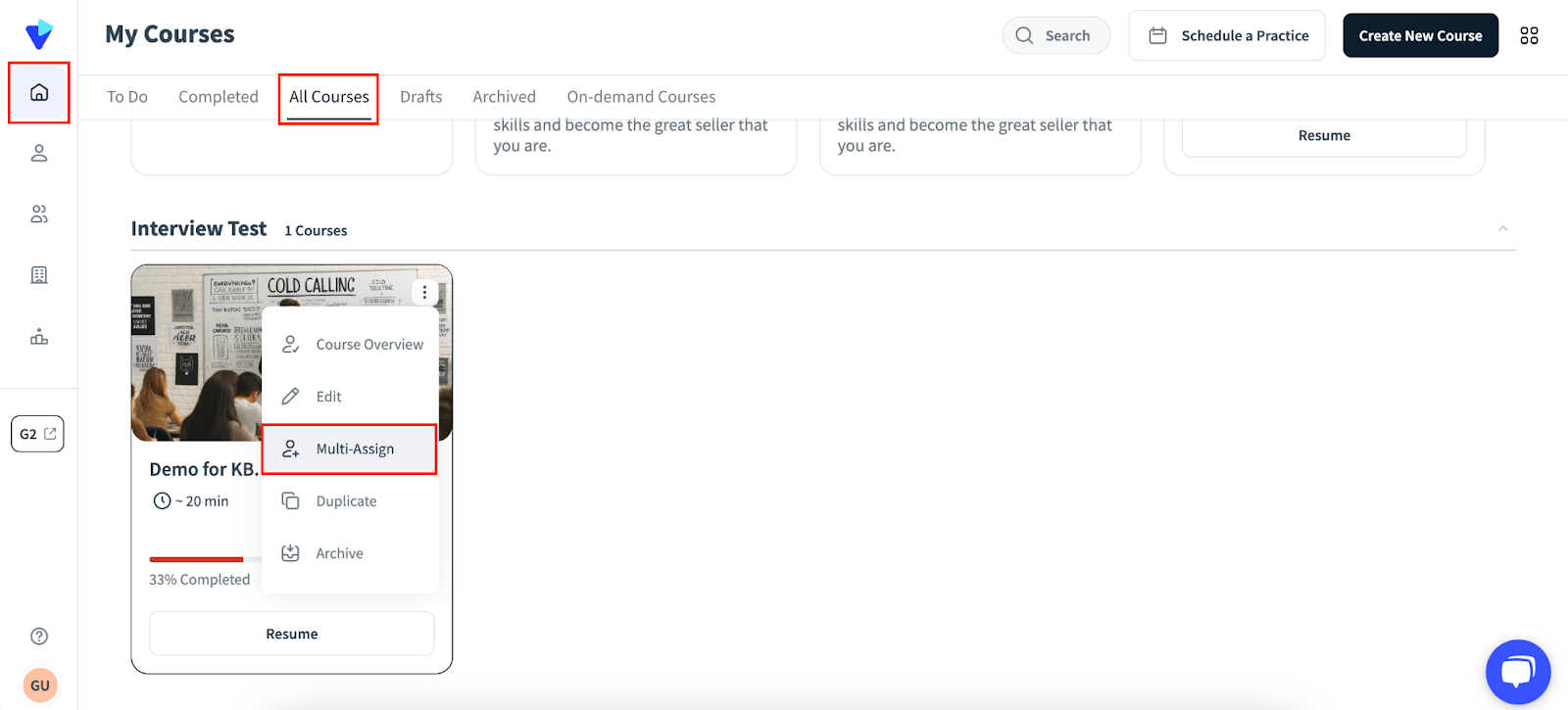
1. Immediately after creating a course, admins and course creators are directed to the Assign page. A course editor may also go to the Second Nature Homepage > All Courses tab, and then click the ⋮ (vertical ellipsis) button at the top right corner of the course they wish to assign. They can click Multi-assign to be directed to the Assign page.
NOTE:
Users without course creator (editor) permissions will not be able to modify or assign courses.
2. Use the Select Courses dropdown menu to select the course(s) that you wish to assign. If you have just completed creating a course, or selected the Multi-assign option on a relevant court, it will be selected by default.
3. Decide how you want to assign the course. Options include: a) Selecting individual users b) adding the course to the on-demand library c) Assigning the course to all users within your organization or d) assigning the course using a link.
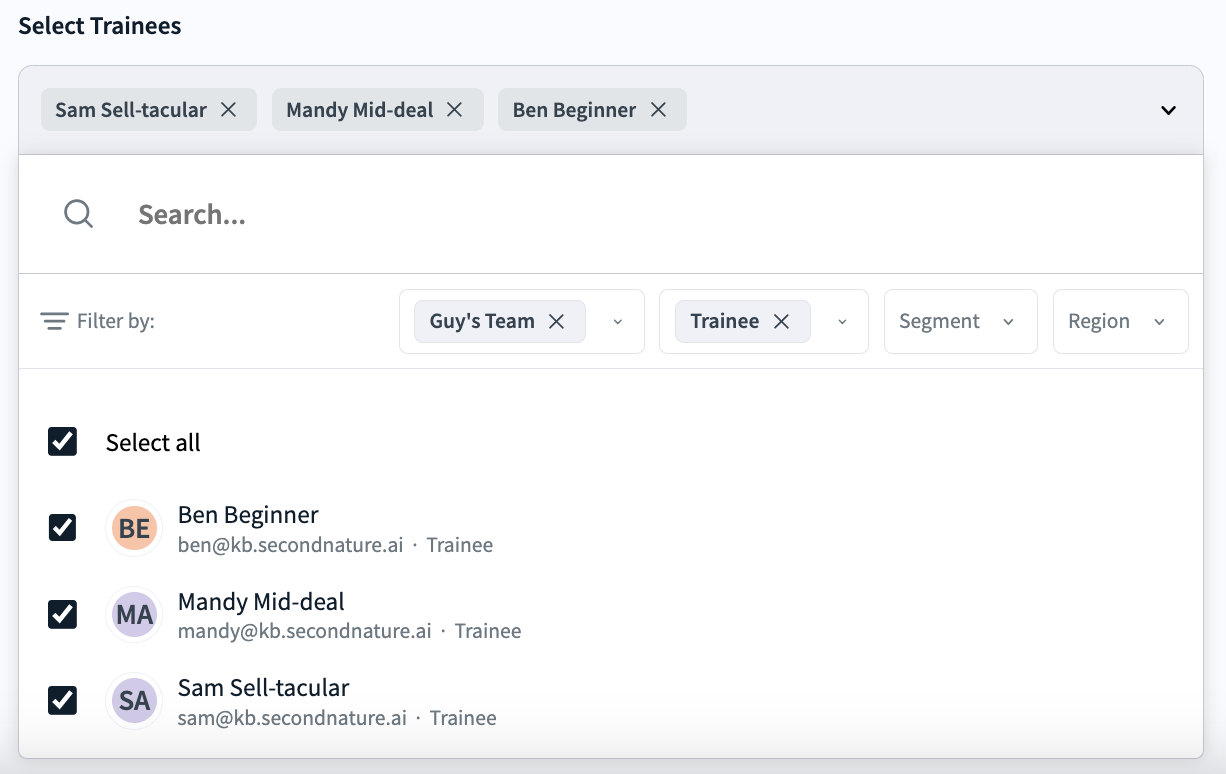
a. Select Trainees: Use the Select trainees dropdown to pick which users should complete the course by selecting their name or pressing Select all.
i. Filters are provided within this dropdown to expedite locating and selecting users based on their team, role, segment, or region.
ii. In the image below, all trainees on “Guy’s Team” will be assigned the course.
b. Add to on-demand library: On-demand courses are available to all users in your organization from the Homepage > On-demand Courses tab. Select this option if you would like trainees and managers to have access to a course without it being assigned.
i. On-demand courses typically lack a due date. They are used in place of assignments.
c. Auto-assign course to all users: Select this option to quickly invite all users within your organization to complete the course, rather than selecting users individually. Trainees added to Second Nature retroactively will be assigned the course, unless it is archived. This option will not send users an email notification.
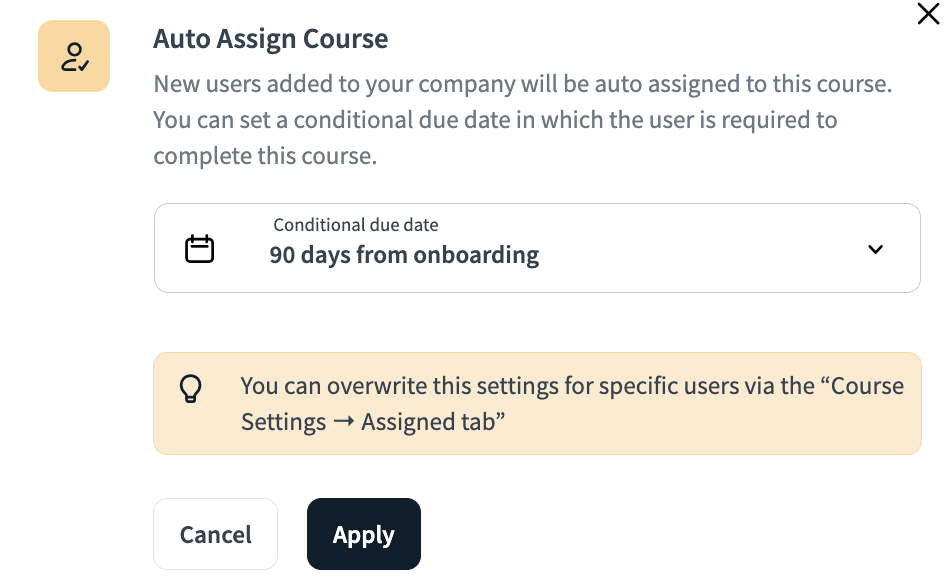
i. Upon selecting this option, a popup will ask for the due date. For example, in the image below the “90 days from onboarding” option is selected. If a Second Nature user is created next week, they will have 90 days following their account creation to complete the course.
d. Assign with link: Use this option to receive a link that you can send via email, slack or another messaging service to relevant users. This can be used in addition to or as a replacement to selecting trainees (option a).
i. If only the “assign with link” option is selected, then no particular user is assigned to the course. Instead, eligible users will get assigned the course by clicking the link.
ii. Press the Copy link button to add the course link to your clipboard for sending.
WARNING:
Users without Second Nature accounts or without access to your team may not be assigned courses and will not be able to see a link to a course.
4. If you would like users assigned the course to complete it before a specified date, use the Set Due Date selector to mark when the course is due. This will not apply to on-demand courses.
i. In the example depicted below, users who were assigned the course should have it completed before March 15, 2025.
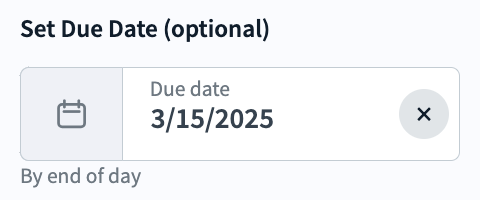
An image depicting the "Demo for KB" course being assigned to Guy’s Team (three users) with due date of March 15, 2024. The course creator can also send the link to additional Second Nature users, who will have the same March 15 due date once they click the link.
5. Course Availability Dates - The Course Availability Dates feature allows editors, admins, and managers to set start and end dates for courses.
On the start date, the course will be assigned to the user.
On the end date, the course will be unassigned for the user. The end date will act like the due date and 3 days before the end date, the user will get an email notification.
Sessions will remain available after un-assignment (only if the new tables are activated).
This feature supports customers using the system for cohorts, enabling them to set up courses in advance.
You can view and edit the availability dates on the course overview page.
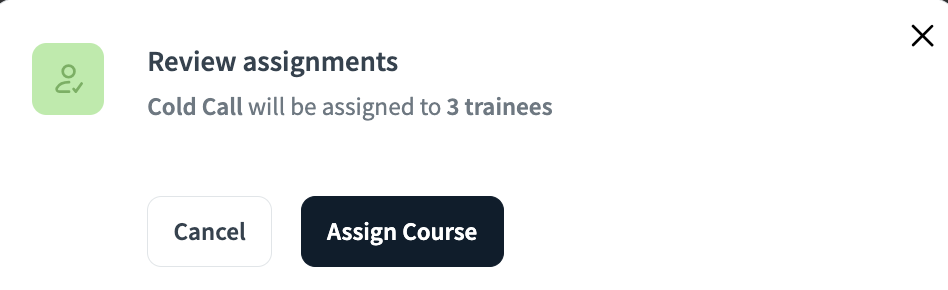
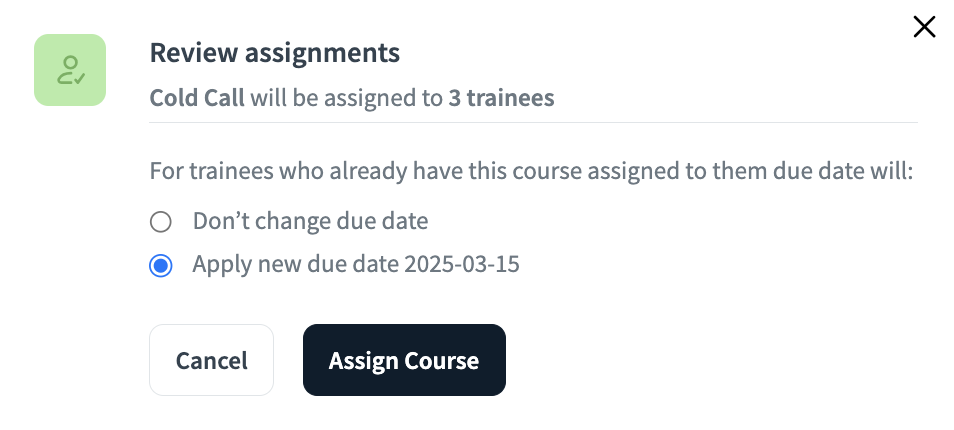
6. Once you are satisfied with your course assignments, or have opted to make the course available on-demand, press Assign. A popup will appear asking for you to confirm your selection. Press Assign Course once more to complete the process.
i. This popup will be contingent on whether you are assigning a due date for the course or not. Images depicting both types of popup message are shown below. In the case where there is a course due date, select the option to apply the due date before pressing Assign Course.
Step-by-Step Guide to Assigning Course Evaluators
Course Evaluators listen to sessions that are submitted by trainees, in order to provide a score and evaluation of how each topic was covered during the session.
NOTE:
Courses must have manual evaluation configured during course creation for evaluators to be assigned. See “Creating a Course” for more information.
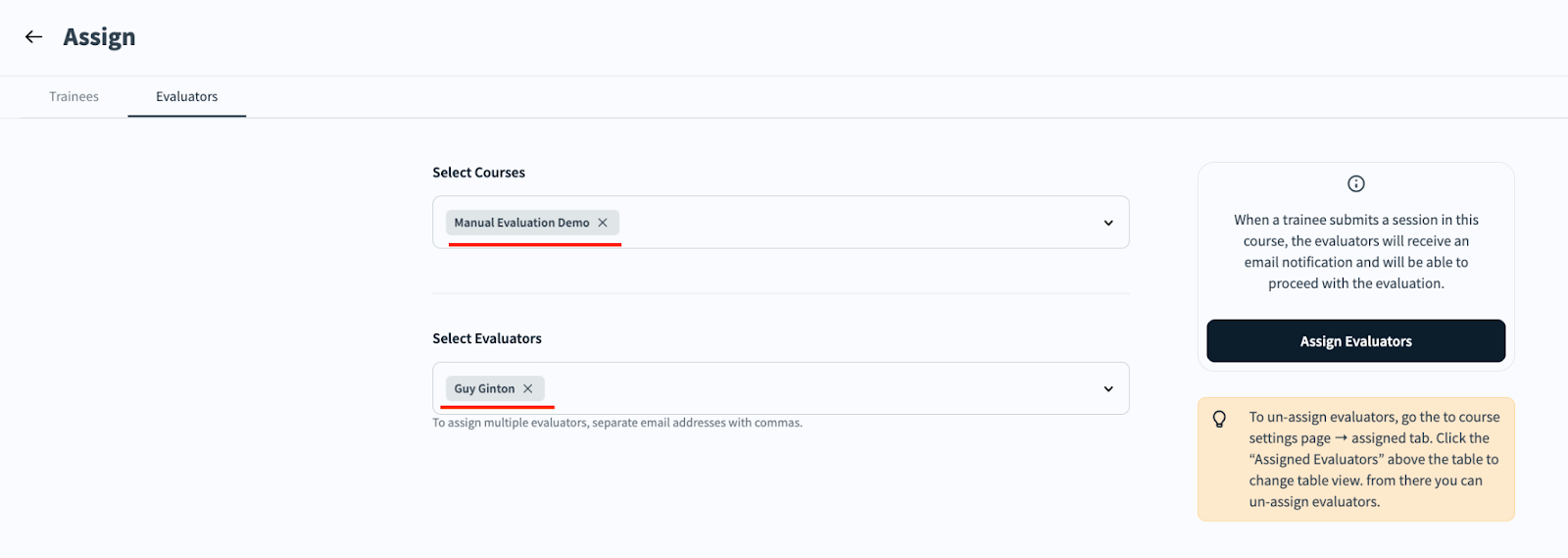
If a course was not set up for manual evaluation, the name will appear in red (see image below):
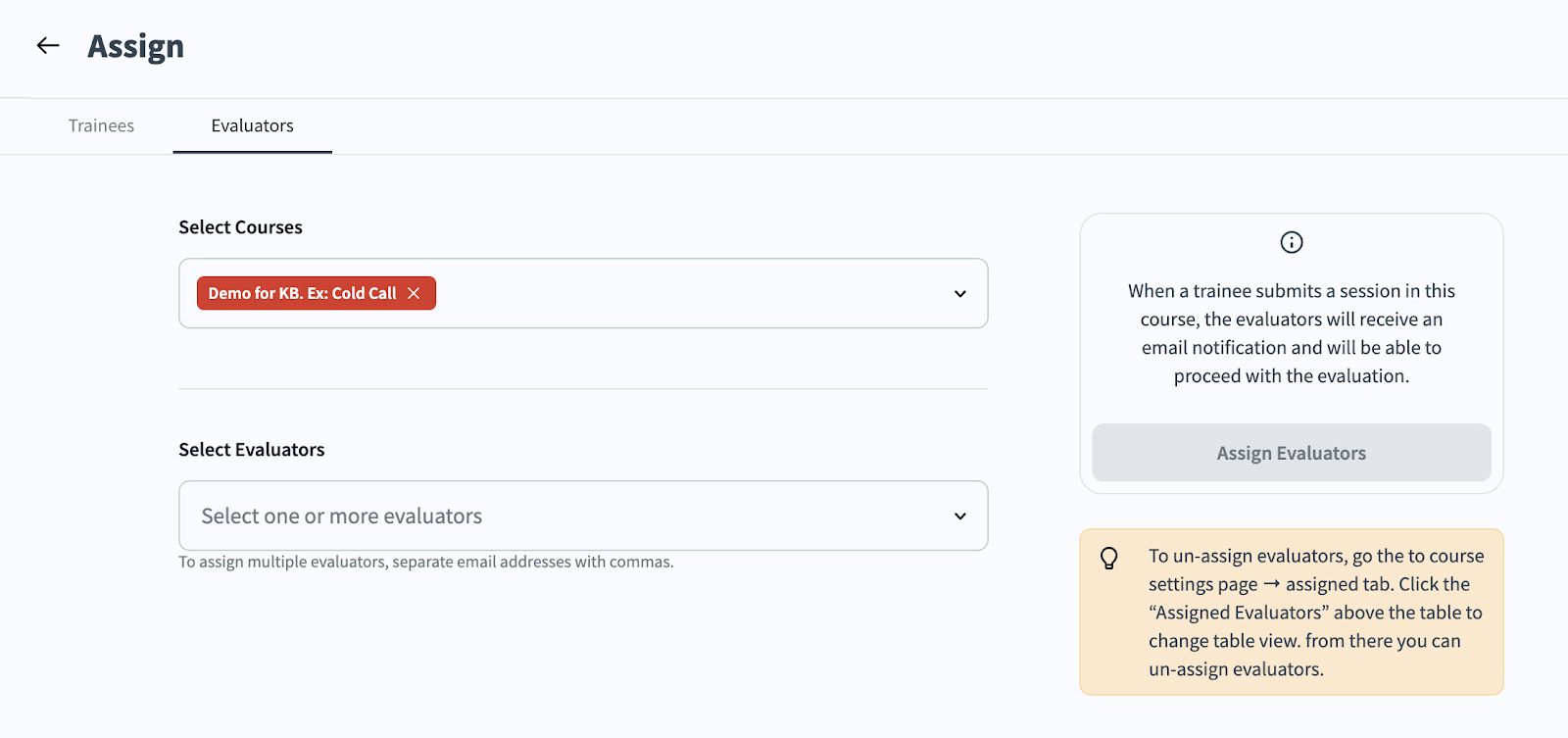
1. Course editors may reach the Assign Evaluators page by creating a course and then clicking the Evaluators tab, or by going to the Second Nature Homepage > All Courses tab, clicking the ⋮ (vertical ellipsis) button at the top right corner of the course they wish to assign, clicking Multi-assign, then clicking the Evaluators tab.
2. From the Assign Evaluators page, you may modify the Select course list to add or remove courses you would like to apply changes for.
3. Use the Select Evaluators dropdown menu to define who should grade the sessions.
a. Multiple users may be selected for grading a session.
4. Press Assign Evaluators to finalize your selection.
Image depicts Guy Ginton as the Evaluator, with the course name in gray (not red) because it is eligible for manual evaluation: