AI Persona Setup and Conversation Opening
Last updated: April 22, 2026
Overview
This guide relates to the configuration of your AI Persona during a simulation. There are two sections:
AI Persona Setup
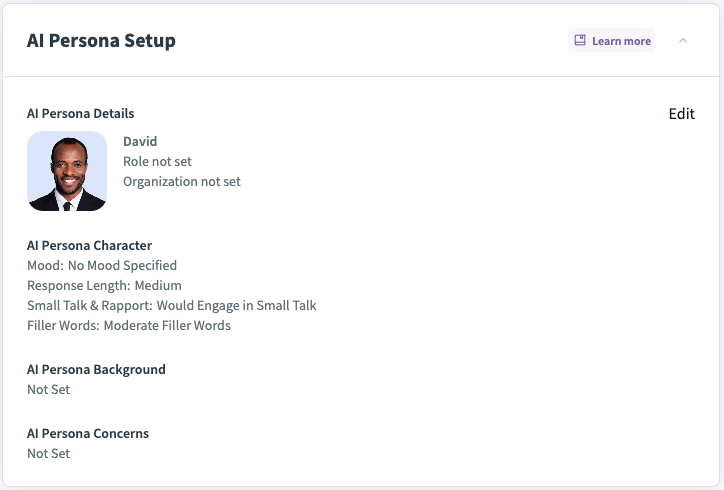
Go to the AI Persona Setup section.
You will see a default persona that was randomly selected.
Select the "Edit" option [top right] to modify or add to any aspect of the persona (including details, character traits, background, or concerns).
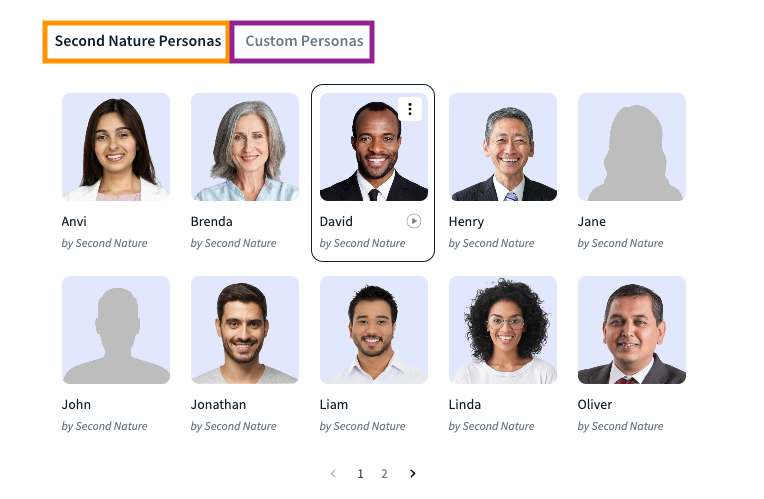
A preview of the AI Persona will be visible with two tabs: Second Nature Personas [orange rectangle] and Custom Personas [purple rectangle]. Second Nature Personas are a set of pre-defined default personas.
Hover over the AI persona’s card to reveal more options:
a. Hover by the AI persona’s name to see a play button. Press the play button to hear what the corresponding AI Persona will sound like.
b. Hover by the top right corner of the AI persona’s card to reveal a ⋮ (vertical ellipsis) button. Press ⋮ Duplicate to duplicate a default AI persona.
NOTE:
Second Nature Personas can not be modified or deleted. A course creator can only delete custom personas in the following cases:
They themselves created the persona. You cannot delete a persona that a different course creator in your company has made.
The persona is not used in a live simulation. Before trying to delete a persona, be sure to archive any simulation that uses their likeness.
AI Persona details
In the AI persona details section, course creators can fine-tune their AI persona profile components
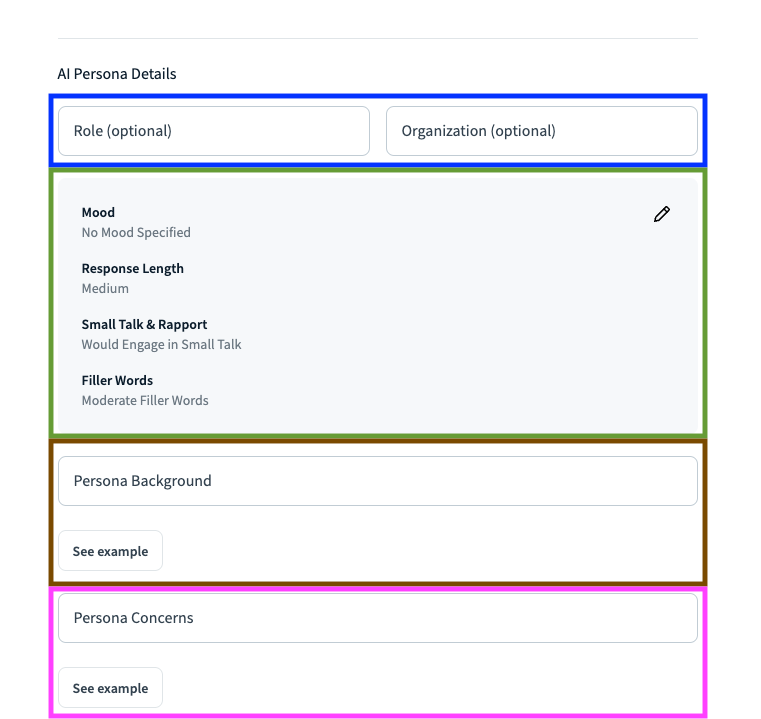
Role and Organization [blue rectangle] - Sets the role and the company of the AI persona.
Persona Communication Style [green rectangle]- sets different aspects of how the AI persona will communicate :
Mood - Sets the persona's mood during the simulation
Response length - Sets the sentence length type of the AI persona
Small Talk & Rapport - Sets the AI persona's willingness for small talk
Filler Words - Sets the filler words frequency of the AI persona
Persona background [brown rectangle]- Sets the background of the persona. This information will help contextualize the simulation and will provide meaningful inputs to make the simulation as realistic as possible. Background can be the AI persona, previous work experience, attitude, etc. You can see an example of a persona background prompt in the "See example" box.
Persona concerns [pink rectangle] - Defines the key issues or priorities of the persona. These concerns shape the persona's perspective and decision-making process, adding depth to the simulation and making interactions more authentic. Concerns can include professional challenges, personal goals, ethical considerations, or specific industry-related worries. You can view an example of a persona concerns prompt in the "See example" box.
TIP:
If you are getting ready for a real call, you may wish to adjust the AI persona name, role and organization to match the call.
Edit Persona / Create New Persona
You can find the "Create new persona" option in the "Custom Personas" section
When clicking the "Duplicate" option in the "Second Nature Persona" section or "New Persona" in the "Custom Persona" section , a new window opens [example here is given for the "Create new persona" window but also applies for "Edit persona"] :
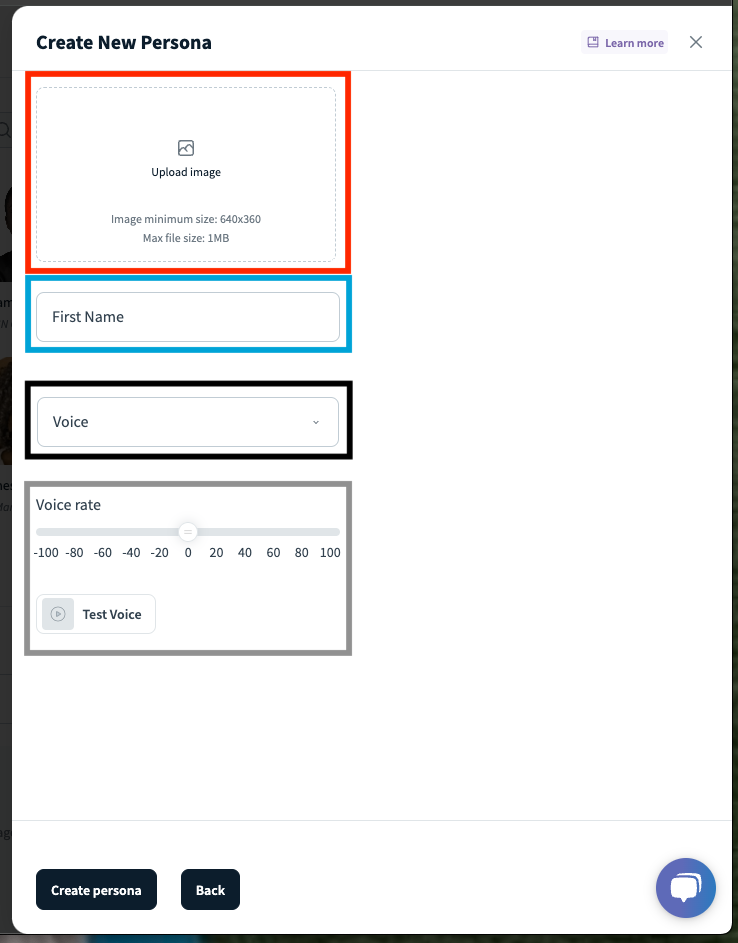
Upload image [red rectangle] - Users can upload new images for the AI persona
First Name [turquoise rectangle] - Sets the first name of the persona
Voice [black rectangle]- sets the voice of the persona. Voices are configured according to Gender, Age, and Accent.
Voice rate & test [grey rectangle]- Sets the choice rate and enable to test the voice before creating the persona
Click "Create Persona" / "Save changes" when all changes are applied.
Click "Done" [top left corner] once the AI persona for the simulation is ready.
Conversation Opening
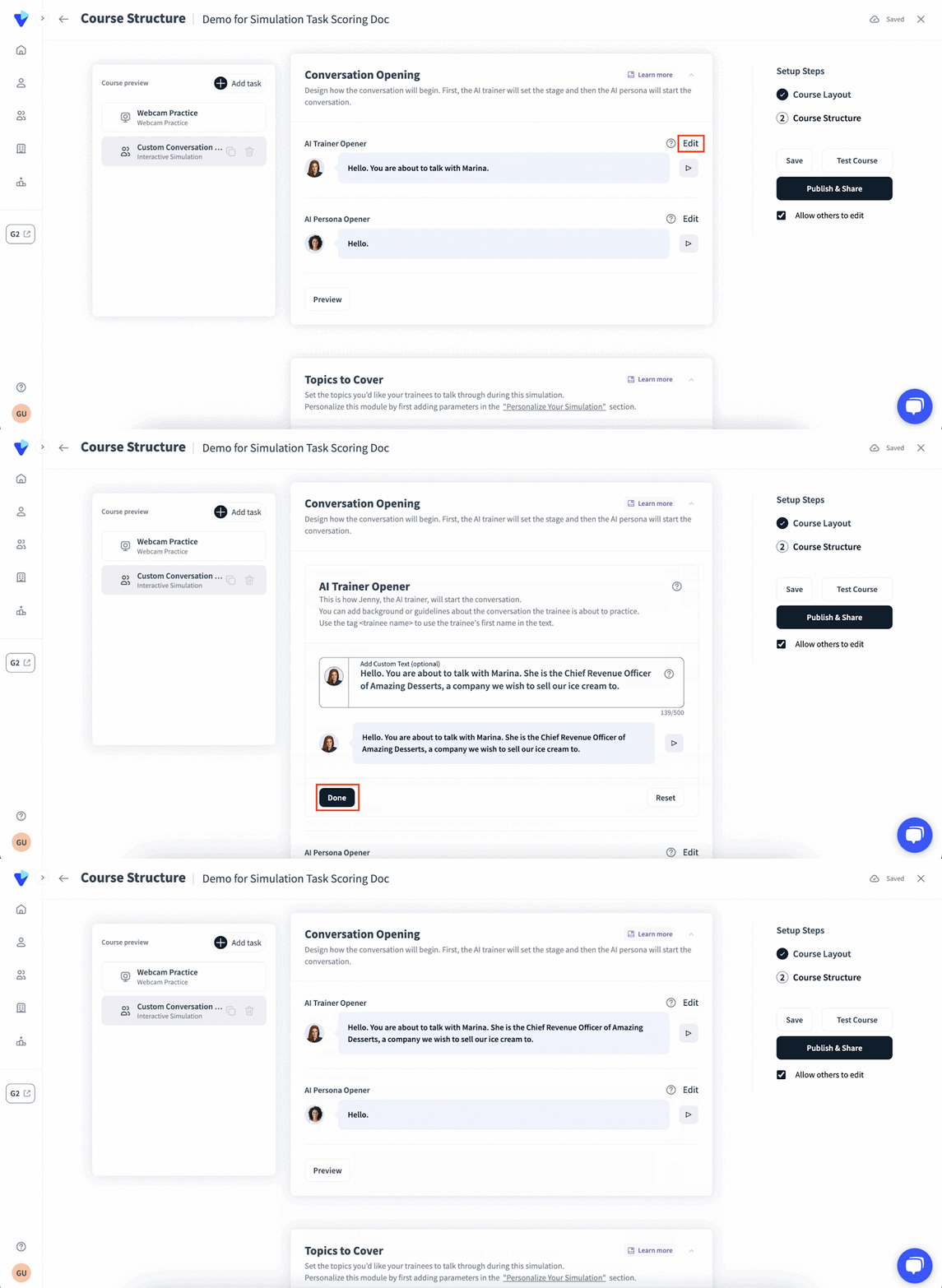
Within the Conversation Opening section, you may preemptively decide the lines that your AI Persona will say to introduce your simulation's context, as well as the first lines your AI persona will reply after the trainee greets them.
Click Edit next to the AI Trainer Opener and/or AI Persona Opener fields to set the opening lines. Press Done when you are satisfied with the text change.
In the GIF below, the opening text for the narrator, Jenny, is adjusted.